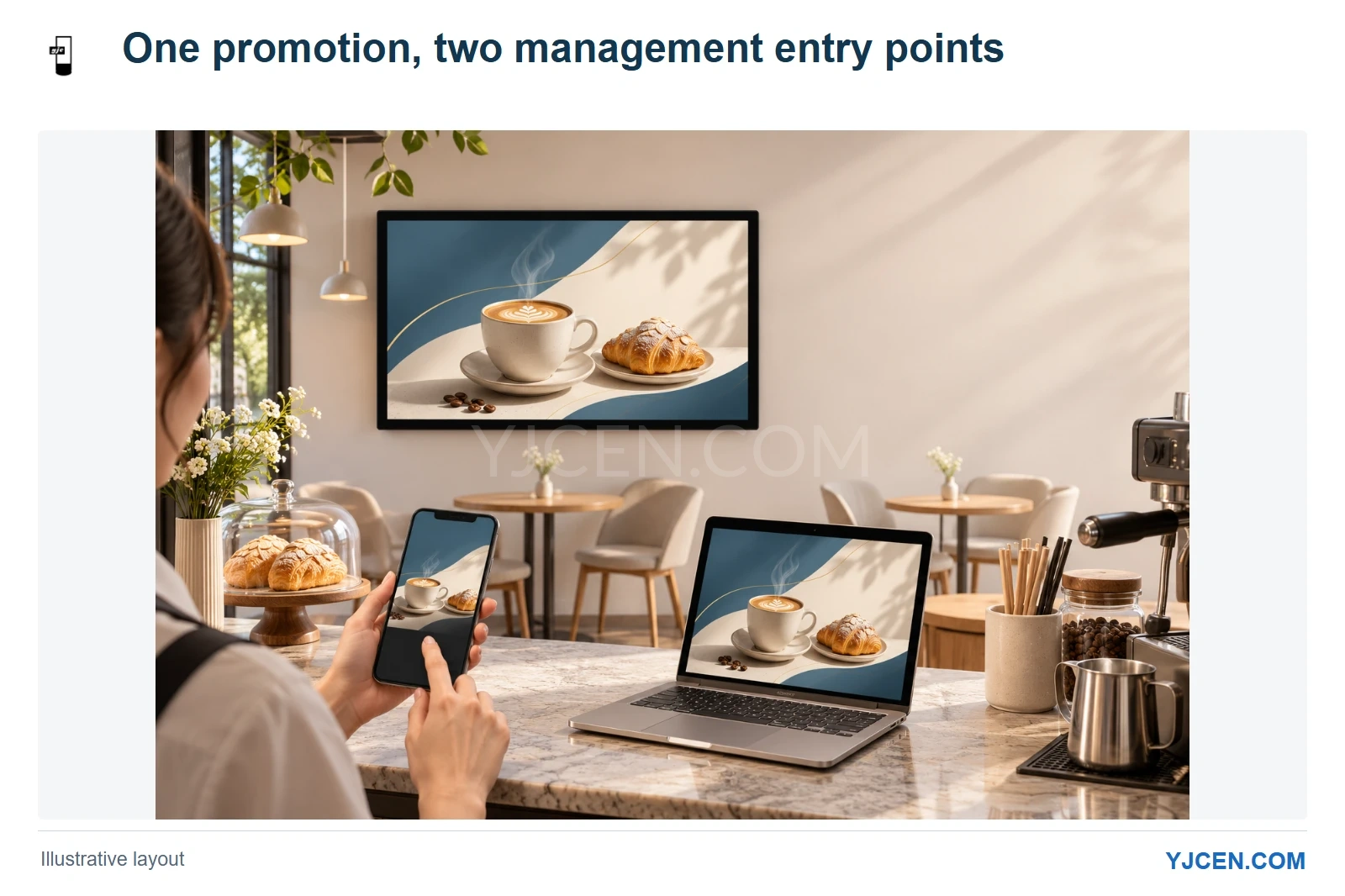
Staff can use the mobile CMS app or a computer browser to prepare remote content updates. The image illustrates that workflow; the artwork is not a screenshot of the CMS.
You can update advertising on a connected YJCEN Android display from a phone or a computer, without visiting the screen. Our Android configurations of Indoor Digital Signage include a cloud CMS with a mobile app and a computer-browser management route. We would choose the daily working method around who prepares the content, how many screens need it and when the promotion should run.
Should staff use the phone app or a computer?
The phone app is useful when the person updating the display is moving around the premises and already has the approved artwork or video on the phone. It avoids making a visit to a separate office computer part of every content change.
For someone organizing several offers, images and videos, we would use the computer browser as the main working space. The larger screen makes it easier to compare files and prepare a playlist; the phone remains another management entry point rather than a different display system.
Both routes provide access to remote content management. Choose the convenient working device, then keep the same attention on the target screen and playback time.
| Daily situation | Our suggested working route | What to organize first |
|---|---|---|
| One approved promotion is ready on a staff member’s phone | Mobile CMS app | The correct target screen and intended promotion period |
| A team is arranging several images and videos | Computer browser | File versions, playlist order and playback schedule |
| Several locations share some advertising but also have local offers | A consistent management process using either entry point | Which content belongs on which devices |
How does a promotion get from a file to the screen?
Our CMS supports image and video uploads, playlists, scheduling and continuous-loop playback. A practical update starts with the finished promotion file, continues with the content sequence and timing, and ends with the intended connected device receiving the update.
For a shop replacing a weekend offer, we would keep the offer artwork separate from its continuing brand video. The offer can then change without redesigning every item in the loop, and its intended date range stays clear to the person managing the screen.
Prepare the artwork for the display’s actual orientation. Our indoor range supports portrait and landscape installation, so a vertical promotional layout and a wide menu layout need appropriately composed files. Account for viewing distance, text and layout when designing and publishing digital signage content.
Use this sequence for each planned promotion:
- Prepare the approved images or videos for the screen orientation.
- Use the mobile CMS app or computer browser to upload the media.
- Arrange the playlist and the required playback schedule.
- Choose the intended device or devices for the update.
- Check the displayed offer and timing at the destination before treating the change as complete.
How should several screens be organized?
Several advertising displays can be managed from one account, including content updates and scheduling. That gives a business a common management entry point while allowing the content plan to reflect each screen’s job.
We would decide which messages are shared before arranging the devices. A chain-wide brand video may belong across the installation, while a price, opening time or location-specific event belongs only on the relevant screens.
For example, one branch may promote a local service while the other branches keep the standard offer. Map that distinction to the target devices before uploading new artwork, so a convenient central account does not become a reason to send every file everywhere.
Managing devices together describes the update workflow. If your project requires videos to stay precisely synchronized across screens, include that separate playback requirement when we discuss the system configuration.
What connection does remote updating need?
Remote content updates use an internet connection. Our indoor display configurations offer Wi-Fi and LAN, so we would choose the network route with the installation position: wired networking suits a fixed wall position with a planned cable route, while Wi-Fi can suit locations where a suitable wireless network is available.
Keep content preparation and screen connectivity in the same project plan. The person uploading an approved file may be elsewhere, but the display still needs the network path that lets it receive that update.
Is the CMS included, or is there a monthly fee?
The cloud CMS supplied with our Android display configurations is free, with no subscription or additional monthly CMS fee. Account numbers are not limited, and one account can manage multiple devices.
That makes it sensible to plan the management workflow while selecting the Android display configuration, instead of leaving the business to discover how to change its advertisements after installation. This included service is for signage content management; a customer-selected ordering, payment or other specialist application is a separate software choice.
Questions about remote signage updates
Can I change the advertisement from a phone?
Yes, the mobile CMS app supports remote advertisement uploads and updates. The target display needs an internet connection to receive the remote change.
Can the same account manage several displays?
Yes, one account can manage multiple displays, including content updates and scheduling. Plan which offers are shared and which belong only to selected locations.
Do I need a computer beside each display?
No, our CMS supports remote management from a phone or computer. The display’s Android system runs the signage configuration, and the management device can be elsewhere.
Plan who will update your screens
Planning remote updates for one shop or several locations? Tell us the screen quantity, which promotions should be shared, who will update them and how the screens will connect to the internet. We can discuss a YJCEN Android display and included CMS arrangement around that workflow, so your team knows how it will change content before the screens are installed.