How do kiosks change customer service?
Kiosks move some routine browsing and ordering steps to a customer-operated screen. Staff still handle assistance, exceptions and the wider service process.
- Map the journey from selection and review to payment and collection.
- Separate hardware choices from software, payment and POS integrations.
- Keep a staffed route and clear procedures for failed or incomplete transactions.
- Pilot the workflow and measure order completion, collection time and support needs before expanding.
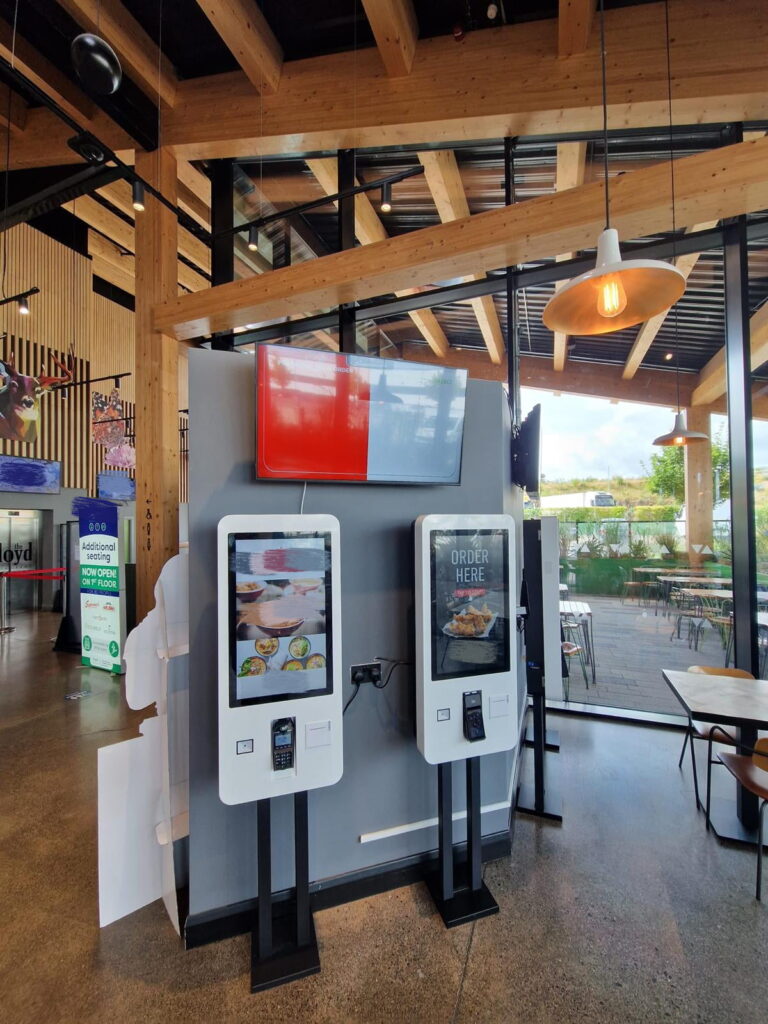
From One Counter to Several Service Points
A staffed counter combines several tasks: answering questions, taking orders, handling payment and directing customers. A kiosk can take on some of those routine steps. Staff can then help with questions and exceptions.
The key change is the service layout, not just the screen. Decide which tasks move to self-service and which stay with staff. Keep the route between them clear so customers do not have to restart a task.
Make the Starting Point Obvious
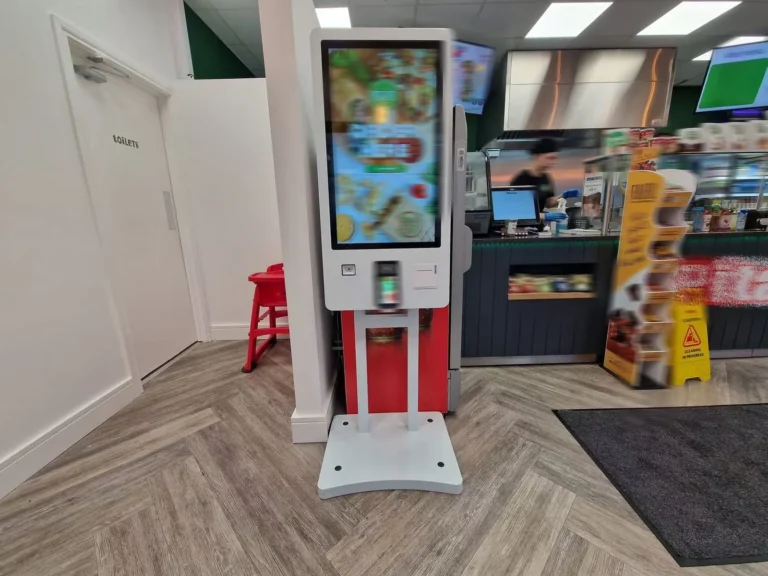
Customers should know what the terminal is for before using it. Label an ordering kiosk as an ordering point. Show where to get help and where to go after completing the task.
A screen that looks like an advertisement may not be recognised as an ordering terminal. Use a clear start page and short instructions. Check the view from the entrance rather than only from directly in front of the screen.
Keep a Staffed Route Available
Some customers prefer personal service or need help with the interface. Do not assume a preference based on age or appearance. Let people choose an appropriate service route where the operation allows it.
Staff should be able to explain the next step without taking over every interaction. A visible help point and a consistent process are more useful than a screen with many instructions.
Build a Clear Customer Journey
For restaurant ordering, map the journey from menu browsing to collection. Each screen should answer one question: what can I choose, what is in my order, how do I pay, or what happens next?
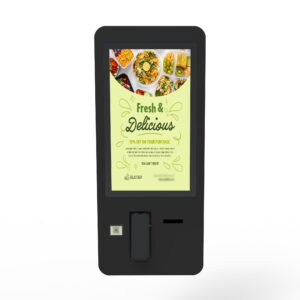
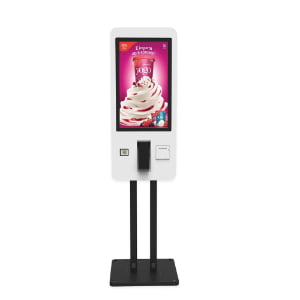
A restaurant self-service kiosk provides the hardware for that journey. The selected software controls the menu, basket and checkout flow. Confirm the complete setup rather than judging it only by the display.
Browse and Select
Keep category names short and consistent. Show product images that match the items offered. Explain any options and added costs before the customer reaches payment.
If the menu supports substitutions or extra items, test them with the kitchen process. A choice on the screen is useful only when staff can fulfil it. Do not offer options that the connected system cannot handle correctly.
Review Before Confirming
Give customers a readable order summary. Make it easy to remove an item, change a quantity or return to the menu. This offers a chance to catch an unwanted selection before submission.
Digital ordering can reduce some spoken misunderstandings, but software and content errors still occur. Test prices, options and the order received by staff. Do not describe the system as eliminating all order errors.
Explain Payment and Collection
Show only payment methods supported by the configured system. Make success, cancellation and failure messages distinct. Tell the customer whether an order has been placed and what to do next.
After checkout, show the agreed order reference and collection instructions. Confirm any printed ticket or on-screen status with the chosen software. Do not assume that text notifications, live wait estimates or receipt printing are included.
Connect the Kiosk to Staff Work
Self-service changes staff tasks rather than making them disappear. Employees may spend less time entering routine choices but more time helping users, checking exceptions and managing collection.
Plan these tasks before launch. Give the team clear responsibilities and test the service process during a realistic busy period. A working screen is not enough if staff do not know what it sends or how to respond.
Check Ordering Capacity and Kitchen Capacity
Several terminals can add several ordering points. One terminal is normally used by one customer at a time. More orders can also mean more pressure on the kitchen or collection counter.
Review the whole queue. Measure time to place an order separately from time to receive it. If preparation is the main delay, adding an ordering screen may not solve the problem.
Prepare for Exceptions
- Decide how staff help a customer who cannot complete an order.
- Define what to do if a payment result is unclear.
- Agree how to handle an unavailable item after an order starts.
- Keep a fallback route when required functions are offline.
- Record which team owns hardware, software and payment support.
These steps should be short enough for staff to use during service. Avoid relying on a technical manual as the only customer-support plan.
Separate Hardware Features from Software Features
A touchscreen, computing platform, printer and payment module are hardware choices. Menu editing, order routing and reports are software functions. A project may need work on both sides.
Ask the supplier to list what is included, optional and supplied by another party. A product photograph or general description does not confirm every function in the final installation.
POS and Kitchen Connections
A point-of-sale system, or POS, records transactions and may manage menu data. A kitchen display can show incoming orders. Connections between these systems and the kiosk depend on supported software interfaces.
Confirm the exact systems and versions. Test where prices are updated, how orders arrive and which payment status staff see. Do not assume that stock, loyalty data or all kitchen steps synchronise automatically.
Payment Setup
Payment depends on the selected device, provider and software. Confirm supported methods for the destination market and the responsibilities of each provider. Use the agreed testing process before live service.
Keep the customer’s on-screen message aligned with the transaction result. Define how staff check a mismatch. Hardware alone should not be described as guaranteeing secure processing or automatic financial reconciliation.
Network and Offline Behaviour
Check network coverage at the installed position. Confirm which functions need a live connection and what remains available during an interruption. Some software may retain content locally, but that does not prove payment or ordering can continue offline.
Do not assume that battery backup or automatic recovery is included. Ask the supplier to describe the actual behaviour of the selected setup. Plan staff service around those limits.
Use Digital Menus and Offers Responsibly
The chosen software may let a business change menu items and offers without replacing printed material. This can be useful when content changes often. It still requires someone to check the information before it goes live.
Keep prices and availability consistent with the restaurant’s approved source. If a chain uses central control, confirm who may make local changes. Test the approval and publication process.
Make Optional Extras Easy to Understand
Show the full added price and let customers decline an offer easily. An extra item should not be preselected in a confusing way. Review whether prompts help customers or slow the ordering flow.
Do not promise that screen-based suggestions will increase average order value. Measure the result in the actual operation. Sales can also change because of pricing, demand or promotions outside the kiosk.
Do Not Add Unconfirmed Smart Features
Personal recommendations, voice input and mobile integration are features to verify with the software provider. They are not standard simply because a terminal has a touchscreen or runs a modern operating system.
A display that shows a marketing message does not automatically identify viewers or learn their preferences. Describe only the functions included in the chosen project scope.
Plan Accessible Use and Daily Care
Check the approach space, screen reach, payment area and receipt outlet with intended users. The full installation and interface matter. Do not label a kiosk accessible based only on one hardware feature.
Use readable text, clear contrast and a way to get help. If multiple languages are required, confirm them in the software and review the actual menu translations. Keep terminology consistent across ordering and collection.
Shared Screens Need Cleaning
A touch-operated kiosk is not contactless. Follow the manufacturer’s cleaning instructions and the site’s normal cleaning schedule. Do not assume special surface coatings or touchless controls unless they are specified.
Keep service access clear. Staff should know how to report damage or a faulty accessory and when to stop using the unit. Use approved support steps rather than opening or altering equipment without guidance.
Handle Food Questions through the Agreed Process
A menu may display ingredient information if the software and restaurant content support it. Keep that information under the restaurant’s normal review process. Make it clear when customers should speak to staff.
Do not present filters or customisation as a guarantee for a dietary need. Confirm how special requests are handled by the restaurant rather than assuming the kiosk can resolve them.
Pilot the Service Before Expanding
Start with a defined goal and a manageable deployment. Document the existing service process, then test the proposed kiosk route. Review both normal orders and exceptions before expanding.
Measure Practical Outcomes
- Time spent placing an order.
- Time from confirmation to collection.
- Orders that need staff correction or help.
- Incomplete transactions and the reasons reported.
- Staff time spent on menu updates and support.
Compare similar service periods. Note changes in staffing, menu, promotions and demand. This helps separate kiosk effects from other changes at the business.
Budget for the Full Operation
Include hardware, mounting, installation, software, integration and training. Add ongoing licences, support and routine care. Confirm what each quote includes before comparing prices.
A kiosk does not make longer opening hours profitable by itself. Food preparation, staffing, safety and customer demand still determine whether the service can operate. Use your own costs and results instead of a generic payback promise.
Expand with a Repeatable Setup
For a chain, record the approved hardware, software version, menu setup and support contacts. Confirm whether central publishing and local overrides are supported. Test changes before sending them to more sites.
Use feedback from the first location to improve the next one. The goal is a service process staff can support and customers can understand, not simply a higher screen count.
Frequently Asked Questions
Do kiosks replace staff?
They can handle selected routine tasks, but staff still support customers and manage preparation, collection and exceptions. Plan responsibilities for the actual service model.
Will customers prefer self-service?
Preferences vary. Provide clear instructions and a supported alternative where possible. Observe real use rather than assuming preferences from age or other personal traits.
What is the main implementation risk?
A gap between the screen flow and the rest of the business process can cause confusion. Confirm software connections, staff responsibilities and fallback steps before launch.
Can a kiosk manage every special request?
No. It can only offer the options supported by the configured software and service process. Provide staff assistance for requests outside that scope.
What should a business confirm first?
Define the task, location, customer route and required systems. Then confirm hardware, software, installation and support as one project. Review results before expanding.