What can a restaurant self-service kiosk actually help with?
A configured kiosk gives customers another place to browse the menu, review the basket and submit an order. Payment and receipts depend on the selected hardware and software. Queue or sales gains are not automatic — measure the full service path first.
- Define one problem — extra ordering point, clearer choices, or shared staff workload.
- Confirm POS and payment links before buying more screens.
- Keep a staffed fallback for help, cash and exceptions.
- Pilot completed, cancelled and failed-payment paths before scaling.
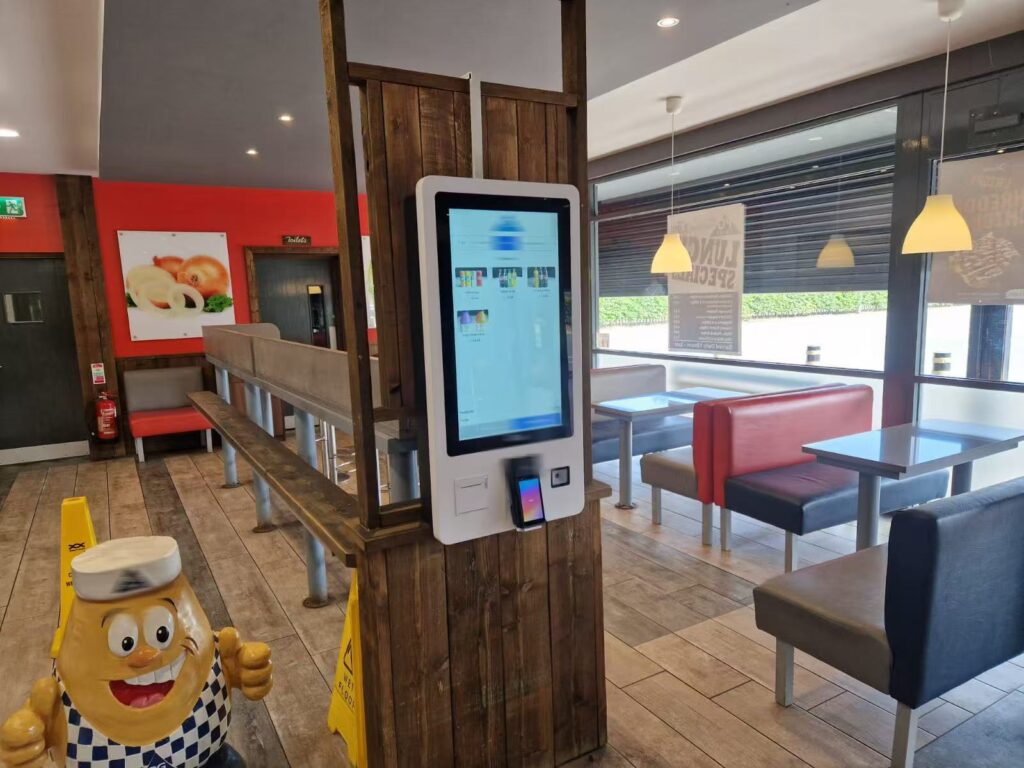
Restaurant teams usually ask what a self-service kiosk improves on site — not a feature list. Used well, it adds a customer-operated ordering point beside the counter: guests browse at their own pace, staff share routine tickets, and menu content is managed digitally. Results still depend on the site, software, staffing and kitchen capacity. A kiosk does not guarantee shorter queues or higher sales.
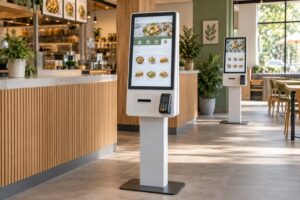
A Self-Service Ordering Kiosk combines a touchscreen, computing platform and selected accessories. The ordering application owns the menu and checkout flow. Payment devices, printers and other modules are project choices. Hardware is not ordering or payment software.
When the benefits show up — and when they do not
| If your site needs… | A kiosk can help when… | It will not help if… |
|---|---|---|
| Another ordering point at peak | Guests can finish a clear self-order path and the kitchen can absorb tickets | The bottleneck is prep or collection, not order entry |
| Fewer spoken order mistakes | Prices, options and basket review are clear on screen | Menu data is wrong or out of sync with the POS |
| Staff time moved to service | Roles for help, failed payments and maintenance are assigned | Every guest still needs assisted ordering |
| Consistent offers and extras | The app shows prompts that are easy to decline and measured | Upsell screens slow checkout or confuse the final price |
Start with one problem. Compare screens and mounts only after that problem and the software owners are named.
What a restaurant kiosk is made of
- Hardware: screen, touch input, mounting, and required accessories (printer, payment device as specified).
- Software: menu management, order handling and the customer interface.
- Connections: POS, payment provider, kitchen or collection systems where required.
- Service: staff help, maintenance and a fallback ordering route.
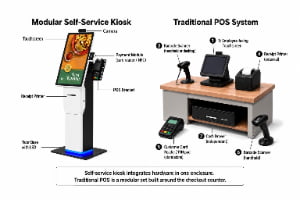
For detachable layouts, compare the modular Self Service POS Kiosk. For how kiosk and staffed POS differ by user, see self-service kiosk vs POS system.
Give customers time to review an order
A clear screen lets customers browse at their own pace — item names, images and prices before they choose. A basket review page lets them correct a selection before confirming. That can reduce reliance on spoken order-taking; it does not remove every error source. A confusing menu or a wrong software setting still creates mistakes. Check the guest screen and the ticket staff receive together.
Keep menu choices clear
Use short category names and familiar labels. Show the item price and the cost of each add-on before checkout. Make back, edit and cancel easy to find. Do not assume a larger screen fixes a crowded menu. Test with real items: find a product, change a choice, review the basket without coaching.
Support questions and special requests
If the software supports item details or customisation, keep that data accurate. Make it clear when a guest should speak to staff. Food information must follow the restaurant’s review process; an ingredient field is not a guarantee that a meal suits a particular customer.
Share the ordering workload
A kiosk adds an ordering point beside the staffed counter. Guests who want self-service can use it while staff help others or handle prep and collection. Do not treat the terminal as a full front-of-house replacement. Some users need language, accessibility or payment help; others prefer a person. Plan both routes.
Look at the whole queue
A shorter counter line can hide a longer wait for food. Review ordering, payment, preparation and collection as one process. Several kiosks create several ordering points; each screen is still normally one guest at a time. Check busy periods before assuming extra screens fix the queue.
Give staff clear responsibilities
- Who helps customers at the kiosk?
- Who checks incomplete or cancelled orders?
- Who reports hardware vs software vs payment faults?
- Where do guests ask for help, and how is the kiosk opened/closed?
Present menu options and offers consistently
Ordering software may show images, sizes, extras and offers. Keep each offer clear, relevant and easy to decline. Suggested extras do not guarantee a larger ticket — measure take-up and whether prompts slow checkout.
Keep prices and availability current
Agree where menu data is managed. If the kiosk and POS update separately, decide how staff keep them in step. Test a price change and a sold-out item before launch. For chains, confirm whether the software supports shared menus and local overrides — do not assume every terminal includes cloud multi-site control.
Prepare content for the screen
Use images that match the product. Keep descriptions scannable. Preview first screen, options, basket, payment instructions and confirmation at the installed height and angle.
Connect orders to the restaurant workflow
Value appears after the guest presses confirm. The order must reach the intended system with correct items and payment status. Confirm each connection before buying hardware. A kiosk connects to a POS only when the chosen software and interfaces support that link.
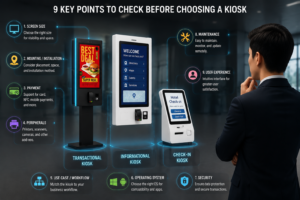
Check compatibility before deployment
- Operating system and supported software version
- POS and payment provider by name
- Printer, scanner or kitchen-system connections required
- How menus, prices and sold-out items are updated
- Who builds, tests and maintains each integration
For a longer acceptance list, use the self-ordering kiosk software and peripheral checklist.
Test success and failure paths
Test more than a happy-path order. Check cancellation, payment failure and interruption mid-checkout. Offline behaviour and battery backup are not universal — ask which functions remain if network or power fails, and keep a staffed fallback.
Use reporting only where it exists
Some apps report completed orders, popular items and busy periods. Available data depends on the software. Choose a few measures tied to the project goal (completion rate, help requests, wait-to-collection). Compare like-for-like meal periods and note other changes in staffing, menu or promotions.
Plan installation and daily care
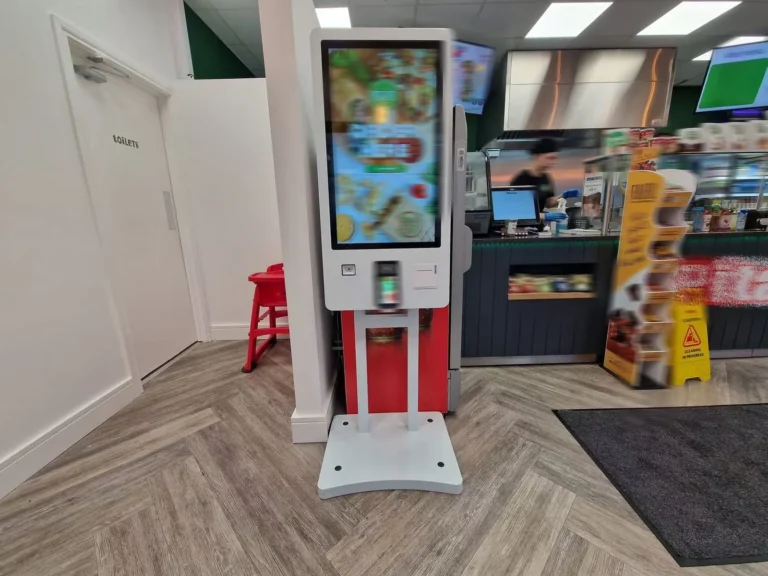
Place the kiosk where guests find it without blocking circulation. Confirm wall-mounted or floor-standing options for the actual model. Check reach to the screen, payment device and receipt path with intended users. Accessibility depends on the whole installation — not screen size alone.
Plan power and network before delivery. Agree who applies approved software updates and who handles faults. Clean the touch surface per the manufacturer and the site’s hygiene process; do not assume antimicrobial coatings or voice/gesture controls unless specified for the model.
Understand the full project cost
- Initial: hardware, accessories, delivery, mounting, setup
- Software: licences, configuration, integration, testing
- Ongoing: support, payment fees, connectivity, agreed maintenance
- Internal: training, menu updates, customer assistance
Compare quotes on the same scope. A lower hardware price may exclude software or installation another quote includes.
RFQ checklist for the first pilot
- One measurable problem (queue at entry, order accuracy, or staff coverage).
- Ordering app, POS product/version and payment provider by name.
- Preferred screen size range and wall-mounted or floor-standing format.
- Payment methods and whether an existing payment terminal must be remounted.
- Owners for menu updates, failed payments, printer paper and remote support.
- Pilot success checks: completed order, cancel, payment failure, kitchen ticket received.
Send that list with quantity and site constraints when you request a hardware quotation. Scope clarity keeps quotes comparable.
Frequently asked questions
Will a kiosk reduce restaurant queues?
It may help by adding an ordering point. The result depends on guest adoption, software flow and kitchen capacity. Measure the full service process; do not promise a fixed reduction.
Can it work with an existing POS?
Only if the chosen software and interfaces support that POS. Confirm product and version, then test menu data, orders and payment status before launch.
Does every kiosk include payment and receipt printing?
No. Those depend on hardware modules and software setup. List required payment methods and receipt behaviour in the project specification. Complete units typically offer 21.5, 27 or 32-inch screens; modular units offer 15.6, 21.5 or 23.8-inch screens — confirm options on the product pages for the model you select.
Does it keep working without internet or power?
Do not assume so. Confirm offline behaviour and any backup-power option for the selected setup. Staff need a fallback route when required functions are unavailable.
How should a restaurant begin?
Define one problem, document the current process, and pilot a suitable setup at a manageable scale. Review evidence before adding terminals.
Next step
If self-ordering fits your workflow, review the Self-Service Ordering Kiosk or the modular Self Service POS Kiosk. Send screen size preference, mount type, POS/payment stack and any payment-terminal dimensions via Contact Us for a hardware configuration discussion.