What should a self-service kiosk budget cover?
Budget for a working kiosk service, including the hardware, software, integrations, installation and ongoing support needed for the customer task.
- Name the screen, computer, housing, mount and required peripherals.
- Separate one-time configuration, POS connections, installation and training from recurring fees.
- Confirm payment compatibility with the app, provider and country of use.
- Include a pilot with the actual equipment and test complete transactions, errors and recovery before wider rollout.
An information kiosk may only need to show a map. An ordering kiosk may also need to take payment, print a receipt and send an order to a POS system. Each added task can change the equipment, software and support you need.
What should a kiosk quote include?
A useful quote separates the kiosk unit from the work needed to put it into service. It should name the model, list included parts and show any one-time or ongoing fees. Ask the supplier to mark each item as included, optional or supplied by someone else.
| Cost item | What changes the price? | What to ask for |
|---|---|---|
| Screen and computer | Screen size, touch system, processor, memory and storage | The exact model and hardware list |
| Housing and mount | Wall, counter or floor use; finish and branding | Dimensions, weight and fitting instructions |
| Payment reader | Reader model, mount, supported country and payment service | Written support confirmation from the payment provider |
| Scanner and printer | Code types, ports, paper size and access for repairs | A list of supported parts and a working test |
| Kiosk software | Order flow, languages, access features and remote controls | A demo of the tasks your users must complete |
| POS connection | Menu data, prices, orders, stock and order status | The agreed data flow and who will build it |
| Site setup | Power, network, fitting, tests and staff training | A setup plan and a clear list of exclusions |
| Running costs | Software fees, payment fees, paper, network and service | A fee schedule and support terms |
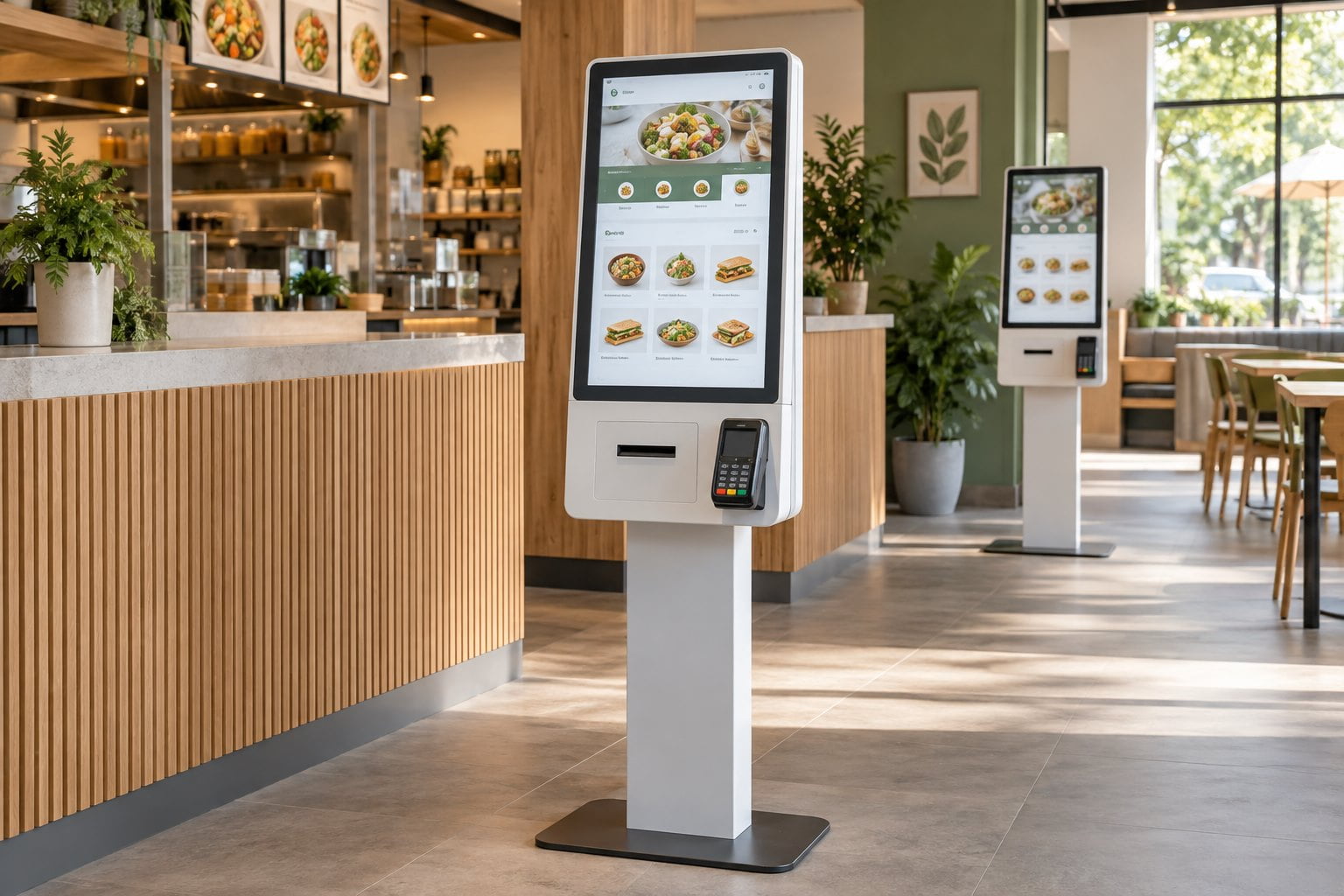
A product photo can show optional parts. Check the written quote before assuming that a printer or card reader is included. Use the YJCEN self-service kiosk and modular kiosk pages to discuss the hardware you need.
Define the order flow before asking for a price
Write down each step from the user’s first tap to the end of the task. For a restaurant, this could mean choosing a meal, adding options, paying and receiving an order number. The order must also reach the right staff or system.
List what should happen when something goes wrong. A meal may sell out, a payment may fail or the printer may run out of paper. Decide what the screen should show and how a member of staff can help.
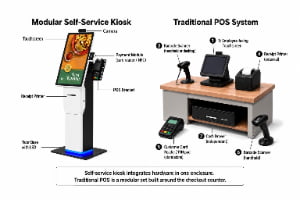
These details help a software supplier price the work. They also help you test the result. If you are unsure where the kiosk’s role ends, see our kiosk versus POS guide.
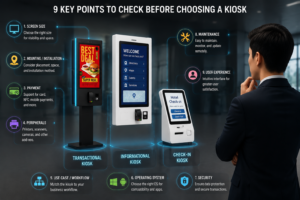
Review the self-service kiosk selection checklist.
Check payment support before buying hardware
A card reader that fits a bracket is not proof of a working payment system. The reader, payment service, kiosk app and country of use must all fit the project. Ask the app and payment providers to confirm that they support the proposed setup.
Square’s in-person payment guide and Stripe’s Terminal setup guide describe different ways to connect payment services. They are useful references for planning. They do not confirm that either service works with every YJCEN model.
Agree who will supply the reader, set up the payment account and fix payment faults. Get the current fees from the payment provider for your market. Keep these charges separate from the hardware price.
Separate the purchase cost from running costs
One-time costs may cover the equipment, branding, software setup, POS connection, fitting and training. Running costs may cover software access, network service, paper, support and payment fees.
Use the same number of kiosks and the same planning period for every offer. A fee per device can produce a different total from a fee per store. Check when billing starts and which features the quoted plan includes.
Initial cost = kiosk units + required extra parts + software setup + connection work + fitting + training.
Running cost = recurring software and support + network service + supplies + payment charges + planned repairs.
If a price is unknown, mark it as awaiting a quote. Do not enter zero. Show optional items on separate lines so the buyer can see what changes when an option is added.
Compare two offers without missing costs
Suppose one offer covers a kiosk unit and printer. A second offer also covers software setup and the first year of support. This is a scope example, not a YJCEN quote. Comparing the two totals alone will not show which offer meets the brief.
First, list the items included in both offers. Next, ask each supplier to price the missing work. Check whether freight, fitting, staff training and the POS connection are included. Keep any work bought from a third party in the project total.
Then compare the next year’s fees. One offer may include software for a short trial, while another may include a longer paid term. Record the end date of each included service and the cost of renewing it.
Finally, check the support scope. A parts warranty may cover a failed component but leave labor or shipping to the buyer. Ask who handles a fault at the store and which costs the written terms cover.
Budget for a pilot and a wider rollout
A pilot is a small test before a full order. It should use the chosen kiosk, printer, reader, app and POS connection. A demo on a different computer can show the app, but it cannot settle every hardware or site issue.
Keep pilot costs separate from repeat costs. App setup or a branded layout may be shared across stores. Power work, mounts, shipping and staff training may still be needed at each site. Ask which charges apply once and which apply per unit or location.
For a phased order, agree how long the quote is valid. Check whether later units will use the same parts. If a reader, operating system or app version changes, ask the responsible supplier whether the setup needs another test.
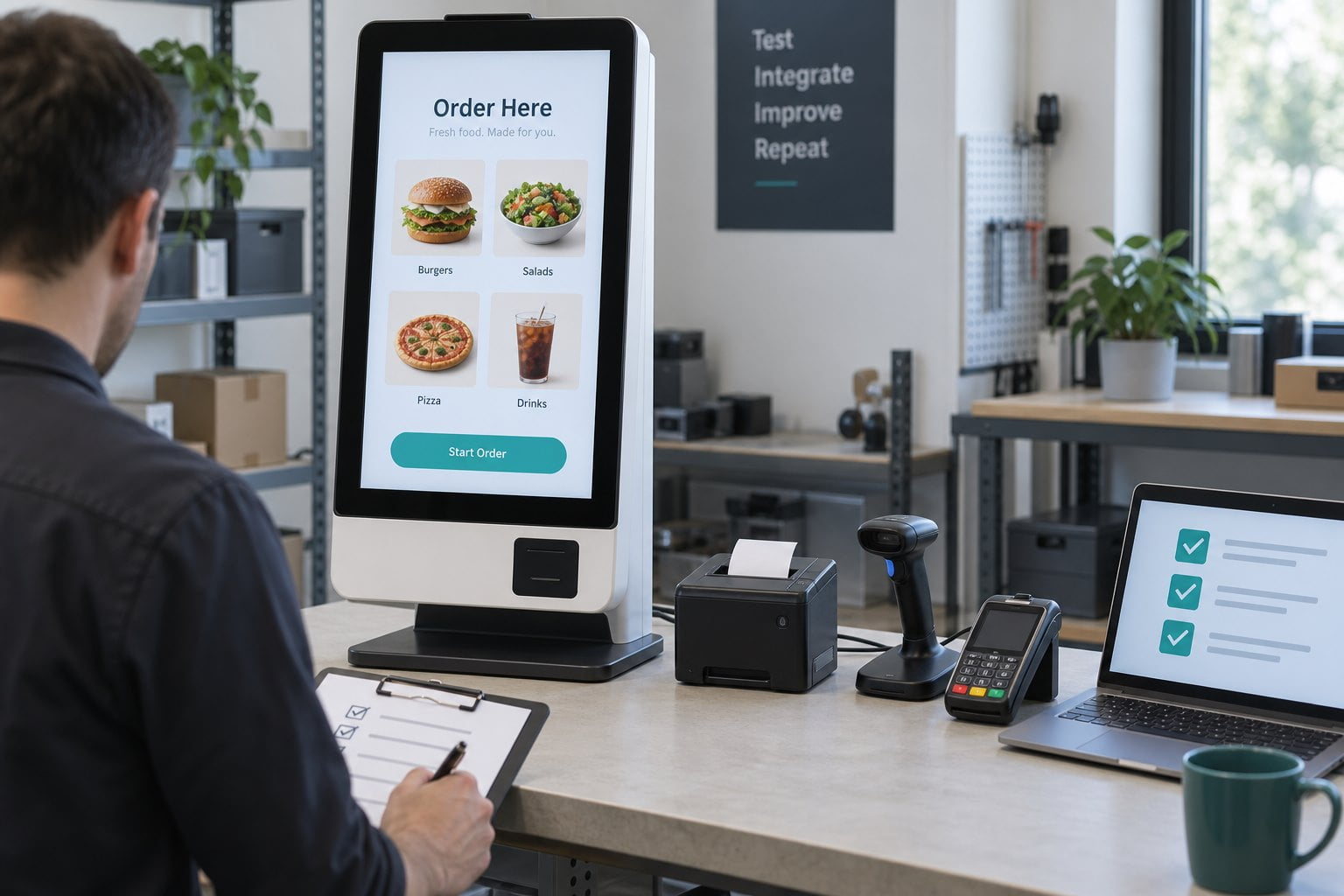
Use a clear acceptance checklist
Agree what must pass before the pilot is accepted. Test a complete order and the common failure paths. Record the hardware models and software versions used in the test.
- Check that the order reaches the correct system with the right items and price.
- Check that a successful or failed payment produces a clear message.
- Confirm how staff help a user who cannot finish an order.
- Test what happens after a restart or a loss of network service.
- Show staff how to replace paper and reach parts that need service.
- Record any open issue, its owner and the test needed to close it.
Use the pilot results to confirm the rollout plan. If a step needs staff help more often than expected, review the screen flow or support process before ordering more units.
Plan support at each store
Choose a first contact for faults so staff do not have to guess which supplier to call. That contact should know when to involve the hardware, app, POS or payment team.
Decide who keeps paper and spare parts, who can change settings and how staff restore service. Ask what happens while a unit is out of use. These tasks need named owners as well as a place in the budget.
Send a brief that suppliers can price
Include the country, number of stores, number of kiosks and preferred mounting method. List the needed printer, scanner or reader. Name your current POS, app and payment provider if you have chosen them.
Add site photos and the user steps the kiosk must support. Ask for a hardware list, fees, delivery terms, exclusions and a test plan. Send YJCEN your kiosk hardware brief to discuss the model and parts needed for the project.
Frequently asked questions
Does a kiosk price include ordering software?
Only when the quote says so. Check the app, license term, features, setup work and support. Ask who owns each part of the service.
Can any POS connect to a new kiosk?
No. Ask the POS provider which connections it supports. Have the app provider test the full order flow before you approve the rollout.
Will a kiosk cut staff costs?
That depends on how customers use it and how staff work changes. Measure the pilot’s results. Do not treat the hardware purchase as a guaranteed saving.