Which digital menu board features matter most?
Choose a digital menu board around its viewing conditions, menu layout and update workflow. Screen size alone is not enough.
- Check text and prices from the real queue position, including daylight and reflections.
- Confirm operating hours, mounting, player requirements and service access for the selected model.
- Define who updates menus and whether POS or inventory connections are needed.
- Compare quotes with the same hardware, software, installation and support scope.
Start with the Location and Viewing Distance
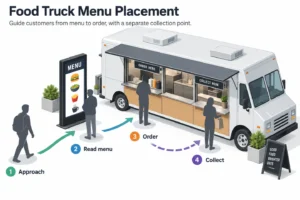
Mark where the screen will sit and where customers will read it. A menu above a counter has different needs from a screen behind storefront glass. An exposed outdoor menu needs a model rated for that environment.
Take photos from the queue, entrance and collection area. Check what blocks the view and how the light changes. These details help the supplier discuss a suitable display.
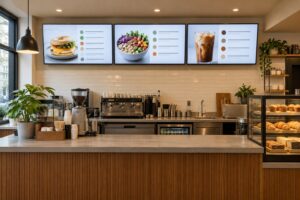
- Indoor counter: Check menu readability from the normal queue position.
- Window-facing position: Check daylight, reflections and the glass between the screen and viewer.
- Outdoor position: Confirm weather protection, operating conditions and the installation plan.
- Multiple screens: Plan how customers will scan the full menu across the layout.
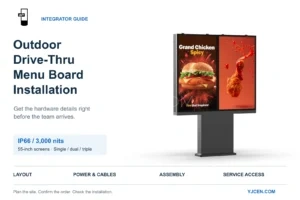
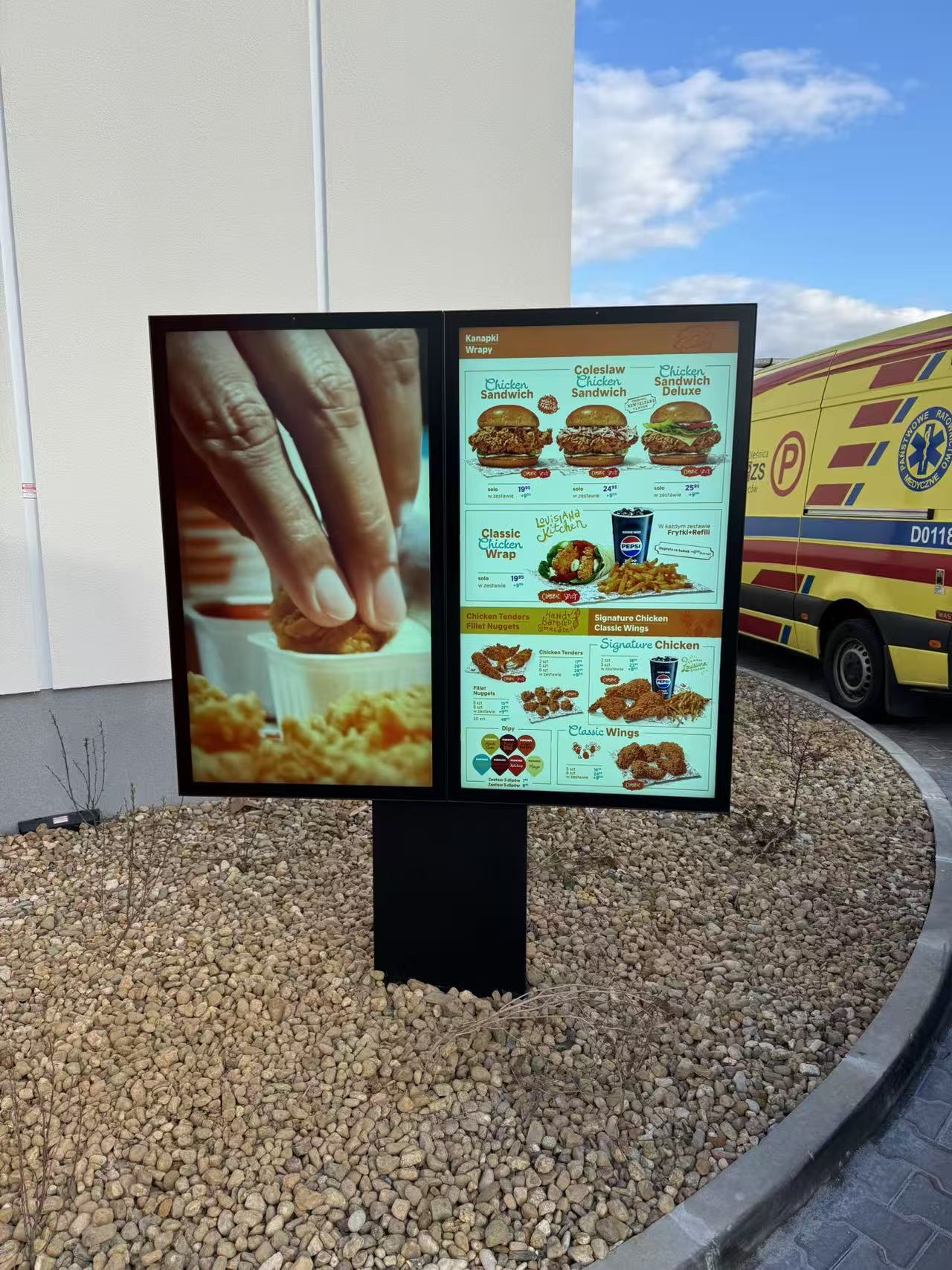
For an outdoor layout example, the European restaurant drive-thru project used two dual-screen units with four 55-inch portrait screens in total beside the vehicle lane.
Compare Screen Size, Resolution and Brightness
Screen Size and Content Layout
A larger screen gives you more display area, but it should not become an excuse to add more text. Start with the menu categories and the distance customers will stand. Test the smallest item name and price at that distance.
How Digital Menu Boards Improve Ordering Flow & Efficiency
Choose portrait or landscape orientation to fit the menu and the space. Landscape may suit a wide counter. Portrait may suit a narrow wall. Confirm that the selected model and mount support the intended orientation.
For a row of screens, decide which menu sections belong on each one. Avoid separating a product from its price or placing a key choice across a screen join. Check the entire layout as one menu.
Resolution and Source Files
Resolution affects how much detail a screen can show. Full HD and 4K are options to compare, not a reason to ignore text size or viewing distance. A sharp screen cannot make tiny menu text easy to read.
Confirm the native resolution, the media player’s output and the artwork size. Use a sample menu file in the proposed setup. Check that images are not stretched and text is not cut off at the edges.
Brightness and Reflections
Brightness is usually listed in nits. The required level depends on the site. Do not apply one indoor brightness range to every restaurant, storefront or outdoor location.
Check reflections from windows and lights as well as brightness. Anti-reflective surfaces can help, but they do not remove every reflection. Ask for a demonstration or a site-specific recommendation where visibility is uncertain.
If automatic brightness adjustment is required, confirm that it is included in the selected model. Check how it behaves during handover. Avoid running the screen brighter than needed in a dim interior.
Choose a Content Update Method Staff Can Use
A menu board needs current prices, items and opening information. Decide who will manage these changes and how often they happen. The update method should suit that workload.
A content management system, or CMS, is software used to organise and publish screen content. Features vary by provider. A display may use a built-in player, an external player or another supported setup.
Local and Remote Updates
USB playback can suit a small setup with occasional changes if the model supports it. Remote publishing may suit frequent updates or several locations. Confirm network needs, supported file formats and software costs.
USB Digital Signage Troubleshooting: Files & Playback
Ask staff to perform a routine update during a trial. They should be able to replace a menu, preview it and confirm it reached the right screen. A feature list alone does not show how easy this process will be.
Scheduling and Approval
If breakfast, lunch and evening menus differ, look for scheduling in the chosen software. Test the time zone and switching times. Decide what the screen should show outside those periods.
- Define who can edit prices and menu items.
- Confirm whether changes need approval before publishing.
- Keep a previous menu version where the software allows it.
- Set an end date for temporary offers.
- Check what happens if a scheduled update cannot reach the screen.
Cloud management and shared templates may help a chain, but they are not universal hardware features. Confirm which functions are included, which require a licence and which are optional.
Confirm Any POS or Data Connection
A menu display does not have to connect to a POS to show a menu. A connection may be useful when prices or availability need to follow another system. It also adds setup and testing work.
POS means point of sale. Before asking for integration, name the actual system and version. Identify which data should move, which system owns it and who maintains the connection.
Define the Data Flow
- Where are product names and prices entered?
- How are unavailable items marked?
- Does the screen need automatic updates, or is manual publishing sufficient?
- What should it show when the data connection is unavailable?
- Who checks a mismatch between the menu and the checkout price?
Do not assume that stock changes, loyalty offers or live feeds work without configuration. Ask the software teams to confirm the required interfaces and testing scope. Include any integration fees in the quote.
Keep Menu Display Separate from Ordering
A standard digital menu board shows information. A self-service ordering kiosk also needs input controls, ordering software and any required payment hardware. These are different setups.
If customers will place orders on the screen, describe that requirement at the start. If the screen only shows a QR code, confirm the destination page and keep the code readable. Showing a code does not make the display itself a payment terminal.
Check Operating Requirements and Installation
Daily Hours and Environment
Confirm the display’s rated operating schedule for the planned use. A commercial label alone does not establish a particular daily-hour rating. Check temperature limits and any other conditions in the model’s documents.
Consider heat, moisture and cleaning activity near the position. Keep the screen away from conditions outside its rating. Ask the installer and supplier to confirm any required clearances or protection.
A lifespan figure and a warranty are different things. Ask what a quoted lifespan refers to and under which conditions it applies. Do not treat it as a guaranteed replacement date or a promise of uninterrupted service.
Mounting and Service Access
Confirm the display weight, mounting pattern and supported orientation. The installer should check that the wall, ceiling or stand can support the selected equipment. Follow the supplied mounting requirements.
Leave access for servicing and cable checks. Plan the power route before delivery. A neat front view should not hide an arrangement that makes maintenance difficult or blocks ventilation.
Player and Network Setup
Check the player against the actual media files. Test video playback, transitions and any data-driven content you intend to use. Confirm available storage and the supported connection methods for the selected device.
Wi-Fi, Ethernet and cellular connections are options to verify, not features to assume. Offline playback also depends on the player and software. Ask what remains on screen if the network is interrupted.
Compare the Full Cost and Support Scope
Digital menu board costs include more than the screen. Compare quotes using the same hardware, software and installation scope. A fixed online price range may not match the work your site requires.
- Equipment: Displays, players, mounts and required accessories.
- Setup: Delivery, installation, configuration and testing.
- Content: Menu design, templates and staff training.
- Ongoing service: Licences, connectivity, maintenance and agreed support.
- Integration: Development or configuration for connected systems.
Ask which team handles a blank screen, a failed update or an incorrect price feed. Confirm response arrangements, warranty terms and whether on-site service is included. Keep these responsibilities in writing.
For several locations, check how licences and support costs change as screens are added. Do not assume that future upgrades, priority support or replacement equipment are included unless the supplier agrees.
Run a Practical Trial Before Rollout
Use a real menu and a typical service period for the trial. Check the customer view and the staff update process. The aim is to find practical issues before deploying more screens.
Customer View
Read the menu from the queue and entrance. Check the smallest prices, main categories and any time-limited offer. Review reflections and sight lines at the actual screen height.
Staff Workflow
Change a price, remove an item and schedule a menu switch. Confirm that the intended screen receives the correct version. Check the recovery process if an update fails.
Results to Measure
Record the time spent updating menus, the number of incorrect or expired messages and requests for help reading the menu. Compare similar periods and note other changes at the restaurant.
This guide does not promise a sales increase or a fixed payback period. Use your own costs and results to assess value. Printing work may change, but design, software and screen maintenance still require time.
Questions to Send with a Quote Request
Share the number of screens, location photos, viewing distance and intended orientation. Add the planned daily hours, content update method and any software connection needed.
Ask the supplier to identify the exact display, player and licence scope. Review YJCEN commercial display products to compare formats, then confirm the complete menu-board setup for your site.
Frequently Asked Questions
Is 4K required for every menu board?
No single resolution suits every layout. Compare the screen size, viewing distance and content. Test a real menu at the selected resolution before deciding.
Can an indoor screen be used outside?
Do not assume it can. Outdoor use needs a model and installation suited to the weather and operating conditions. A screen facing a window is not automatically rated for exposed outdoor use.
Does the screen include a CMS?
That depends on the package. Confirm whether software, licences and remote management are included, optional or supplied separately.
How long will the system last?
Check the chosen model’s operating ratings, warranty and maintenance needs. This guide does not give a universal service life. Installation, environment and use affect the result.
What should be checked before payment?
Confirm the model, software scope, installation responsibilities and support terms. Make sure the quote matches the agreed menu workflow and site requirements.