Quick Guide: A Repeatable USB Playback Test
The 28.6-inch bar display uses a 1920 × 540 native canvas and includes USB connections. Prepare a short test file for that wide layout so that playback, scaling and file order can be checked separately before loading the full playlist. Bar Type LCD Display.
A USB port does not tell you which files a signage player can decode. Test one known-good file before changing the complete playlist.
- Identify the player: Record its exact hardware, software and supported media specification.
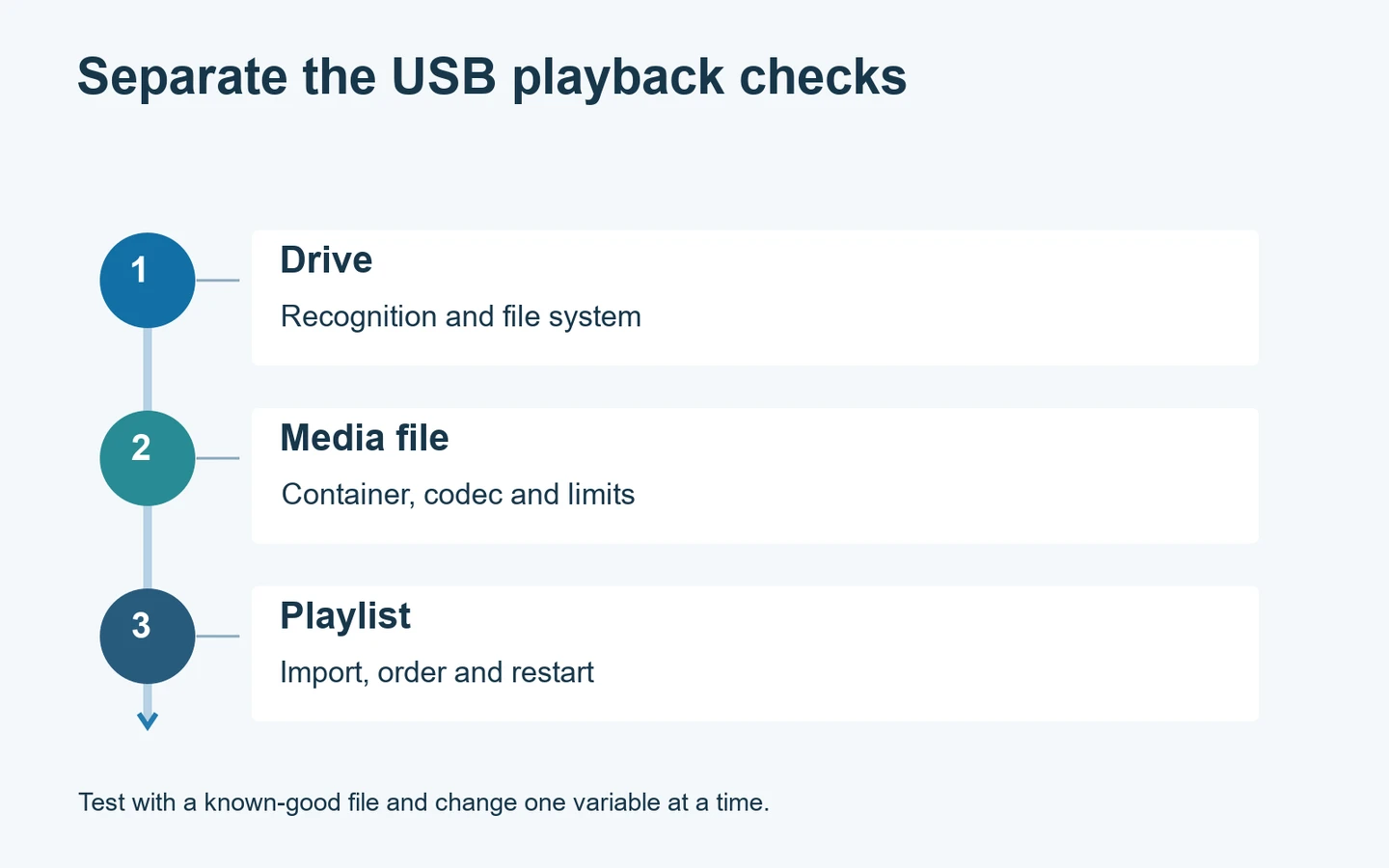
- Separate the checks: Check drive recognition, file decoding and playlist behavior independently.
- Change one variable: Keep a working file and drive as references when testing a failed item.
- Test the next opening: Confirm the intended playlist returns after a normal restart.
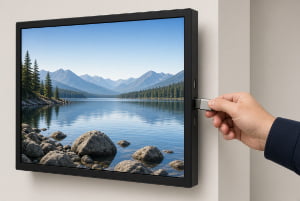
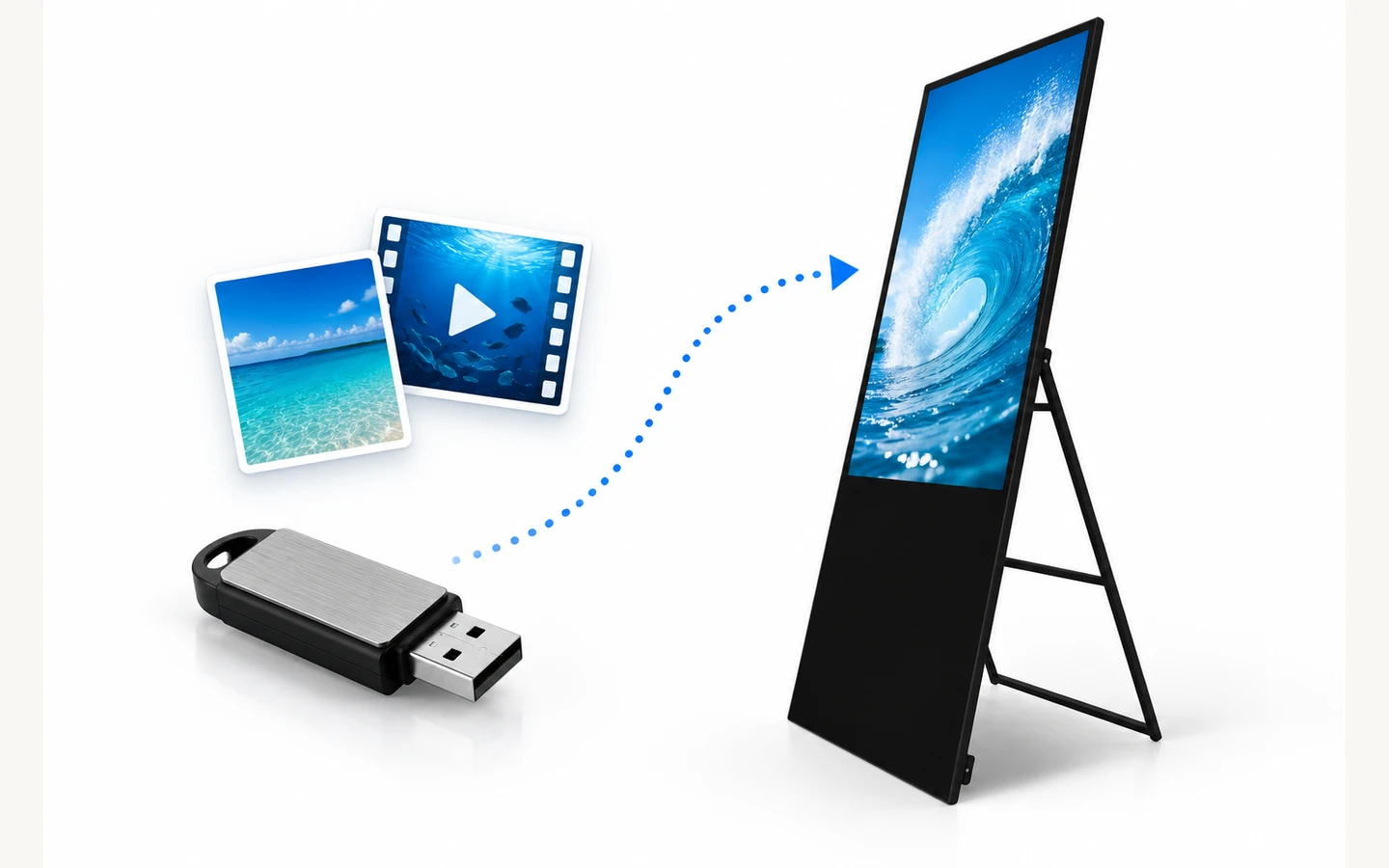
USB digital signage can be useful when a team wants to load a small set of images or videos locally. A USB flash drive transports the files; the display’s player and application decide whether they can be read and played. A file that works on a laptop can still fail on the signage player.
The useful starting point is the exact symptom. An unreadable drive, a missing file, a silent video and an old playlist are different problems. This guide explains how to separate them, prepare a controlled test and hand over an update process that another member of staff can repeat.
Start with the player, not the screen resolution
Record the display model, installed operating system, player application and application version. If an external media player is connected, record that model too. The LCD panel shows the result, but its native resolution does not establish which video formats the playback hardware and software support.
Ask for the media specification for the exact configuration. Useful fields include supported image formats, video containers and codecs, maximum resolution, frame rate, bit rate and supported audio. Also ask which USB port is intended for media and whether the application imports files or plays directly from the drive.
For example, the YJCEN portable digital signage display lists USB playback and Wi-Fi connectivity. It is an indoor, mains-powered range. Its product description is a starting point for a project discussion; it is not a promise that every USB drive, video encoding or third-party application will work without testing.
Write the confirmed configuration beside the test results. A successful file on one player does not prove compatibility with another generation of hardware or another installed application. This matters when replacing one display within an older group: the newest export preset may exceed the capabilities of the remaining units.
Check whether the drive is recognized
If the application cannot see the USB device, do not begin by editing the video. First confirm the intended media port and the application’s file-selection procedure. Some ports or operating modes have a different purpose. Follow the model documentation instead of assuming all sockets behave alike.
Check the required file system, drive capacity and partition arrangement against the manual. FAT32, exFAT and NTFS are different file systems; support depends on the player. Back up the drive before any formatting. Reformatting changes the storage layout and can erase existing files, so it should be a deliberate test, not an opening guess.
Use a second drive that is known to work with this player, if one is available. Keep the test file unchanged. If the replacement drive works, the original drive or its formatting needs investigation. If neither appears, check the port, application permissions and documented import process before buying more storage.
A drive can be visible in the operating system but absent from the signage application. That distinction helps the supplier reproduce the problem. Record both observations rather than reporting only that USB does not work. Do not change unrelated device settings or install unfamiliar playback applications during the comparison.
Separate the container from the video codec
A file extension is only part of the description. An MP4 container can hold media encoded in different ways. Renaming a file from one extension to another does not convert its contents. A real conversion must use an encoder and settings supported by the target player.
The Samsung signage video specification illustrates how manufacturers list container, codec, resolution, frame rate, bit rate and audio separately. Those limits apply to the listed Samsung models. Use the same categories when requesting the specification for another player; do not transfer Samsung’s limits to YJCEN hardware.
Export one short sample using a supplier-confirmed preset. Test that sample before converting the full campaign. If it plays, compare the failed file’s properties with the sample. Change one setting at a time so that the result identifies a cause rather than producing an unexplained combination that happens to work.
Keep the original project and exported master. Repeatedly converting an already compressed video can reduce visual quality. A better workflow is to export a fresh delivery file from the source project once the target settings are known. Give the approved preset a clear internal name that includes the player configuration.
Diagnose the visible symptom
The drive appears, but the file is missing
Check whether the application filters the file list by media type. Confirm the supported extension, folder location and import instructions. A nested folder that a computer can browse may not be included in a player’s automatic scan. Start with the folder structure specified by the supplier, not a complicated campaign archive.
Use a short, clear filename for the initial comparison. Preserve the original file elsewhere. If a simplified name changes the result, record the exact naming difference and ask the application supplier about its restrictions. Do not generalize one result into a claim that all punctuation or non-English names are unsupported.
The file opens, but playback freezes
Compare the file’s encoding settings with the documented limits. Check that the copy completed and try the same file from a known-good drive. A damaged copy and an unsupported encoding can look similar. Observing when playback stops helps: at the same moment in one file, or unpredictably across several files.
Reduce complexity only within a controlled test. For example, export a short supported sample from the same source and compare it with the failed export. Do not assume that a faster USB drive will solve a decoding limit. Storage access, decoding and the application playlist are separate parts of the playback path.
Video plays without sound
Check volume, mute state and the selected audio output before re-exporting. Then check whether the file contains an audio track in a supported format. A silent export and an unsupported audio codec are different faults. Confirm that the chosen display configuration actually includes the audio output the project expects.
For quiet reception areas, silence may be intentional. Write that requirement into the content brief so a later operator does not treat it as a fault. Captions inside the artwork should remain readable at the screen’s real viewing distance; they should not depend on sound to explain an essential offer or instruction.
Match artwork to the installed orientation
Prepare content for the display’s intended portrait or landscape layout. Rotating the cabinet does not necessarily rotate the player output or rebuild a slide. The operating system, player application and artwork must agree on orientation. Check all three before concluding that the panel is defective.
Use a test image with clear edges, a circle and a small amount of readable text. A stretched circle reveals distortion, while edge markers show cropping. Keep this calibration artwork separate from the public campaign. Compare the screen from the customer’s actual viewing position, not only while standing close to the controls.
If the content fills the screen but cuts off a price or logo, inspect fit and crop settings. If the complete image has unused borders, compare its aspect ratio with the output canvas. Our display aspect ratio guide explains the difference between fitting, cropping and preparing a new layout.
Confirm how the playlist is stored
Ask whether the player imports content into internal storage or reads continuously from the USB drive. This determines when the drive can be removed and what staff must do after an update. Follow the documented process; pulling a drive during import can leave an incomplete campaign.
After a successful import, compare the actual playlist with the release list. Check file count, sequence, slide duration and the transition from the last item back to the first. Do not assume the operating system’s folder order is the application’s playback order. Use the player’s supported sequencing controls where available.
Remove expired content through the documented application workflow. Simply adding a new file may leave the old promotion in the playlist. Keep an approved fallback campaign and a copy of the previous release outside the live content folder, so staff can recover without guessing which versions belong together.
Test a normal restart before handover
Use the normal shutdown and startup procedure specified for the system. Confirm that the application returns to the intended playlist without an operator navigating through a desktop or file browser.
If scheduled power operation is part of the configuration, test the agreed schedule and local time settings. Check whether the schedule belongs to the display, player or application. Record the observed result. Avoid assuming that setting a timer in one component also starts every other component correctly.
Repeat the test after the final content release, because a new playlist can expose a different startup behavior. Note any on-screen prompts, missing media or unexpected audio. Resolve these before handing the device to a team whose daily task should be checking the message, not troubleshooting an operating system.
Create a small release record
Keep one record for each approved update: the campaign name, file list, export preset, target player configuration, planned start and removal dates, and the person who checked the screen. Store the content master separately from the delivery drive. This makes it easier to reproduce a problem without altering the live files.
Prepare a useful support report
When the controlled checks do not isolate the fault, prepare a short report that someone else can repeat. State whether the drive is absent, the file is missing, playback stops or the wrong playlist appears. Record the exact on-screen message, the player model and the application version. Describe the steps immediately before the problem.
Include the export settings and a small sample file that demonstrates the issue. If the original contains customer information or unpublished campaign material, create a neutral test clip with the same encoding settings. Confirm that this replacement still produces the fault before sending it. A different clip that works normally will not demonstrate the same problem.
Write down what changed between the last successful update and the failed one. Useful differences include a new export preset, a replacement USB drive, an application update or a revised playlist order. List the checks already completed and their results. This prevents the next person from repeating every step without knowing which variables stayed constant.
Agree on the next test before changing software versions or resetting the player. Ask what settings and content need to be backed up, how service will be restored and who will perform the change. Retain the known-good playlist while the issue is investigated. After a proposed fix, repeat the original failed sequence and the normal restart test before returning the screen to daily use.
When a networked workflow is more practical
USB updates suit some small, local workflows. If multiple sites change prices frequently, traveling between screens and confirming each update may become the harder part of the job. Compare that workload with a supported networked content system, including its permissions, licences, connectivity and monitoring requirements.
Local file playback does not automatically mean that every connected function works offline. Live feeds, remote status reporting and licence checks may have separate requirements. Ask the application supplier which functions remain available during a network interruption. Keep the distinction between local media playback and remote management clear in the project scope.
For a hardware review, send YJCEN your player requirements and sample content, together with the preferred display size and installation location. Include the failed file’s properties and a description of the test already performed. That gives the team something reproducible to assess instead of an unsupported-format message alone.
Share your screen size, installation environment and quantity for a display quotation.