What does video wall colour calibration involve?
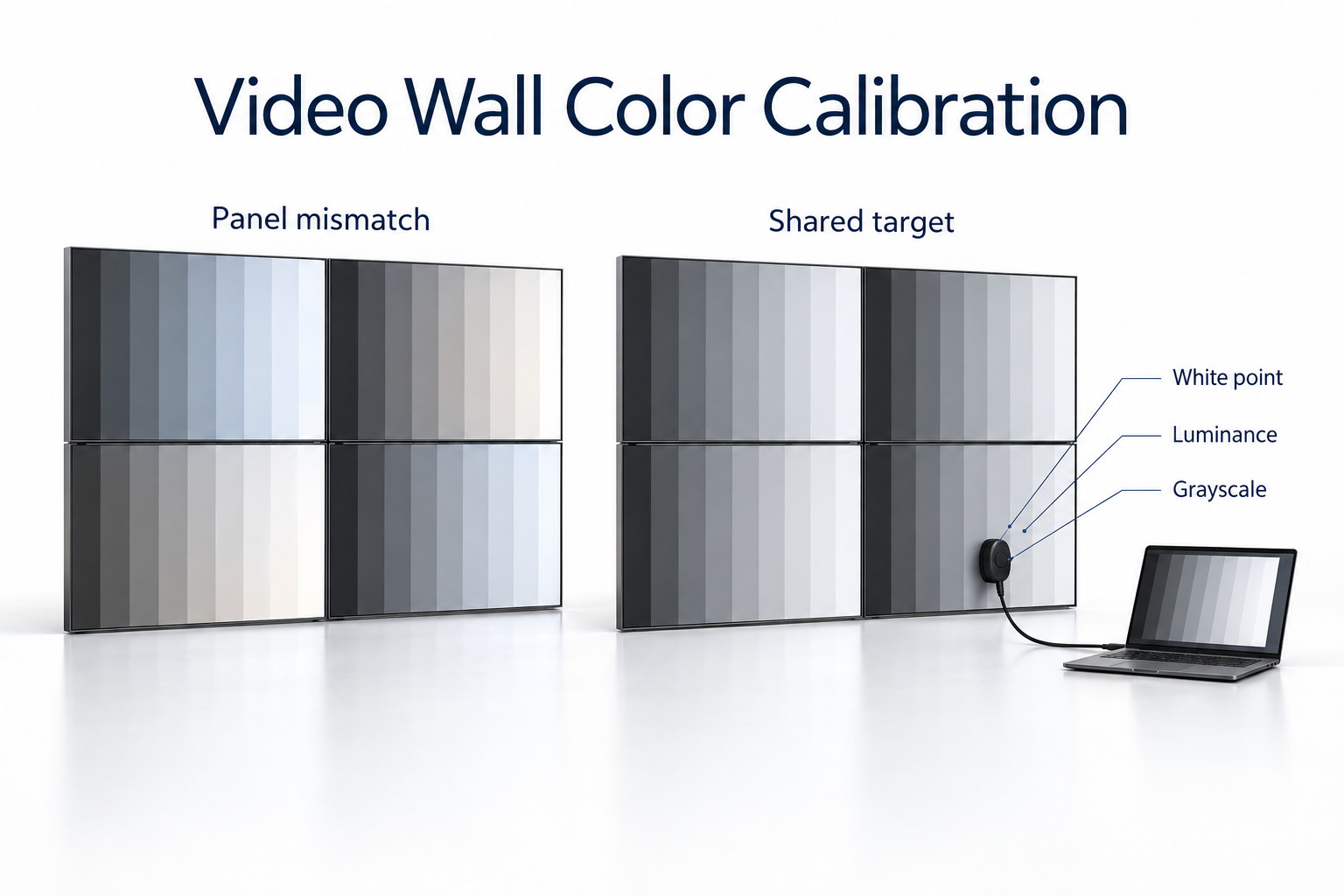
Calibration adjusts displays toward an agreed target, such as white point, luminance and tonal response. A video wall also needs neighbouring panels to look consistent.
- Record the panel map, source configuration and baseline settings.
- Agree the target and acceptance method before making adjustments.
- Use supported measurement tools and inspect the complete wall with real content.
- Save panel-specific settings and review after replacements; calibration cannot repair damaged hardware or remove bezels.
Copying a picture preset to every panel is a useful starting point, but it is not proof of a measured match. This guide explains how to prepare a calibration brief, check the signal path and record the result. It does not assume that every display supports the same software, sensor or adjustment controls.
What should a video wall calibration target include?
The standard YJC-550-VW panel is specified at 500 nits. For a wall built from these panels, set a common luminance target that every panel can reach and measure each panel at that target; the nominal brightness value is not an individual calibration reading. LCD Video Wall.
White point and color temperature
The white point defines the intended appearance of white. Color temperature expresses part of that description in kelvin: lower values generally look warmer, while higher values look cooler. It is a color setting, not the operating temperature of the LCD or its enclosure.
EIZO’s color-temperature guide explains the difference between warm and cool settings and why precise adjustment needs more than visual preference. For signage, agree on the required content standard or reference before choosing a target. The coolest-looking preset is not automatically the most accurate.
Luminance and tonal response
Luminance describes how much light the display sends toward the viewer. A wall needs a suitable operating level as well as consistent panels. The tonal response describes how image values between black and white are reproduced. Matching a white test field alone does not establish that mid-gray and shadow detail match.
Record these targets separately. A technician cannot reliably reproduce “make it look better” at the next service visit. Specify the content type, viewing conditions and acceptance method in terms the supplier and integrator can both use.
Matching, calibration and profiling are different tasks
Matching asks whether the displays look consistent with each other. Calibration adjusts a display toward a target. Profiling describes the colour behaviour of a device for a workflow that can use that information. Depending on the system, these tasks may use different tools and produce different records.
A commercial player may not apply a desktop color profile to every video or application. Confirm what the complete playback path supports. Do not assume that creating a profile on a service laptop changes the output of a separate signage player after that laptop is disconnected.
Similarly, model-specific calibration software cannot be assumed to control another manufacturer’s display. Sharp’s Display Wall Calibrator overview illustrates a system that adjusts luminance, white point and grayscale on supported displays. Its capabilities are specific to that supported system, not a feature claim for all LCD walls.
| Task | Question it answers | Useful record |
|---|---|---|
| Panel matching | Do adjacent panels look consistent? | Panel map and comparison observations |
| Calibration | How closely does each panel meet an agreed target? | Targets, readings and adjustment settings |
| Profiling | How is a device’s colour behaviour described? | Profile and confirmation of where it is applied |
| Content review | Does the final playlist look correct through the installed path? | Approved sample files and playback settings |
Prepare the installation before adjusting color
Establish a consistent signal path
Use the same source material and confirm output settings through the player, distribution equipment and displays. Check input selection, resolution, scaling and picture mode. A panel receiving different processing may look different even before its own color controls are considered.
For a wall using several player outputs, document which output feeds each panel. If the difference follows a source when connections are exchanged during an approved test, investigate that path. If it remains with the panel, continue with the panel’s configuration and condition.
Stabilise the viewing and operating conditions
Follow the manufacturer’s warm-up guidance and work under the planned installation conditions. Avoid comparing a newly started panel with one that has been running throughout the demonstration. Record the operating mode and any automatic brightness or scene-dependent processing that could change during the test.
Check ambient reflections from the normal viewing area. A bright lamp reflected in one panel can look like a mismatch. Moving the observer or temporarily shading the reflection during diagnosis helps distinguish the room’s influence from a difference that stays with the display.
A practical commissioning workflow
Start with a panel map and a saved baseline. Identify each unit by position and serial number, then record its input and current settings. This is especially helpful when several people work on the installation or a display must later be replaced.
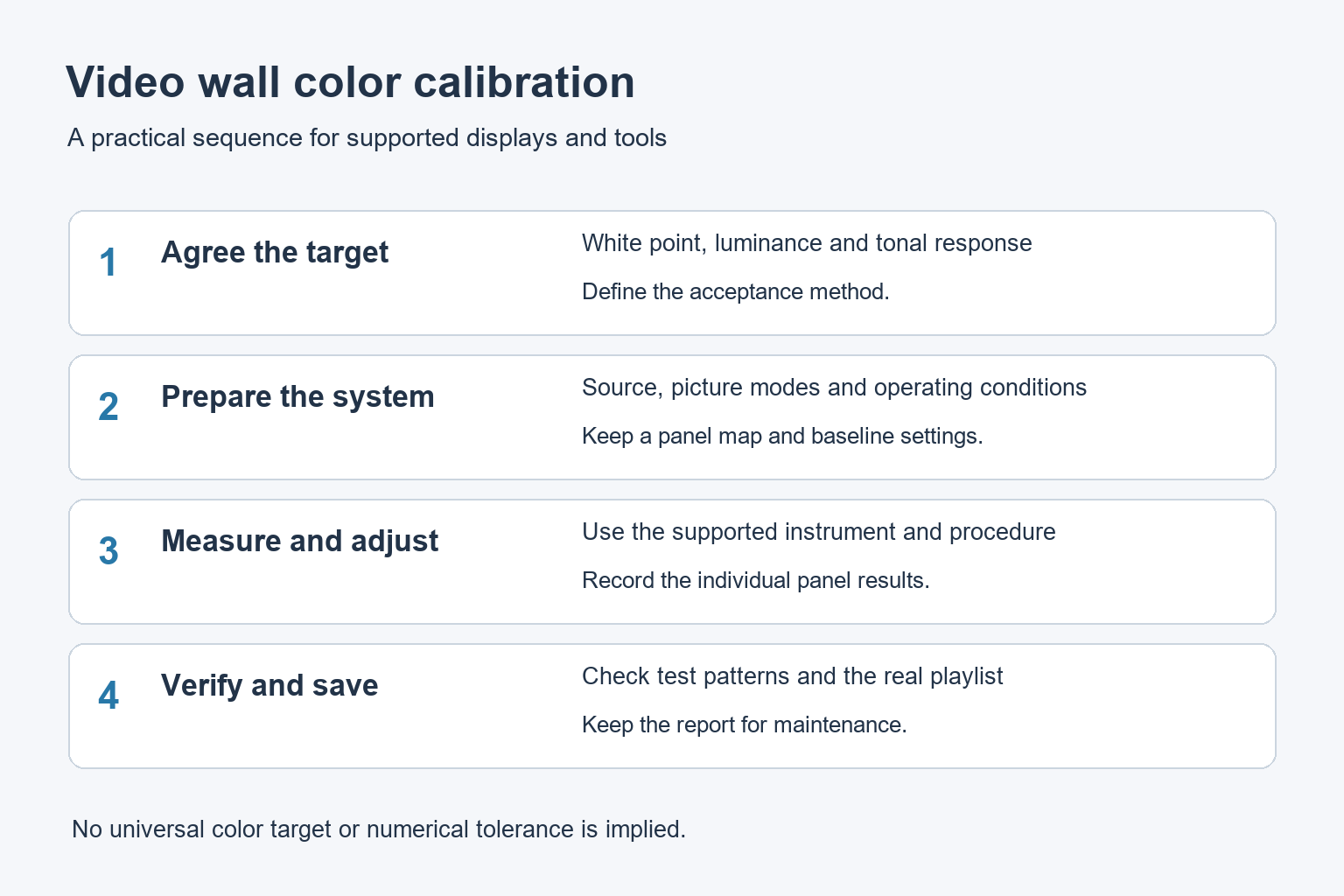
- Agree on the target and acceptance method before adjustments begin.
- Confirm the sensor, software and display models are supported together.
- Prepare the source, picture modes and operating conditions.
- Measure and adjust using the supported procedure.
- Verify white, intermediate grays and relevant color patches.
- Review the real playlist from the normal viewing positions.
- Save the results, configuration and approved content examples.
A measurement report should identify how the result was obtained. If a supplier promises a numerical tolerance, ask which reference, patches, positions and instrument define it. A number without a method gives little help when a later measurement disagrees.
Do not treat photographs as a substitute for the instrument record. Camera white balance, exposure and processing can hide a mismatch or make it look worse. Photos are useful for panel identification and visible concerns when their limitations are understood.
What calibration cannot repair
Calibration does not repair a damaged backlight, remove a physical bezel or correct a faulty cable. It also cannot guarantee that every point on every screen has identical colour. If a problem varies across one panel, include a spatial uniformity check rather than measuring only its centre.
Distinguish a fixed trace of old content from a white-point difference. A retained menu outline needs a different investigation from an entire panel that looks warmer. Our LCD image retention guide describes how to record and investigate that symptom.
Some differences may exceed what the available controls can correct. Ask the integrator to explain any compromise in the selected operating level or target. Do not keep changing unrelated settings after the supported adjustment range has been reached.
Keep a useful maintenance record
Store the panel map, target settings, measurement report and source configuration together. Review the wall after a panel replacement, a major source change or a visible change in appearance. Set the ongoing inspection interval with the supplier according to the installation rather than assuming one schedule fits every site.
When replacing a unit, identify the exact model and configuration before ordering. Repeat the comparison against the existing wall after installation. A matching model name or menu preset alone is not a measured confirmation that the replacement blends with the other panels.
Questions about commercial display calibration
Can all panels use the same settings?
They can start from a common baseline, but individual adjustments may be needed to meet a shared target. Save both the common setup and any panel-specific settings.
Do we need a particular color temperature?
Choose it from the content workflow and agreed visual target. Confirm that the proposed displays can meet that target at the required operating luminance.
What should we provide for a video wall quotation?
Provide the wall layout, source system, content examples and viewing conditions. Review our LCD video wall displays and ask YJCEN which matching and adjustment options apply to the proposed configuration. Confirm any calibration service and acceptance criteria explicitly.
Share your screen size, installation environment and quantity for a display quotation.