Should digital signage use DisplayPort or HDMI?
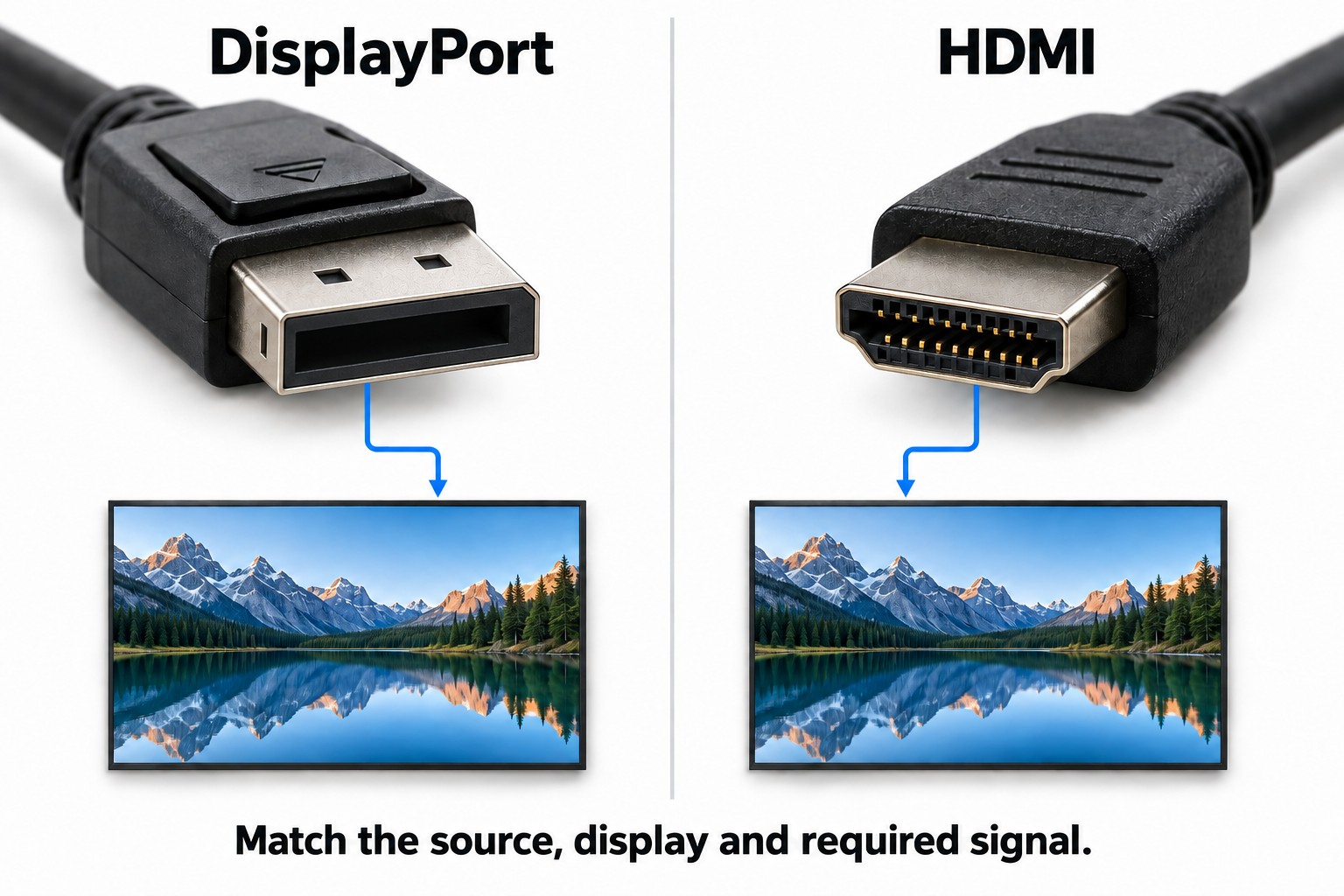
Use the supported connection that meets the source, display and screen-layout requirements. Neither connector name alone guarantees better image quality.
- Specify resolution, refresh rate, colour format and bit depth together.
- Identify how many independent pictures are needed and how they reach each screen.
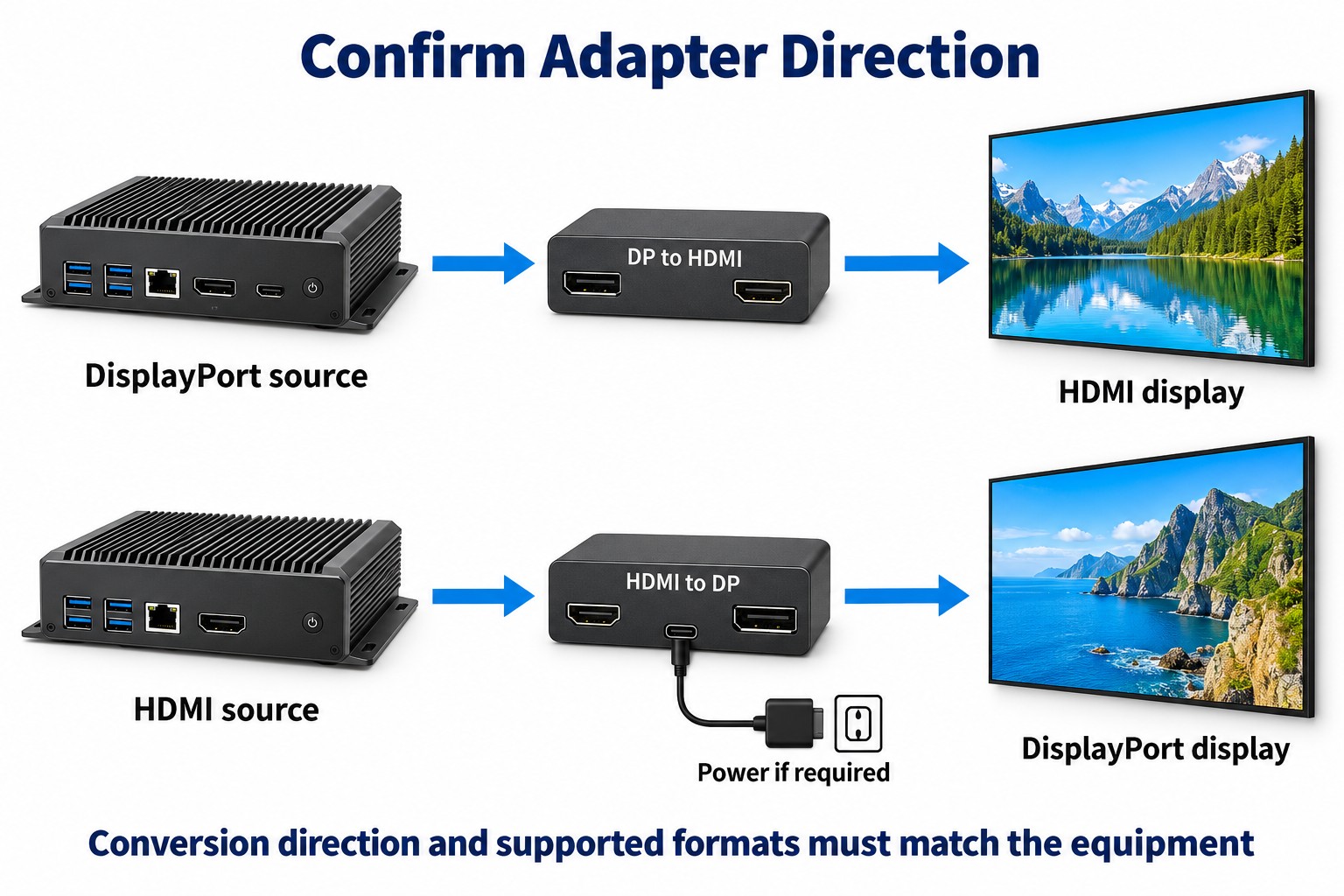
- Confirm adapter direction, required power and exact port functions.
- Test the full cable route, normal content, standby and restart recovery with the proposed equipment.
For digital signage, compare the actual equipment rather than choosing a universal winner. A single menu display, several independent screens and a coordinated video wall have different connection requirements. This guide focuses on those commercial decisions, including adapters, multiple displays and commissioning.
Start with the source and display
List the exact outputs on the proposed player and the exact inputs on each display. Include the port functions, not just their shapes. A socket labeled as an output cannot replace an input, and the presence of several connectors does not establish that they all support the same formats.
Where both ends offer a suitable matching interface, evaluate that direct connection first. It gives the team a simple reference path. Introduce conversion equipment only when the installation needs it, then include that device in testing and in the final bill of materials.
For a signage unit with an integrated player, first decide whether an external video connection is needed at all. The project may use local playback while retaining an external input for another purpose. Confirm the required operating mode before purchasing a separate player and cable system.
Compare formats rather than version labels
Write the required resolution, refresh rate, color format and bit depth together. Include audio and protected-content requirements where relevant. Ask the integrator to confirm that combination across the complete path. A list of individually supported features is not proof that they work simultaneously.
For example, approving “4K” without a refresh rate leaves the requirement incomplete. Adding color depth or changing chroma format can alter the necessary link capacity. Our chroma subsampling guide explains why fine text deserves its own check.
The DisplayPort FAQ describes interface capabilities and conversion options. HDMI’s cable guidance distinguishes certified cable categories. Use those references to ask precise questions, then obtain support details for the actual hardware offered.
How many independent pictures do you need?
One screen or the same image on several screens
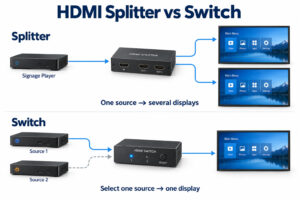
A single display needs a supported point-to-point path from source to input. If several displays show matching content, a distribution device may be suitable. Check that the source format is accepted by every connected display and that the distribution system behaves as required when one display is switched off.
Repeating an image is different from sending independent content to each screen. Our splitter and switch comparison explains those routing functions. Do not assume a simple splitter can give each screen its own separately controlled playlist.
Independent streams over DisplayPort
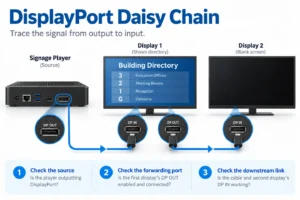
DisplayPort Multi-Stream Transport, usually called MST, can carry multiple independent display streams through one source connection. It requires a compatible source and a supported hub or display chain. Each downstream screen also needs an appropriate path, and the streams share the available link capacity.
A physical daisy chain normally uses a display with both the required input and a suitable output. Having a DisplayPort input alone does not establish that a screen can forward a stream. Confirm the player, operating system, hub or chain and the desired layout as one configuration.
DisplayPort explains multi-stream connections and daisy chaining.
A coordinated video wall
Define whether the project needs separate images or one large canvas divided across panels. Include layout, bezel compensation and synchronization requirements in the system brief. Merely connecting several displays does not settle those functions. Use our video wall controller guide for the related planning decisions.
Adapters have a direction
A DisplayPort source feeding an HDMI display is a different conversion from an HDMI source feeding a DisplayPort display. Do not buy an adapter by the names printed on its two ends alone. Confirm the supported direction, required power and the complete video format.
Some DisplayPort-to-HDMI arrangements use a dual-mode source, often marked DP++, with a suitable passive adapter. Others require active conversion. The reverse direction has its own conversion requirements. Ask the adapter supplier to identify the supported source and destination explicitly rather than assuming the product works both ways.
Include audio, wake behavior and protected playback in the evaluation where the application uses them. Keep the approved adapter model on record. A replacement that looks identical may offer different capabilities, so connector appearance should not be the acceptance test.
Plan the installed route
Measure the route from the player to the display, including cabinet access and the final connector position. Check clearance behind wall-mounted screens and avoid leaving cable weight supported by a port. Select the cable or extension system for the required signal and installation conditions.
Do not turn a successful short-bench test into an unsupported distance promise. Test the intended cable assembly before closing walls or installing a large batch. The HDMI cable route guide covers route planning in more detail; the same need to verify the installed system applies to other interfaces.
Label both ends of each cable and identify the matching input in the commissioning record. For several displays, a simple connection drawing is often more useful to maintenance staff than a collection of specification sheets. Keep it current when equipment changes.
Commission the connection under normal operating conditions
- Confirm the selected input and actual source output format.
- Play the final content, including small text, motion and any required audio.
- Restart the player and display in the intended power sequence.
- Check recovery after a scheduled sleep or power interruption.
- For multiple screens, check every output and the effect of disconnecting one screen.
- Save the accepted equipment models, settings and connection drawing.
If a picture is missing, establish a known working direct path before changing several settings. Reintroduce adapters or distribution devices one at a time. Record which change brings the problem back. This makes support discussions more specific than reporting that one interface “does not work.”
Write a connection brief before choosing the cable
A useful brief starts with a simple drawing: which device creates the picture, which device receives it and which equipment sits between them. Label the direction of each connection. This removes ambiguity when an equipment list contains the same connector name several times but does not show which sockets are inputs and which are outputs.
Beside the drawing, write the required picture arrangement. State whether screens repeat one image, show separate playlists or form a larger canvas. These are different tasks even when the screen count is the same. Ask the integrator to identify the part of the system responsible for each task instead of attributing it to the cable interface.
Record the intended resolution and refresh rate as a pair, followed by the required color settings and audio behavior. Include protected playback only if the application uses it. This keeps a purchasing conversation focused on the signal that must work rather than on the largest number printed on a connector or cable package.
Describe the daily power routine
State whether the player stays on overnight, whether displays follow a schedule and whether staff switch equipment at a common power point. Ask the supplier to demonstrate those conditions. A connection that produces a picture after manual setup still needs to recover correctly when the installation follows its normal opening and closing routine.
Include the service routine too. If a screen must be disconnected while other screens remain in use, make that a test case. For an installation that does not permit live service, document the shutdown and restart procedure instead. The correct acceptance test follows the operating requirement rather than an assumed feature of HDMI or DisplayPort.
Three connection layouts and their purchasing questions
One player and one wall-mounted screen
For a straightforward menu or information screen, list the matching ports and establish a supported direct path. Check the space behind the mount before approving connector orientation and cable routing. The important decision may be access for maintenance rather than an interface capability that the content will never use.
If conversion is unavoidable, name the source side, destination side and adapter model in the quotation. Ask whether auxiliary power is required and where it will come from. Keep that supply accessible for service. An adapter that works on a desk needs the same complete supporting arrangement when installed behind a screen.
Several screens with different content
Define how many independent outputs the player and software must control. Then evaluate separate connections, a supported MST arrangement or another appropriate distribution design. Ask for a demonstration of the final layout. Merely seeing a picture on every screen is insufficient if the requirement is independent content in a specific position.
Give each display a visible test label during commissioning so the team can confirm the mapping. Restart the system and check that the intended assignments return. If one screen is replaced, repeat the relevant layout checks before removing the labels from the service record. This makes future support much less dependent on trial and error.
A video wall showing one combined image
Agree on which device divides the image across panels and where the layout settings are stored. Include the required orientation and treatment of the physical bezels. A connection diagram should show the wall’s processing equipment as well as the display inputs, so staff can identify where an incorrect crop or output assignment might originate.
Review the complete picture with representative moving content and text crossing panel boundaries. Keep any timing or alignment expectations explicit. A successful cable test does not certify the whole wall layout, and an interface name alone does not promise synchronized behavior across an arbitrary set of screens and controllers.
Read adapter specifications without guessing
Begin with the direction statement. “DisplayPort to HDMI” should describe a DisplayPort source feeding an HDMI destination for the intended product, but confirm the manufacturer’s wording. For the reverse path, request a converter explicitly supporting that reverse direction. Do not rely on a marketplace photograph of two connector ends as the technical specification.
Next check the exact supported output format and any conditions attached to it. Include the required audio format if sound is used. Ask whether the converter requires a particular source capability or external power. Save those conditions with the equipment list, because replacing only one part of the path may invalidate the original approval.
Finally, agree on a replacement policy. Record the approved model and any tested alternatives. “Equivalent adapter” is too vague when the only demonstrated similarity is connector shape. If a substitution becomes necessary, repeat the tests relevant to format support, restart behavior and the application’s actual content before approving the change.
Use a fault record that narrows the problem
No picture from the start
Record the selected display input, player output and power state of any intermediate equipment. Check that the source and destination were connected to the correct ports. Establish a known working direct setup where possible, then reintroduce the installed components one at a time. Avoid changing several display settings while also swapping multiple cables.
When a change restores the picture, record exactly what changed and repeat the test. A one-time recovery is not enough to identify the cause. Keep the file or application used in the test unchanged until the connection behaves consistently, then return to the final playlist and confirm the full requirement.
The picture returns only after reconnecting a cable
Write down the order in which the player, display and any converter started. Repeat the site’s normal power sequence and record where recovery fails. Ask the integrator to investigate detection and startup behavior using that sequence. Do not treat repeated manual reconnection as an acceptable unattended operating procedure unless the project explicitly allows it.
Test the proposed remedy through the relevant sleep or restart cycle again. Record any setting or hardware change and update the service instructions. A workaround that requires staff to arrive before every scheduled startup changes the operating model, so it should be evaluated as a practical cost rather than hidden in a technical note.
Video works but the required detail does not
Check the actual active resolution, refresh rate and color settings rather than the player’s maximum advertised capability. Inspect the smallest text and fine colored edges in the real content. If an adapter changes which formats are available, document that restriction and compare it with the brief before accepting the installed path.
Questions to answer before final approval
Does a higher interface version make the picture better?
A version label describes a standards context, not a complete image-quality result. What matters here is whether the offered equipment supports the required signal and presents the content correctly. Compare the complete configuration and its tested behavior. Do not pay for an unused headline capability while overlooking an unsupported everyday operating requirement.
Can every DisplayPort screen join a daisy chain?
No chain should be assumed from an input connector alone. Confirm the required forwarding function, suitable output and compatible source configuration. Also confirm the supported screen layout and signal formats. Where the display lacks the needed function, the integrator must propose an appropriate alternative instead of treating the input socket as evidence of support.
What belongs in the handover package?
Retain the connection drawing, equipment models, cable labels, approved formats and restart procedure. Include the sample playlist and unresolved exceptions, if any. A technician should be able to recreate the accepted configuration from that package without guessing which adapter direction, input or screen arrangement the original installer intended.
Which connection should you specify?
Choose the supported path that meets the screen layout and operating needs with manageable service requirements. Neither DisplayPort nor HDMI makes a commercial screen inherently better. Reliable playback depends on the complete selected configuration and its tested behavior.
Review YJCEN’s commercial display range, then share your player outputs, screen count and signal requirements. Confirm available inputs for the specific product before ordering; this article does not imply that every model includes both interfaces or MST support.