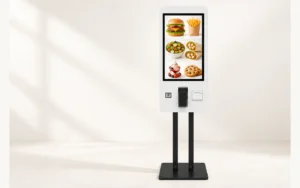
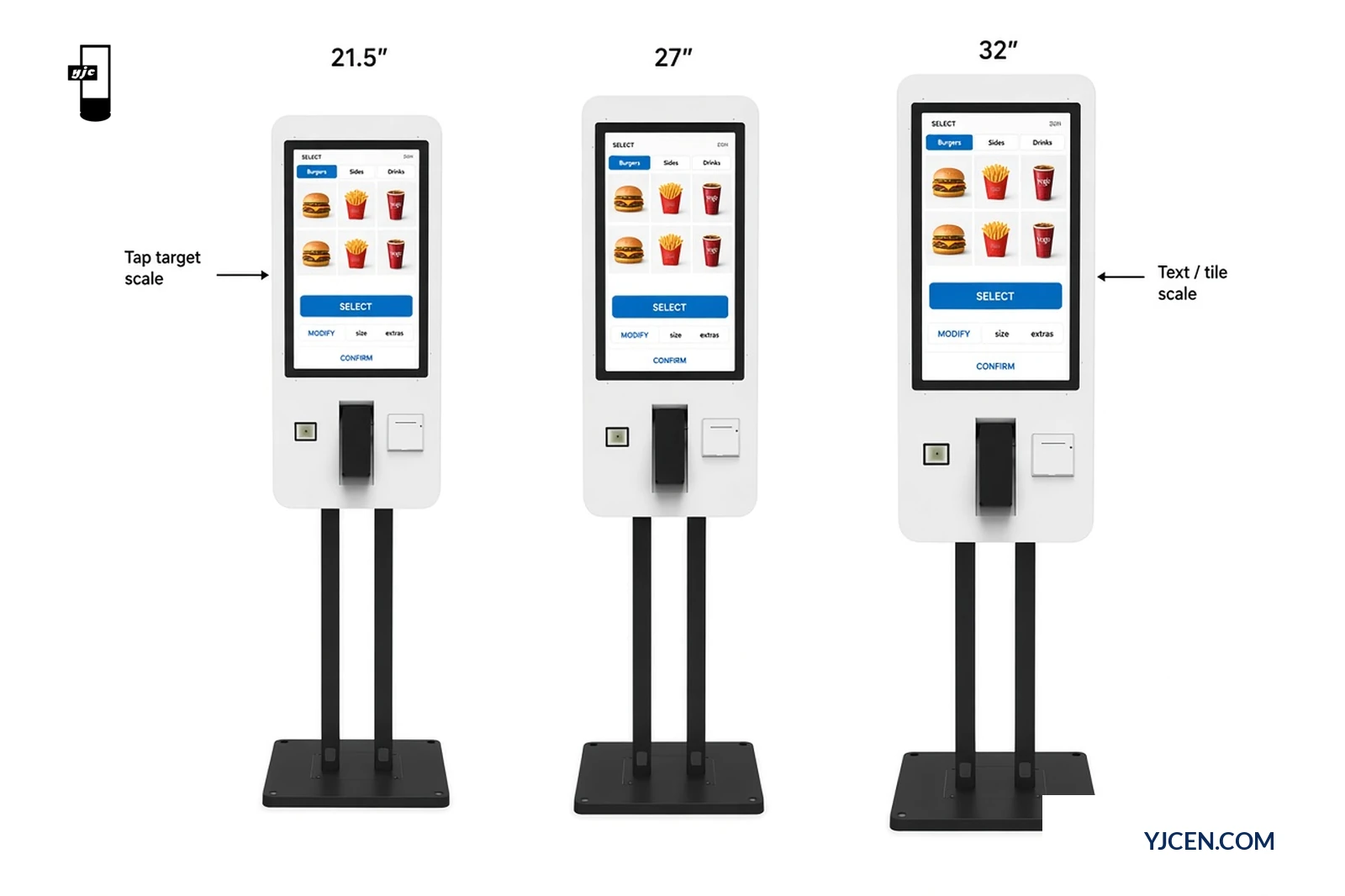
Freeze a screen size only after the same restaurant menu prototype clears select, modify and confirm on the diagonal you plan to buy. On a Self-Service Ordering Kiosk, we provide 21.5 / 27 / 32-inch capacitive touchscreens in wall-mounted or floor-standing formats (models YJC-215-K / YJC-270-K / YJC-320-K). Run one menu build across those three diagonals, score the three task steps, then pick the smallest size that stays usable. This article does not claim a larger screen raises check size.
Why test one menu across three diagonals?
Screen size on this line changes active display area, not the ordering application. Published active areas are 476.5 × 268 mm (21.5″), 597.9 × 336.3 mm (27″) and 698 × 393 mm (32″), all at 1920 × 1080 portrait. The same SKU list, modifier tree and languages must fit those panels without shrinking taps below a usable size or forcing extra scrolls that break the confirm step.
Testing three separate “demo menus” hides the real problem: a shallow drink menu can pass on 21.5″ while a multi-category meal build with photos and extras fails the same diagonal. One prototype across three sizes answers the purchase question: which of 21.5 / 27 / 32 keeps select → modify → confirm usable for this menu?
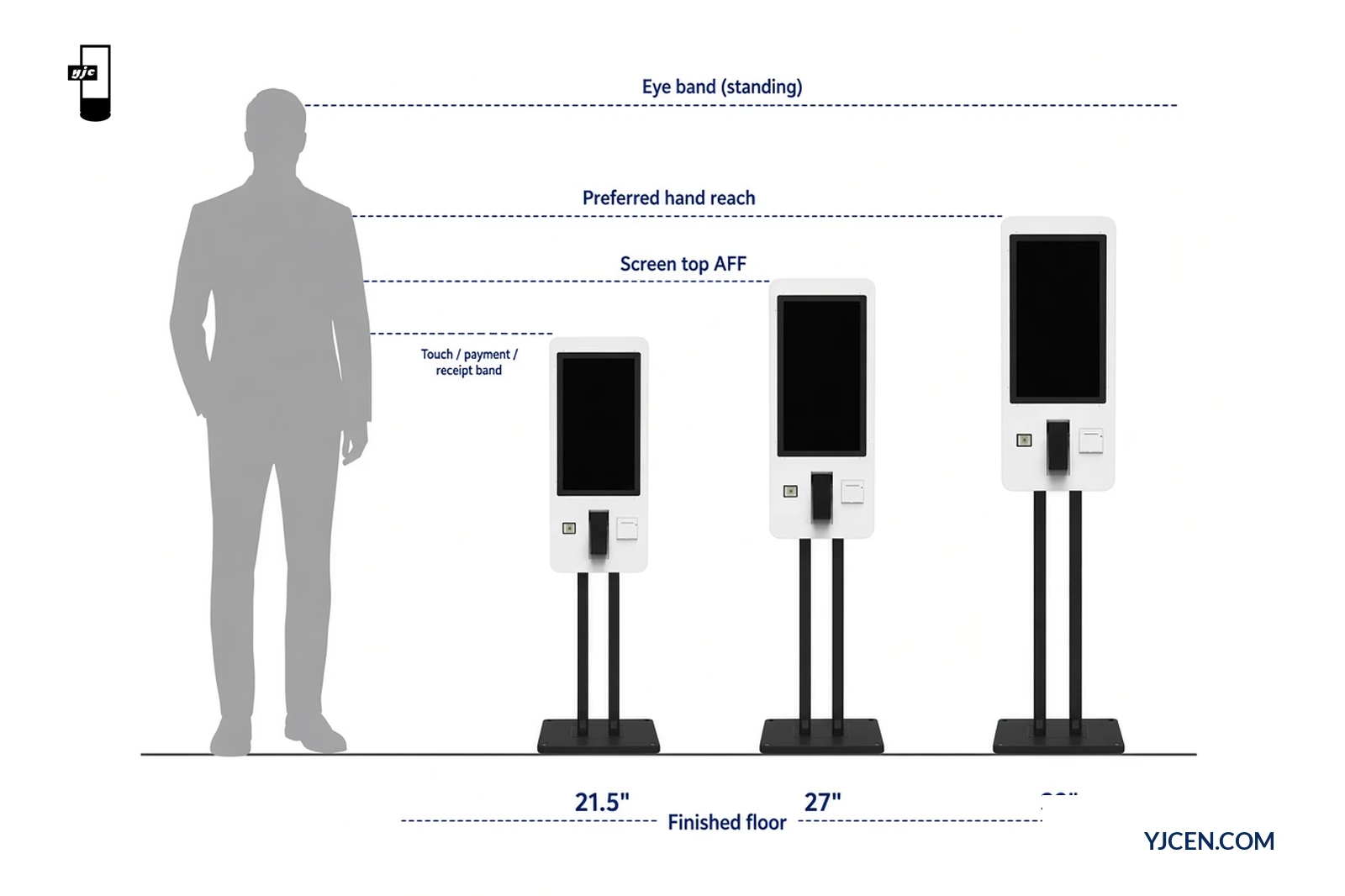
Mount format still matters for reach. Floor-standing overall heights on this line are 1675 / 1800 / 1898.6 mm class; wall-mounted housings are shorter (950 / 1075 / 1175 mm class). Pair the size sample with the planned wall or floor layout — the countertop vs floor-standing kiosks guide covers base and housing height interactions. This piece does not rewrite information-UI sizing for wayfinding screens.
What does the same-menu sample protocol look like?
Lock the software and content first. Change only the physical diagonal (and the matching enclosure drawing).
| Protocol field | What to freeze | Why it matters |
|---|---|---|
| Menu prototype ID + revision | Exact SKU tree, photos, prices, modifiers | Prevents “different menus per size” bias |
| Languages / locales under test | Same language pack on every diagonal | Catches text overflow on longer locales |
| Task script | Select item → modify → review → confirm | Matches the purchase decision steps |
| OS / app build | Android or Windows build string | Keeps UI chrome identical |
| Kiosk models under sample | YJC-215-K / YJC-270-K / YJC-320-K (or equivalent sample units) | Ties results to ordered hardware |
| Mount under sample | Wall or floor as planned for site | Reach differs by housing height |
| Viewing distance | Standing approach distance you will use on site | Readability without inventing a lab score |
| Pass rule | Pre-written usable / needs-resize / fail per step | Stops post-hoc check-size storytelling |
| Record fields | Tester role, date, size, step result, notes | Audit trail for RFQ freeze |
Run the script on each diagonal in the same session order when possible. Record step results as usable / needs-UI-resize / fail — not as invented conversion percentages. If you do not yet have sample hardware, ask us for size-matching manuals and dimension drawings from Product Downloads, or request a sample configuration (MOQ 1 on standard builds) so the prototype can run on real glass.
For printer, payment terminal and the rest of the peripheral BOM outside this size decision, use the self-ordering kiosk software and peripheral checklist. This article does not rehash that list.
How do you score select / modify / confirm usability?
Score each step on every diagonal. Stop at the first fail; mark needs-UI-resize when the flow works only after enlarging taps or cutting content density.
| Step | What the tester does | Usable | Needs-UI-resize | Fail |
|---|---|---|---|---|
| Select | Find category → open item → add to order | Item tiles and category tabs hit cleanly; no mis-taps | Works after larger tiles / fewer columns | Cannot find or add the item without staff help |
| Modify | Change size, extras, remove/add modifiers | Modifier controls readable and tappable | Works after larger controls or fewer options per screen | Modifier tree overflows or blocks continue |
| Confirm | Review cart → confirm / pay handoff | Review lines readable; confirm control clear | Works after simplifying review layout | Confirm missed, truncated totals, or blocked handoff |
Also note two hardware-adjacent checks that size choices affect:
- Reach — thumb/finger path to the lowest modifier and the confirm control after the chosen mount height is set.
- Readability — item name and price readable at the planned standing distance without leaning into the fascia.
An integrated 80 mm thermal receipt printer and QR/NFC payment configurations sit on this self-service ordering line. Receipt content and payment result still come from the ordering application and provider — size selection does not replace those integration checks.
Size matrix by menu depth
Use this recommendation matrix as starting rules after the same-menu sample. It is not a conversion-lift claim.
| Menu depth (prototype) | Typical content load | Prefer first sample | Upsize when… | Downsize when… |
|---|---|---|---|---|
| Shallow | Few categories; short modifiers; light photos | 21.5″ | Confirm control crowded after locale expansion | — (already smallest on this line) |
| Medium | Multi-category meals; photo tiles; 2–3 modifier layers | 27″ | Select/modify needs-UI-resize on 27″ after densest locale | Shallow menu passes usable on 21.5″ with spare tap margin |
| Deep | Large photo menu; many extras; multi-language long strings | 32″ | Confirm/review still truncates on 32″ → cut content density before another diagonal | Medium menu passes usable on 27″ at planned viewing distance |
Modular hardware with detachable screen, stand and camera is a different size set (15.6 / 21.5 / 23.8-inch on the Self Service POS Kiosk). Do not map 27″ / 32″ sample results onto that modular line unless the project actually orders those modular diagonals.
For a broader selection sequence (mount, OS, peripherals, OEM scope), see how to choose a self-service kiosk.
Decision this article settles: with one restaurant menu prototype, which of 21.5 / 27 / 32 keeps select / modify / confirm usable? Pick the smallest diagonal that scores usable on all three steps under the frozen protocol. If any step is fail or only needs-UI-resize, adjust UI density or upsize — do not freeze size on a render alone, and do not claim a larger screen raises average check without a measured test.
FAQ
Must I test the same menu on every diagonal?
Yes. One prototype across sizes prevents menu-bias in the size pick.
Do larger screens raise average check size?
No. Treat that as unproven unless your site measures it.
Are 21.5, 27 and 32 available on this ordering line?
Yes. Models YJC-215-K, YJC-270-K and YJC-320-K.
Does the modular POS kiosk share 27 and 32?
No. That modular line lists 15.6 / 21.5 / 23.8-inch.
Wall or floor — does mount change the size test?
Yes. Re-check reach after the planned mount height is set.
What should I send for a size-sample review?
Six fields: menu prototype, languages, task script, mount, country/quantity.
Next step — what to send
Send one brief so we can mark size fit / needs-UI-resize / redesign:
- Menu prototype ID (or screenshots) + languages under test
- Task script: select → modify → confirm
- Preferred sizes to sample (21.5 / 27 / 32) and mount (wall / floor)
- OS preference (Android / Windows) and whether a sample (MOQ 1) is required
- Site notes: viewing distance, counter/wall constraints, country, quantity
- Any accessibility reach target the site team will measure separately
Ask us for the size-matching manuals and dimension drawings, or download them from Product Downloads. OEM layout reviews go through custom display solutions. Start the RFQ from Contact.