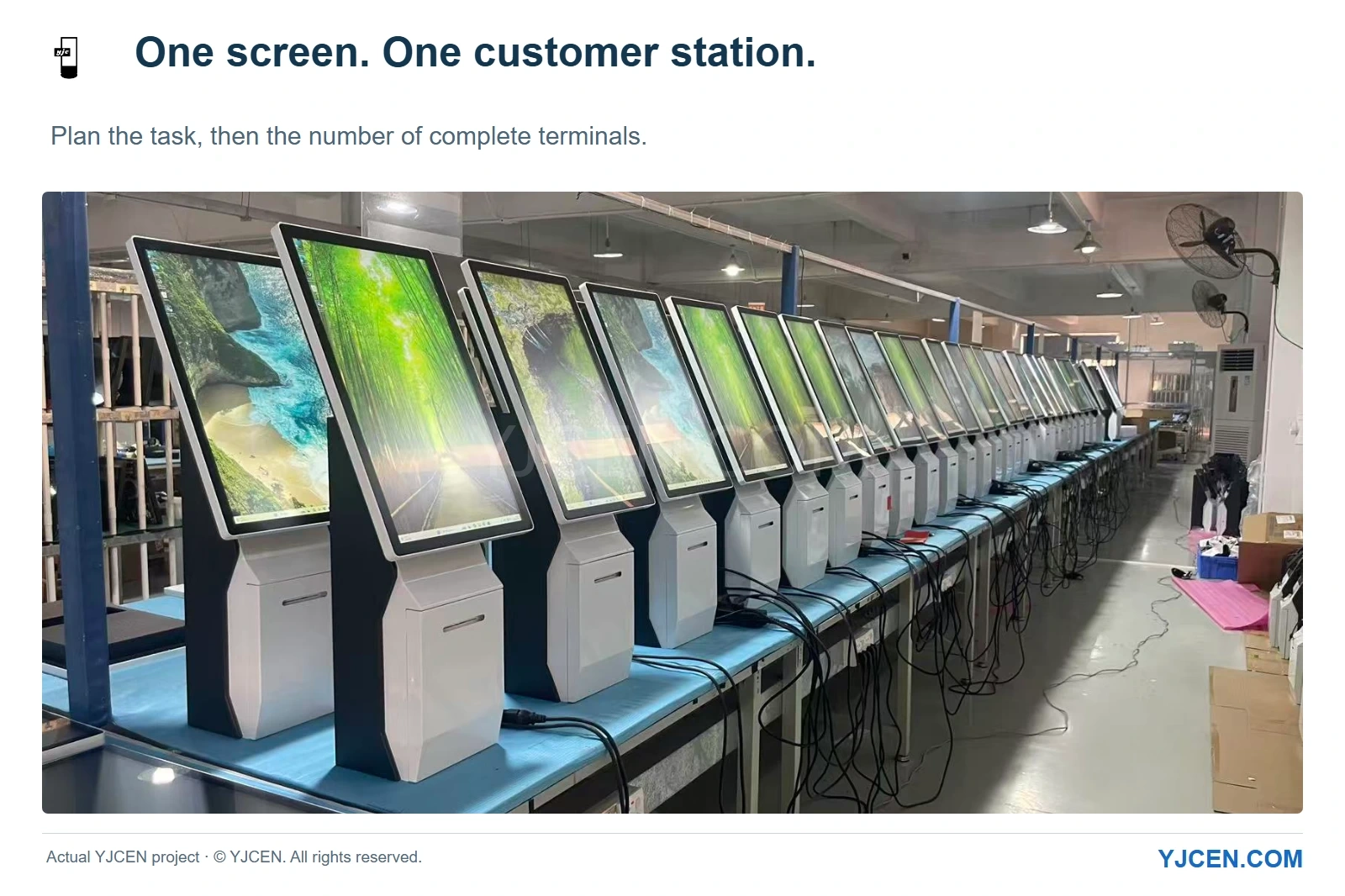
Actual YJCEN project: desktop self-service kiosks photographed in our workshop. © YJCEN. All rights reserved.
A second screen is useful when another person needs to see information during the same transaction. When two customers need to order independently, we recommend starting with two complete self-service stations. For projects using our Self Service POS Kiosk, we first establish the user’s task, the number of simultaneous users and where each person will stand. Those decisions lead to the screen format, mounting and peripherals.
Count the independent tasks before choosing the number of screens. A customer display, a self-ordering station and a second ordering station solve different problems.
1. What is the second screen supposed to accomplish?
We recommend writing the requirement as a task: “show the customer the current order,” “let the customer place an order,” or “let two customers order simultaneously.” Each leads to a different starting layout.
| What the project needs | Recommended starting layout | Why it fits |
|---|---|---|
| A customer follows an order entered by staff | A customer-facing transaction view at the staffed POS | The customer needs visibility into the same transaction |
| One customer selects items and completes an order | One customer-operated kiosk | Selection, payment interaction and receipt collection can share one station |
| Two customers place unrelated orders simultaneously | Two complete single-screen kiosks | Each person has their own screen, controls and peripheral allocation |
| Staff help customers while operating their own checkout | A customer kiosk near the existing staffed POS | The customer station and staff workstation keep distinct roles |
At a staffed checkout, a customer-facing view can show items and totals while staff retain editing controls. Define that view with the POS software team, including which transaction information appears and when.
For self-ordering, the customer already owns the interaction on the kiosk screen. A useful next question is whether the site needs another customer position or simply a better-placed first station.
Assign the kiosk and POS roles before combining equipment into one layout. This gives staff assistance, customer ordering and payment a clear place in the service process.
2. When is one self-service screen enough?
We recommend one station when one customer can complete the intended sequence at that position: select, review, interact with the chosen payment device and collect a receipt. Put the transaction steps in the customer application and keep the physical controls within the same operating area.
Our modular terminal offers 15.6-, 21.5- and 23.8-inch screens, with desktop, wall-mounted and floor-standing formats. Its detachable screen, stand and camera components let us discuss placement at component level, particularly where a counter must accommodate the touchscreen and selected payment hardware together.
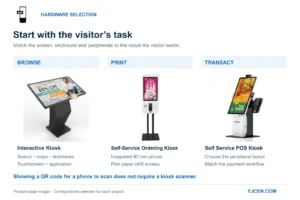
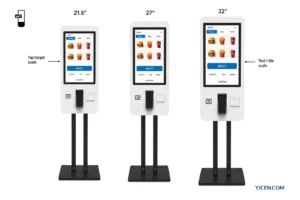
For a dedicated restaurant ordering position, our Self-Service Ordering Kiosk combines a 21.5-, 27- or 32-inch capacitive touchscreen with an integrated 80 mm thermal receipt printer. We recommend this format when ordering and receipt collection belong at one clearly defined customer station.
Choose the screen size using the actual menu layout. Larger product photographs, category navigation and an order summary need usable interface space; test the intended application at its actual display size before increasing the number of screens.
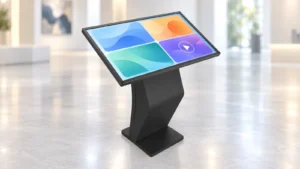
For directories, maps and product browsing, our Interactive Kiosk offers sizes from 15.6 to 65 inches. We recommend starting with the visitor’s reading and touch tasks and adding transaction peripherals only where the workflow uses them.
3. When should you install two separate kiosks?
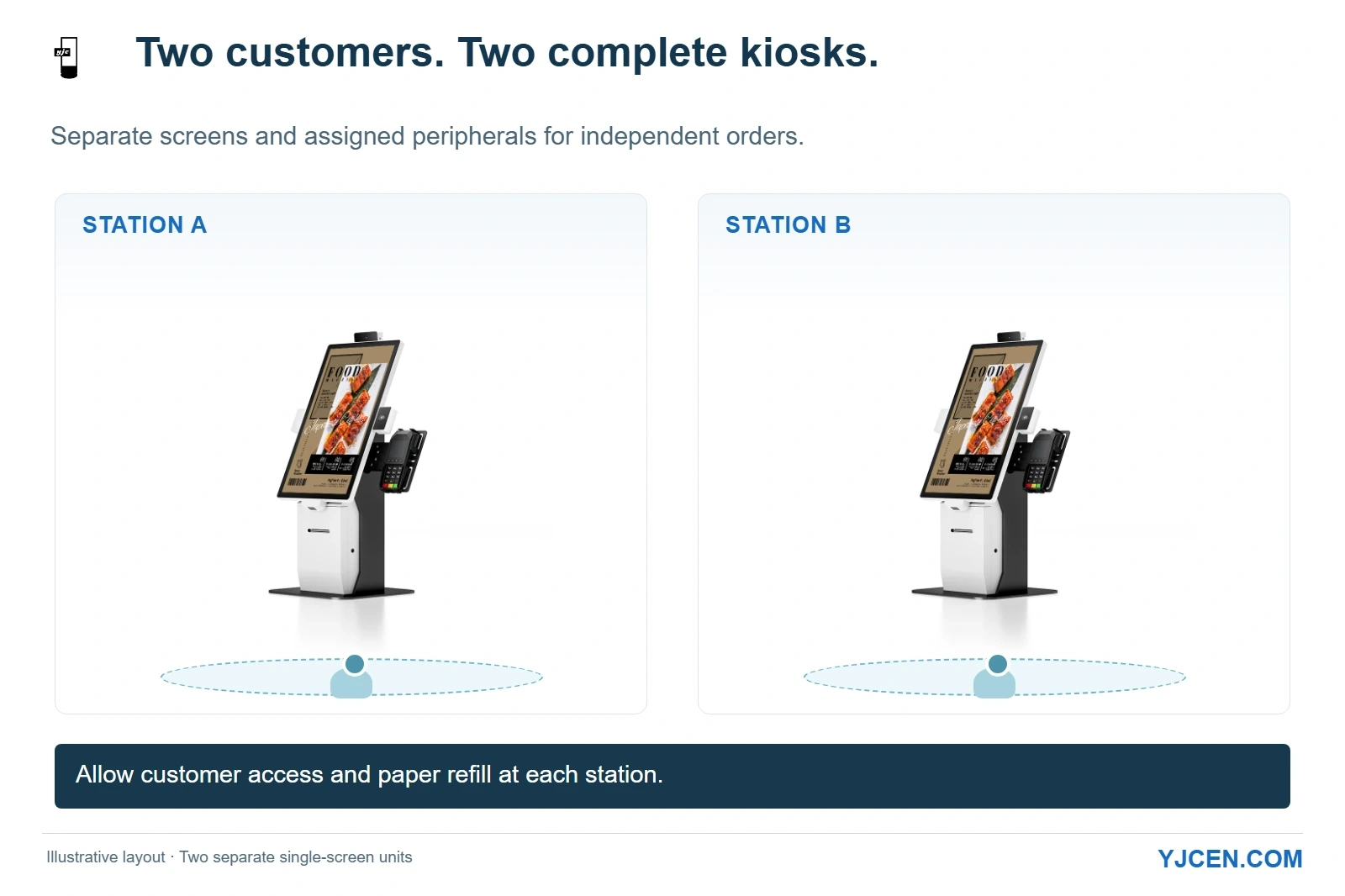
We recommend two complete stations when two customers need to make independent selections at the same time. Give each station its own screen, application session and assigned peripherals, then connect the stations to the site’s software services as required by the application.
This arrangement makes the hardware allocation explicit. Each touchscreen belongs to its own terminal, and the printer or payment device can sit beside the customer who uses it.
| Station item | Station A | Station B |
|---|---|---|
| Customer interaction | Customer A’s selections and order | Customer B’s selections and order |
| Touch input | Assigned to terminal A | Assigned to terminal B |
| Receipt output | Local printer where required | Local printer where required |
| Payment hardware | Device selected for station A | Device selected for station B |
| Network and application | Connection and application setup for A | Connection and application setup for B |
For a restaurant, place the receipt outlet where the person completing the order can collect it without reaching across the adjacent station. Where the selected configuration includes payment hardware, give each customer an identifiable payment position as well.
Two stations provide two physical interaction positions. Their useful capacity still follows the ordering application, payment process and customer behaviour; evaluate the complete workflow during the sample stage.
4. Where should staff assistance happen?
For a site with both assisted and self-service ordering, we recommend positioning the customer kiosk near the staffed service area while maintaining its own approach space. Staff can reach the customer when help is needed, and the customer can see where to ask for assistance.
Keep the existing staff POS focused on the employee’s tasks. If the project requires staff to retrieve, amend or complete a kiosk order, define that handover in the ordering and POS software workflow.
For hardware planning, this means reserving separate working areas: one for the kiosk customer and one for the employee at the counter. A second display on a shared structure does not by itself establish order handover or staff-control permissions.
5. How much space does each station need?
We recommend laying out each complete station before fixing the counter position or floor mounting. Include the screen, base, selected peripherals, the customer’s approach and the staff service opening.
Our 21.5-inch modular desktop unit has a 340 × 330 mm base in the verified single-screen configuration. Two of these bases placed side by side occupy 680 × 330 mm before any gap or additional clearance; this is a calculation of the two base footprints, not a finished counter-space requirement.
Add the actual peripheral positions and the space people need to operate them. For a wall-mounted station, removing the floor stand changes the mounting arrangement, while customers still need clear space in front of the touchscreen and receipt outlet.
Mark the kiosk mounting-height and reach fields for each station. Use the locations of the controls, payment device and receipt outlet to assess access against the project’s applicable requirements.
For our ordering kiosk’s 80 mm printer, include the paper-replacement movement in the layout. We recommend arranging service access so staff can refill one station without working through the adjacent customer’s position.
6. What should you send us for a hardware quotation?
Send us the number of customer positions, a counter or floor sketch and the task at each station. We can use those inputs to discuss the screen size, mounting format and peripherals for our single-screen kiosk configurations.
We offer Android and Windows configurations and can pre-install and test your application on the selected hardware. Include the application version and peripheral models so the sample can exercise the intended ordering, input and receipt workflow.
7. Frequently asked questions
Does a self-ordering kiosk need two screens?
No; one customer can complete a self-ordering workflow on one touchscreen. We recommend choosing the interface, peripherals and station layout around the intended application.
Should two customers ordering independently have separate stations?
Yes; two complete stations are our recommended starting point. Assign touch input and peripherals to each station, then plan the application and network connections.
Can a single-screen kiosk sit near an existing staffed POS?
Yes; position it with a clear customer approach and staff assistance route. Any order handover between kiosk and POS is part of the selected software workflow.
Is 680 × 330 mm the required space for two desktop kiosks?
No; it is only the combined footprint of two specified bases. Add spacing, selected peripherals, user access and service movement to the installation layout.
Can YJCEN pre-install and test our application?
Yes, we can pre-install and test your application on selected hardware. Include the intended customer workflow and peripheral models with the sample requirements.
Plan your self-service stations with YJCEN
Send us your layout, the task at each customer position and the application you intend to run. We can help select the single-screen kiosk format, screen size and peripherals around that arrangement.