Can HDMI CEC control a signage display?
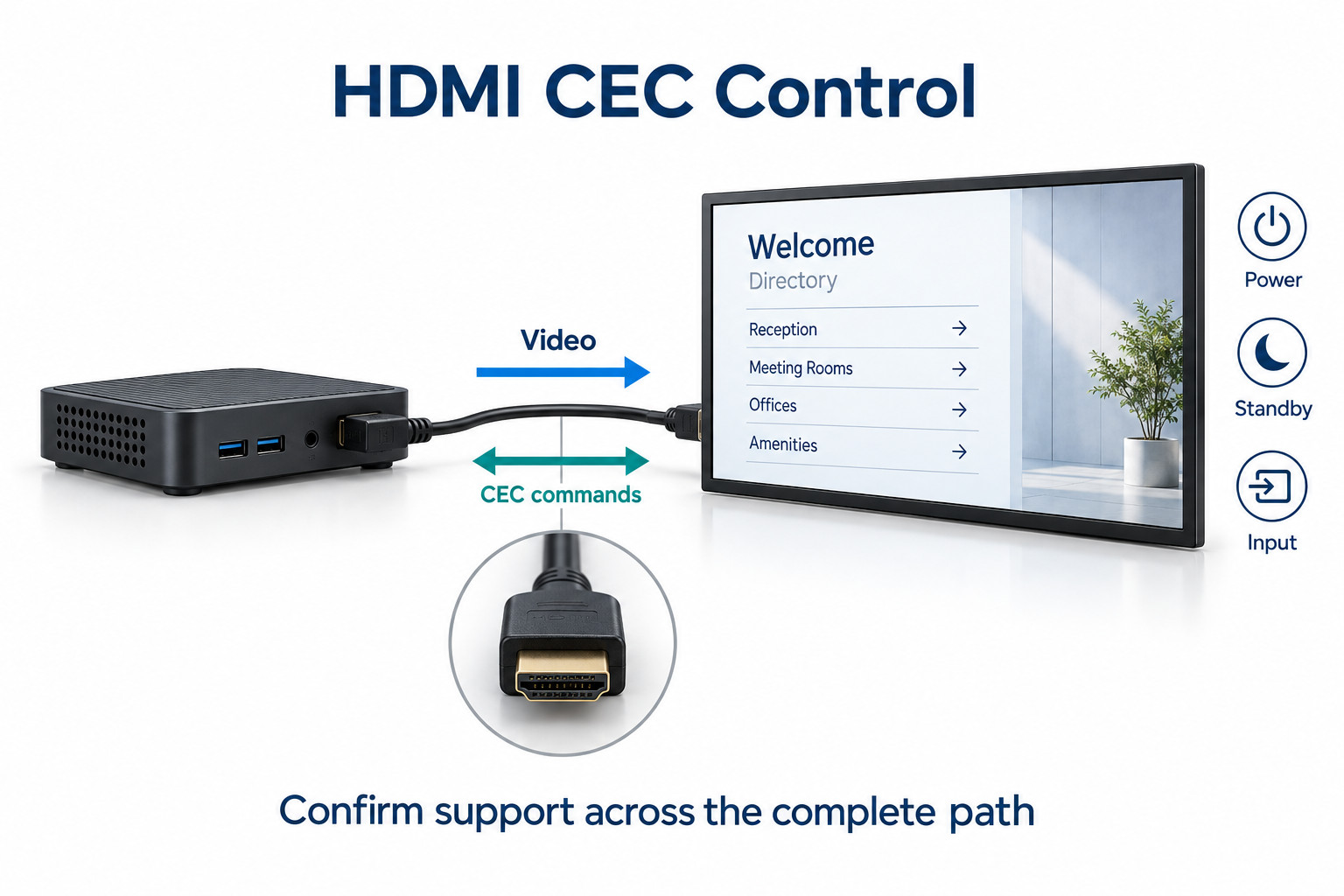
CEC can carry supported power and input-control messages through HDMI. The required actions must be supported and configured across the actual source-to-display path.
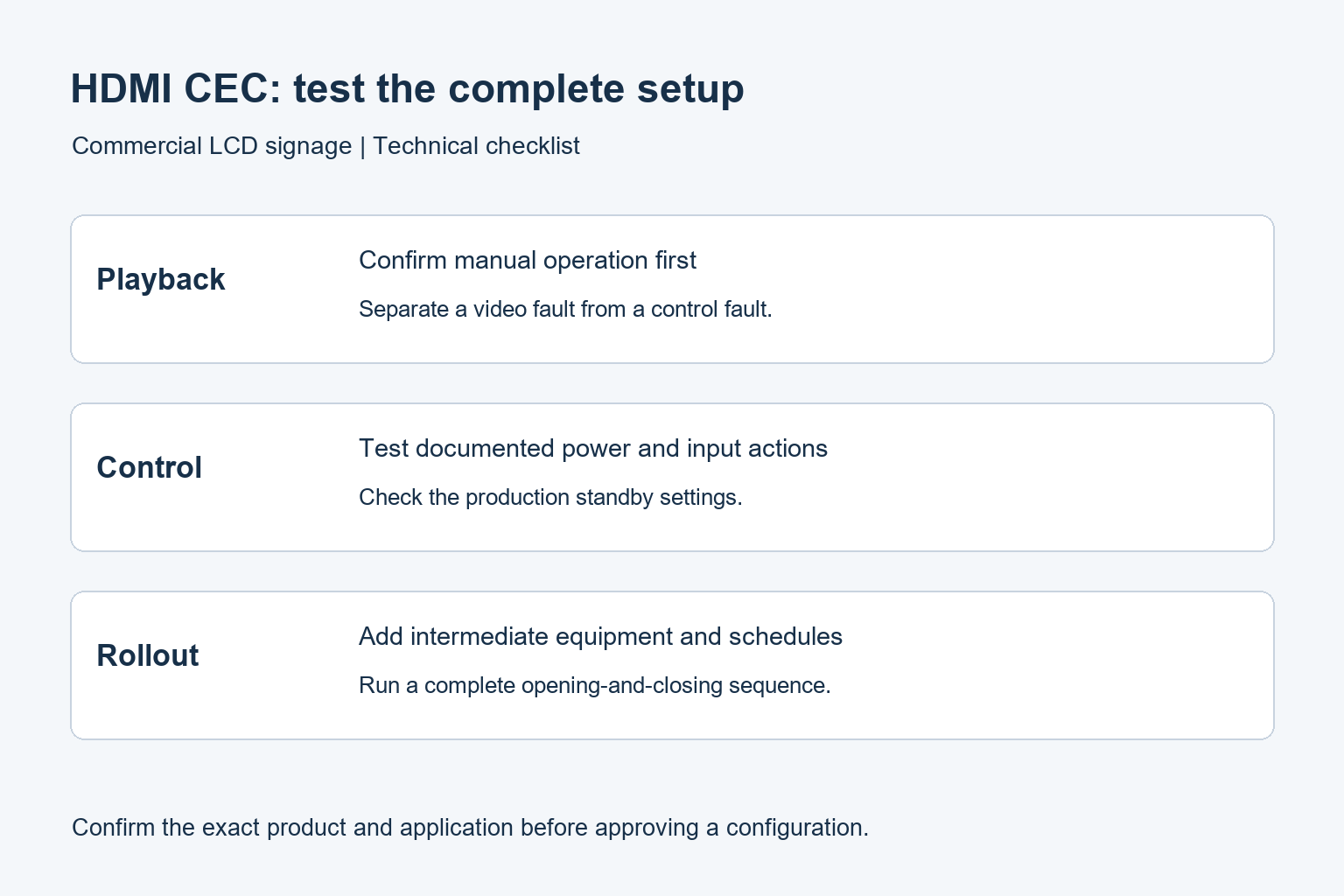
- Confirm the content works when the display is operated manually.
- Record CEC, input, scheduling and standby settings.
- Test documented commands on a direct connection before adding intermediate devices.
- Verify player restarts, overnight standby and power restoration with the production settings.
A working picture does not prove that CEC control is working. If a signage display stays off in the morning, or turns on again after closing, investigate the control behavior separately from video playback. This guide explains what to verify before relying on CEC for unattended operation.
What HDMI CEC does in a signage installation
CEC carries control messages between supported devices on an HDMI connection. It is separate from the image being shown. The Linux CEC documentation describes the dedicated CEC connection and device communication. An HDMI socket alone does not establish which commands a product supports.
In a simple setup, a controller can react to a player’s signal and send a power command to the display. Extron’s HD CTL 100 application overview gives a commercial example of CEC-based display automation. That is an example of a designed system, not a promise that every player and screen will behave the same way.
Keep three actions separate: starting the media player, sending the display command, and showing the correct content. A morning schedule is successful only when the screen has reached the intended input and the required signage is visible. The presence of power at a device is not enough.
Check support at every stage
Player or controller
Confirm that the source can send the required commands. Ask which application or controller setting sends them, what triggers the action, and whether the function works after a restart. Do not assume a video output automatically provides a supported CEC control interface.
Commercial display
Read the manual for the exact display model and firmware. Look for supported power and input behavior, relevant HDMI ports, and any standby conditions. Menu terminology differs between manufacturers. Record the actual setting rather than relying on a name copied from another brand’s instructions.
Intermediate equipment
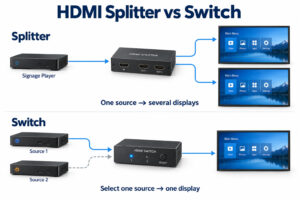
List every switcher, extender, splitter and adapter between the source and screen. Check how each handles CEC. A device that passes the required video format may not provide the required control path. Test the final topology, not just a short direct connection on a workbench.
Manufacturer limits deserve attention. The Extron HC 400 user guide notes that CEC implementations vary and interoperability cannot be guaranteed. Use that as a reason to test the selected combination, rather than assuming identical behavior from a shared HDMI feature name.
Troubleshoot in a controlled order
First write down the exact symptom. “No picture” could mean the display is asleep, the wrong input is selected, the player is not running or video is failing. Check the display’s on-screen menu and input information before changing several settings at once.
- Confirm that the display shows the intended content when operated manually.
- Record the current CEC, standby, input and scheduling settings on both ends.
- Test the documented power-on action with one source and one display on a direct connection.
- Test standby separately, then check whether either device wakes the other unexpectedly.
- Add the installation’s intermediate equipment one item at a time and repeat the same actions.
- Restore the intended schedules and run a complete opening-and-closing sequence.
Keep a brief timeline: when the command was triggered, when the screen responded and when content appeared. Note a failure even if a second attempt works. Intermittent recovery is important evidence for an unattended installation, especially when staff cannot reach the screen easily.
Common symptoms and useful next checks
The screen turns off, but cannot wake
Review the documented standby and power-saving modes. Confirm that the selected mode allows the required wake behavior. Test with the production settings rather than leaving an energy-saving option changed without recording it. If support remains unclear, ask the display supplier to confirm the intended control method.
The display wakes after closing time
Record which device or scheduled event became active at that time. Check whether the player, another source or a controller is sending a competing action. Temporarily simplify the setup during an approved test window. Change one source of automation at a time so the cause remains identifiable.
The direct connection works, but the installed system fails
Compare the two paths on paper. Check the specifications and configuration of each additional device, then repeat the test in stages. Preserve the known-working direct test as a reference. Replacing every cable and changing every menu at once makes the result harder to explain.
The display is on, but video is still missing
Move the investigation to input selection, player output and the video link. EDID negotiation and HDCP-related problems are separate topics. Repeatedly sending a power command will not establish why a video signal is absent.
When another control method is a better fit
Start with the operations requirement. Does the team need a simple opening schedule, or must it confirm each screen’s current state remotely? List the actions and feedback needed before choosing an interface. A system that sends commands without reporting results may not meet the second requirement.
Where supported, serial or network control may provide a different set of documented commands and status responses. Our RS-232 display control guide covers the serial workflow. Confirm capabilities on the proposed display; no interface name guarantees every status query or wake function.
An integrated player may also use a local schedule within its own system. Establish what that schedule controls: content playback, backlight state, standby or another function. Keep one clear source of authority for normal operation so two schedules do not issue conflicting actions.
What to approve before rollout
Retain the model and firmware list, connection diagram, menu settings and successful test sequence. Include behavior after a player restart, an overnight standby period and a planned power restoration test. Use safe site procedures and the equipment manuals when conducting power tests.
Define a recovery procedure that staff can follow. It should identify the correct input, the approved restart order and the person to contact if the fault repeats. Avoid a procedure that requires staff to guess which of several remotes or schedules currently controls the screen.
For a new installation, review the commercial indoor signage range and send YJCEN your player, connection diagram and control requirements. Confirm CEC support for the chosen configuration before specifying it as the project’s operating method.