How should you investigate an HDCP error?
Treat an HDCP warning as a problem to investigate across the protected-video path. It does not by itself prove that the LCD panel is faulty.
- Record the exact warning, source application, ports and conditions that trigger it.
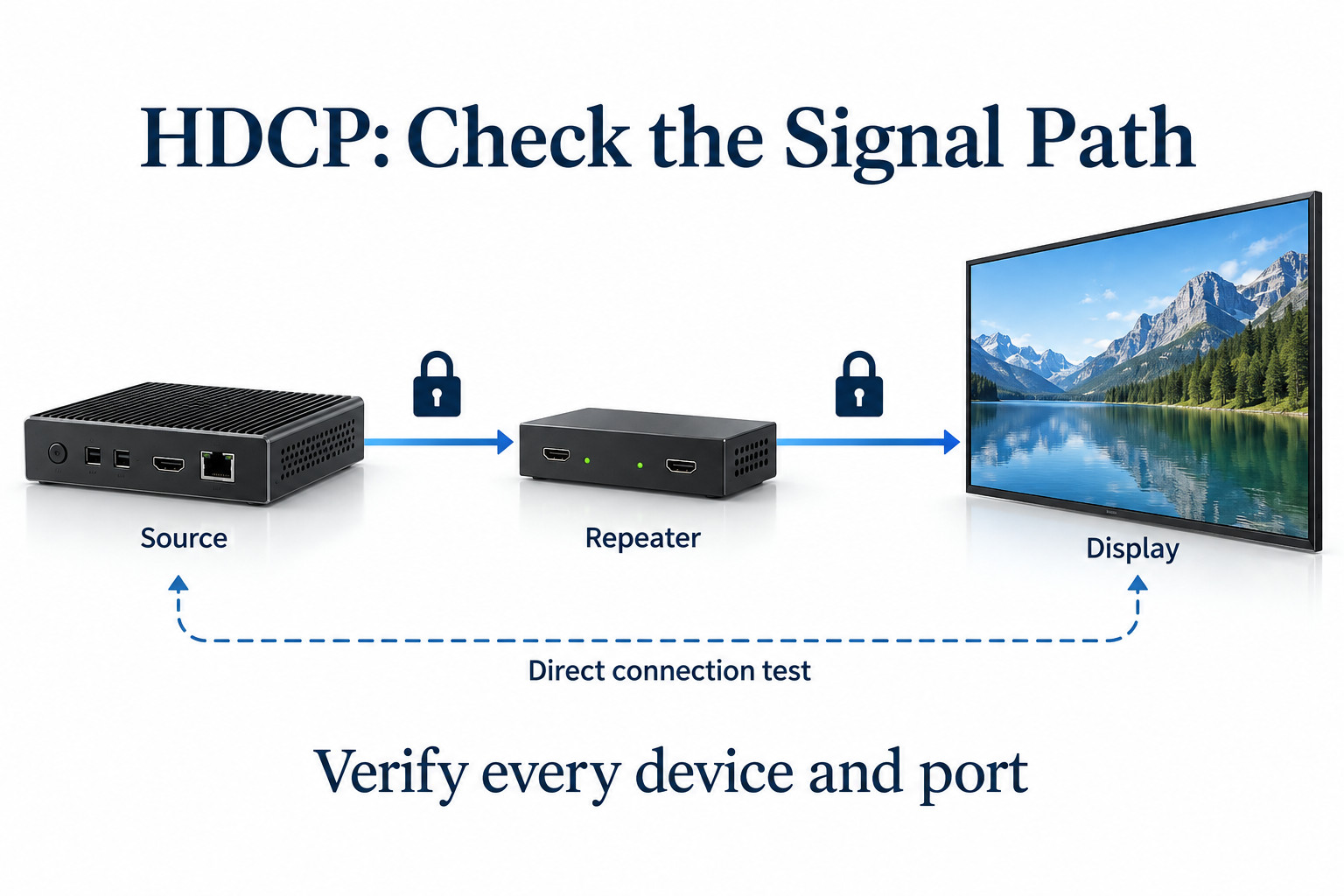
- Test a supported direct connection with a known-working cable.
- Add intermediate equipment back in stages and confirm version and format support for the exact ports.
- Send the signal-path drawing and test results to support if the fault remains.
A black screen by itself does not prove an HDCP fault. Start with the exact message and the conditions that trigger it. This guide explains the difference between content protection and ordinary signal setup, then provides a practical sequence for finding the failing part of a signage system.
What HDCP does in a display system
The furniture-showroom installation uses nine 55-inch panels and a matrix controller. In a protected-content fault on this type of layout, isolate the source-to-controller path before comparing panel outputs; a controller is another device in the signal path, not just a cable junction. Project example.
HDCP stands for High-bandwidth Digital Content Protection. Digital Content Protection LLC, which licenses the technology, describes authentication between transmitting and receiving devices. A source can check whether the connected receiver is authorized before passing protected content.
The source is the device sending the signal; the sink is the receiving display. Equipment between them may act as a repeater, receiving protected video and transmitting it onward. The complete chain needs to support the requirements of the source and content.
For signage, this matters when a protected source is part of the installation. It does not mean that every menu image or locally produced advertisement is protected. Establish which content triggers the problem before changing equipment or settings.
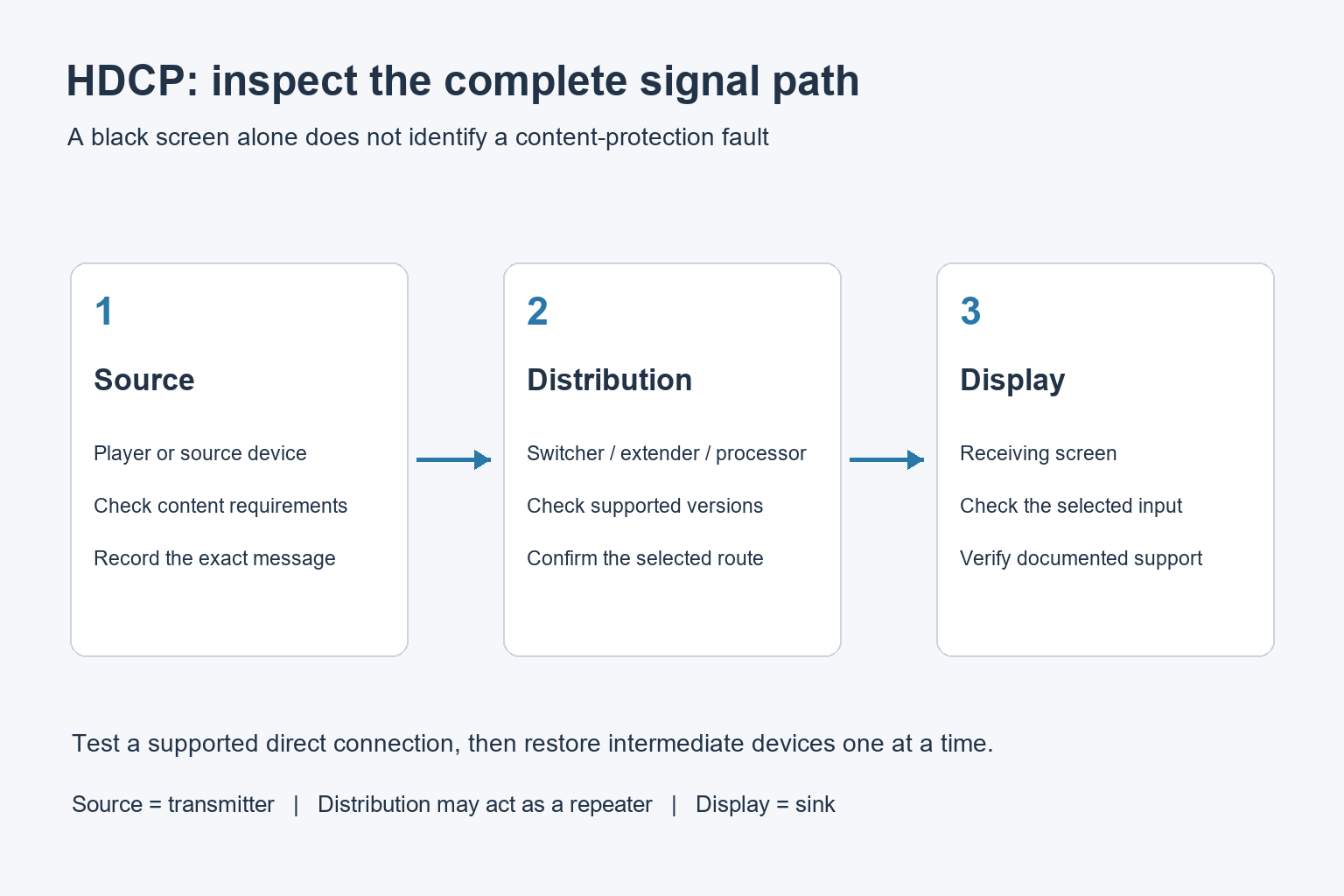
HDCP, HDMI and EDID are different
HDMI is a connection interface. HDCP concerns content protection over a supported digital connection. EDID describes display capabilities to a source. These concepts interact, but solving one type of problem does not automatically solve the others.
A source may find a supported picture format and still fail to show protected video. Conversely, a blank screen can result from an unsupported timing, incorrect input or disconnected cable before content protection becomes relevant. Our EDID guide for digital signage explains the capability exchange separately.
Do not infer HDCP support from an HDMI label alone. Check the exact device, input, output and supported HDCP version. For a switcher or processor, confirm the requirements on both sides of the device and how its documented modes handle the proposed route.
First, record what works and what fails
Keep a short symptom record before disconnecting anything. Note the message, selected input, source application and whether the failure occurs at startup, after standby or when changing content. Capture the relevant status information from supported device menus.
| Observation | What it suggests checking | What it does not prove |
|---|---|---|
| Explicit HDCP warning | Authentication status and supported versions | That the LCD panel itself is faulty |
| Menu visible, protected program blank | The protected-content path | That every part of the cable route is healthy |
| No image from any content | Power, input, timing and connections | That HDCP is the cause |
| Direct connection works | Intermediate devices and their settings | That every output route will behave identically |
| Failure after standby | Wake behavior and reconnection sequence | That replacing the display will fix it |
Some equipment provides useful authentication indicators. For example, Extron’s MLS 608 documentation describes an output compliance check when encrypted content is selected. Indicator meanings depend on the model; use the manual for the installed equipment rather than applying another device’s status labels.
Test the simplest supported connection
Establish a baseline
During an agreed maintenance window, connect the source directly to one compatible display using a known-working cable. Select the correct input and a format supported by both devices. Follow the manufacturers’ connection and power-up instructions.
Check the normal signage content first, then the authorized protected content that caused the error. Record both results. Showing a setup menu or an unprotected test pattern confirms only part of the workflow; it does not establish that protected playback succeeds.
Add intermediate devices one at a time
If the direct connection works, restore the planned signal route in stages. Add the switcher, extender or processor according to the installation design, and repeat the same test. Keep the source and display settings stable while comparing each stage.
Document the first stage where behavior changes. This narrows the discussion with the integrator and avoids replacing the whole system based on a single black-screen report. A difference identifies a path to investigate, not necessarily a defective box.
Check versions, ports and the whole route
Record model numbers and the specific ports used. A device may have different capabilities across its inputs or outputs. Ask the supplier to confirm the exact source-to-display combination, including the required content format and protection version.
On a multi-output system, check every intended route. A successful connection to one screen does not establish that another branch, adapter or processor output is supported. Keep a route list with the hardware configuration so later replacements can be compared against it.
Our video wall controller guide covers broader input, output and layout planning. Treat protected playback as an additional compatibility requirement when it is part of the project, rather than assuming it from a controller’s maximum resolution.
Cables, standby and software changes
Inspect accessible connections for loose plugs, strain and damaged cable ends. Substitute a known-working cable of a suitable type during diagnosis. The fault may involve communication or signal integrity, so a familiar connector is not evidence that a cable is suitable for the complete route.
Repeat the test after a normal shutdown and wake cycle. Public displays often follow scheduled operating hours, and a system that works immediately after installation must also recover reliably the next morning. Record any required sequence in the handover instructions.
Review firmware or application changes with the integrator when the problem began after an update. Follow the vendor’s supported procedure and retain the existing configuration record. Avoid changing several devices at once, because that makes the result difficult to trace.
What to send to technical support
Provide a simple signal-path drawing, model numbers, port labels, output format, error wording and the source application. Include which direct and staged tests passed. State whether the issue affects all content or only one protected source.
For a proposed LCD Video Wall or signage installation, ask YJCEN to confirm the display-side requirements alongside the player and distribution equipment. Agreement on the complete setup is more useful than a general request for an HDMI screen.
Common HDCP troubleshooting questions
Does an HDCP error mean the screen is broken?
No. Authentication, version support, intermediate equipment and connections can be involved. Check the complete path and the exact symptom before deciding which part needs service.
Can changing resolution solve the problem?
It may help identify a format or path limitation, but it is not a universal HDCP fix. Use documented supported settings and test the content at the format the project actually requires.
Can a splitter guarantee compatibility?
No. It adds another device to verify. Use a supported, compliant signal path and confirm its behavior with the actual source, displays and content before rollout.
Share your screen size, installation environment and quantity for a display quotation.