What is EDID, and why does it matter for signage?
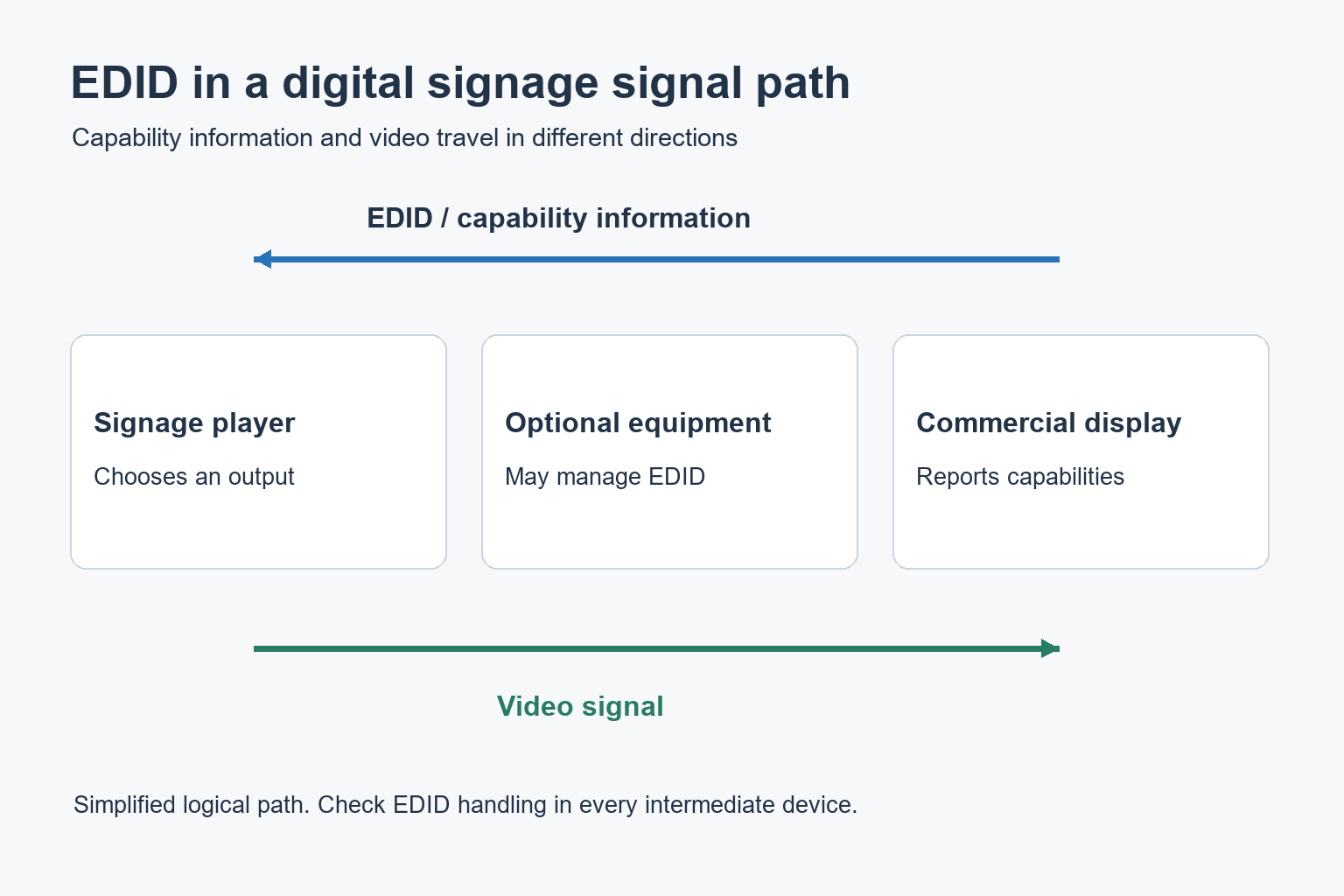
EDID is information a display provides about supported video capabilities so the source can choose an output format. Splitters, extenders or controllers can change which EDID the source receives.
- Check the selected input, source operation and actual output timing.
- Compare the full signal path with a known-good direct connection.
- Confirm EDID settings against every device's supported formats.
- Test cold starts, standby and restarts; an EDID profile cannot add bandwidth or display capabilities the system lacks.
EDID is one part of a signage signal path. Power, input selection, cables, signal bandwidth and content playback still need to work. This guide explains how EDID fits into a commercial display installation and how to investigate a problem without changing several settings at once.
What EDID tells a signage player
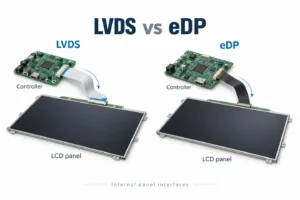
The standard YJC-550-VW has a 1920 × 1080 native panel. When a source reports a different timing through a controller, distinguish the negotiated input format from the panel pixels before changing scaling or replacing the screen. LCD Video Wall.
The information can include display identification and supported video timings, with additional capabilities described in extension data. A timing specifies more than the picture’s pixel dimensions. The source needs a signal format that the receiving equipment can accept.
Extron’s EDID technical overview explains the exchange between sources and displays, including HDMI, DVI and DisplayPort connections. It also describes problems caused by missing or inconsistent information. The practical point is simple: a player’s selected output and the display’s supported input must agree.
Do not confuse the LCD panel’s native resolution with every input mode the finished display accepts. The panel, controller and input configuration determine the usable options. For a commercial signage order, ask for the supported input timings for the exact configuration, not just a “4K” label on a quotation.
Why a direct connection and a complete system can behave differently
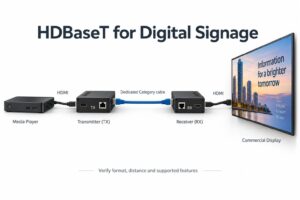
With a player connected directly to one screen, there are fewer devices involved. Add a splitter, extender, switcher or video wall controller and the source may receive stored, selected or combined display information instead. The behaviour depends on the equipment and its configuration.
A display working on a short direct cable is useful evidence, but it does not validate the final installed path. Keep a simple connection drawing. Include every active device, adapter, input and output so the installer can identify which part changes the result.
| Setup | What to confirm | Useful acceptance check |
|---|---|---|
| One player and one screen | Actual output timing and accepted input mode | Cold start and normal scheduled wake-up |
| Player through an extender | Supported formats and EDID handling | Compare the direct and extended paths |
| One source to several screens | A supported format for every destination | Check each screen, including mixed models |
| Video wall controller | Input format, output formats and layout configuration | Confirm the entire wall after a full restart |
EDID, HDCP and bandwidth solve different problems
EDID describes capabilities
An EDID profile helps the source select an output. It does not add capabilities that a cable, extender or screen lacks. Advertising a demanding mode to the player cannot make an unsupported path carry that signal reliably.
HDCP concerns protected content
HDCP is a separate content-protection system. Crestron’s configuration documentation exposes EDID settings and HDCP status separately. A problem that appears only with protected content should be investigated as such; changing EDID is not a universal solution for a black screen.
The whole path must support the signal
Check the selected resolution, refresh rate and colour format against all devices in the path. An output that works at one setting may fail at another. Record the complete working format, not just “HDMI works”, so the installation team can reproduce the result.
A practical troubleshooting sequence
1. Confirm power, input and local playback
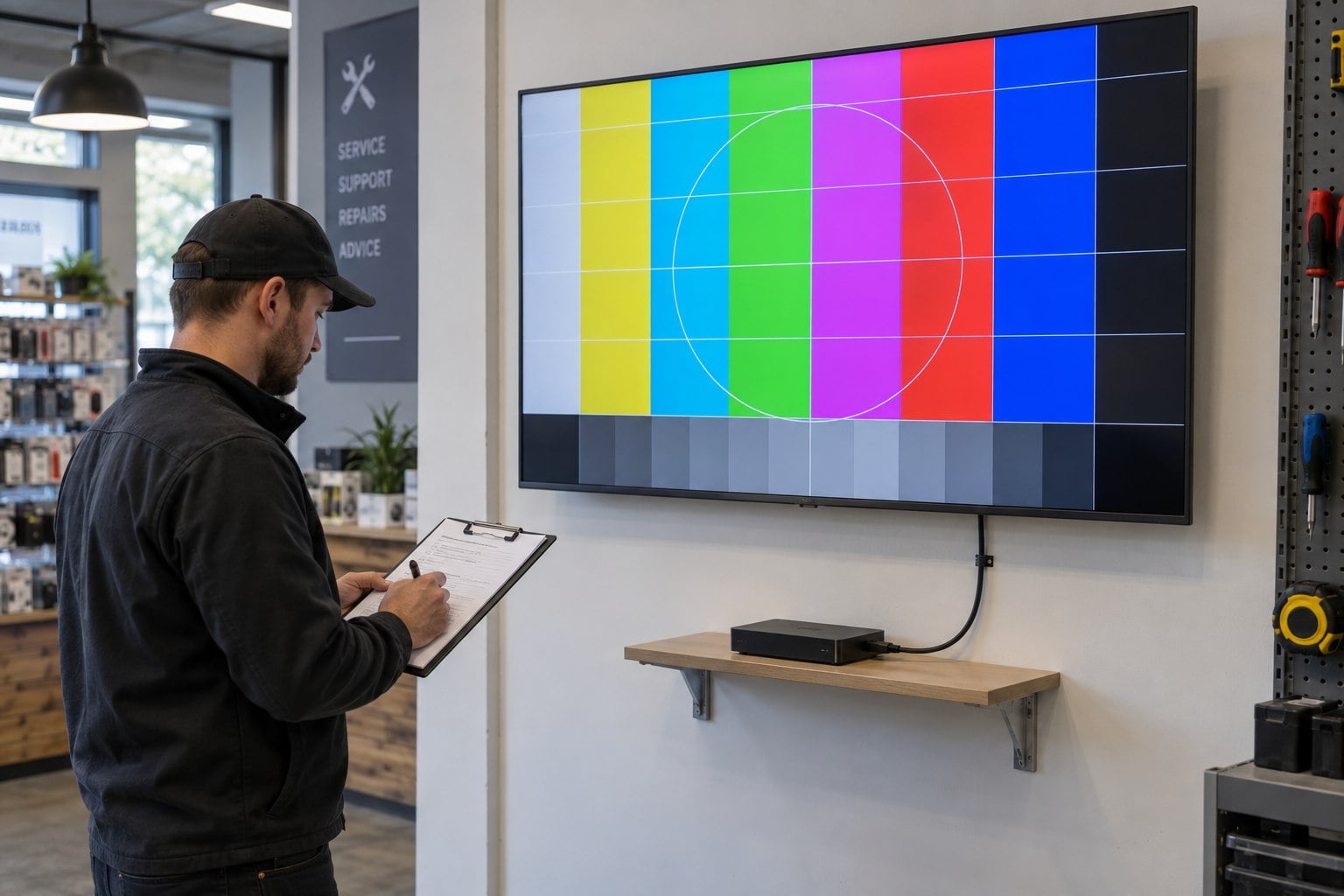
Check that the screen’s own menu appears and that the intended input is selected. Confirm the player is running the correct presentation. If the application has stopped or the scheduled playlist is empty, an EDID change will not address the underlying content problem.
Write down the symptom before changing anything. Does the display report no signal, show a picture at the wrong size, or go black only after standby? Keep those observations separate. They suggest different checks and help support teams understand the sequence.
2. Establish a simple working connection
Where practical, connect the player directly to the display using a known-good suitable cable. Use a documented output mode supported by both devices. Record whether the picture is stable and whether the display’s information menu reports the expected input.
If the direct path works, add intermediate equipment back one item at a time. Keep the same test content and output setting. This narrows the investigation without assuming that the most expensive component or the longest cable must be responsible.
3. Compare configured and actual output
Compare the intended output with the signal the display actually receives. For a custom format, width and height alone may be insufficient. BrightSign’s custom-resolution documentation, for example, describes timing information, sync flags and hardware limits that must be considered for its supported players.
That is platform-specific behaviour, so read the instructions for your player and software version. If a presentation looks soft, inspect the actual output as well as the design canvas. Do not assume that a high-resolution image file means the HDMI signal has the same resolution.
4. Check the profile seen through intermediate equipment
Ask the integrator to compare the reported display information on the direct and installed paths. If a switcher offers pass-through, copy or fixed-profile options, identify the active option and its documented purpose. Save the current settings before making an approved change.
Use an EDID emulator only when it addresses an identified requirement. It may keep a suitable profile available, but it will not repair a faulty cable or convert an unsupported video format. After any change, test every destination affected by the same source.
Test restarts and scheduled operation
A successful demonstration immediately after setup is only one condition. Test the sequence that the site will actually use: a full start, display standby, player restart and source switching where applicable. Note any case that requires a manual cable reconnection or a particular power sequence.
Use the findings to create a short handover note. Staff should know the normal input and how to report a failure without repeatedly changing settings. For broader equipment choices, see our digital signage media player guide.
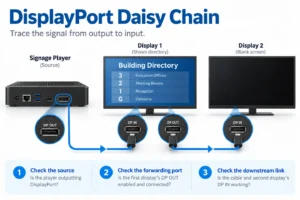
DisplayPort Daisy Chain: Troubleshooting Blank Second Screens
Questions about EDID in commercial displays
Does EDID rotate content into portrait orientation?
Do not rely on it to set your signage layout. Confirm rotation and canvas settings in the player or display workflow, and verify the final orientation on the installed screen.
Can different screens share one player output?
Possibly, but every destination needs a supported signal through the selected distribution equipment. A mixed installation may require a common format or appropriate processing. Check the actual models together.
What should we provide when ordering a display?
Send the player details, required output format and a connection drawing, including any extender or controller. For commercial wall-mounted signage or an LCD video wall, contact YJCEN to confirm the relevant input configuration before installation.
Share your screen size, installation environment and quantity for a display quotation.