A printer that seats in the bay can still fail when the paper roll, door swing or staff reload path does not clear the cabinet. On a Self Service POS Kiosk, name the printer module, then compare its max roll OD, door/hinge swing and service gap to the enclosure drawing before you freeze paper stock or a fascia cut. Until those fields match, keep the bay provisional. Ordering software and print-command logic stay outside this mechanical scope.
Why isn’t printer-body fit enough?
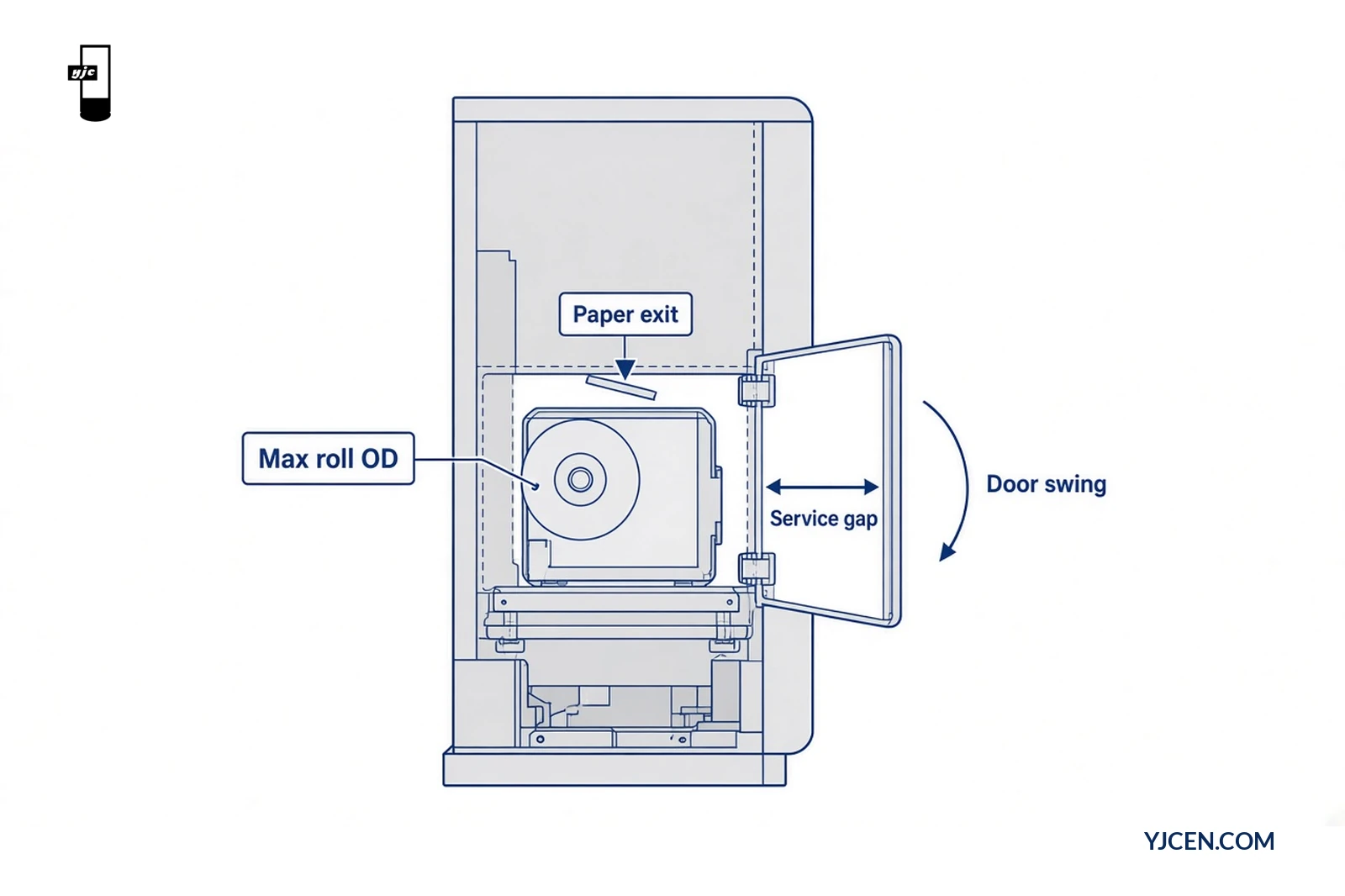
Body outline and depth only prove the printer module can be fastened. Reload fails when any of these clash:
- Roll OD — the largest paper roll the printer accepts sits proud of the bay or hits the door skin.
- Door / cover swing — the access door or printer cover cannot open fully inside the cabinet.
- Hand path — staff cannot remove the spent core and seat a new roll without pulling the whole chassis.
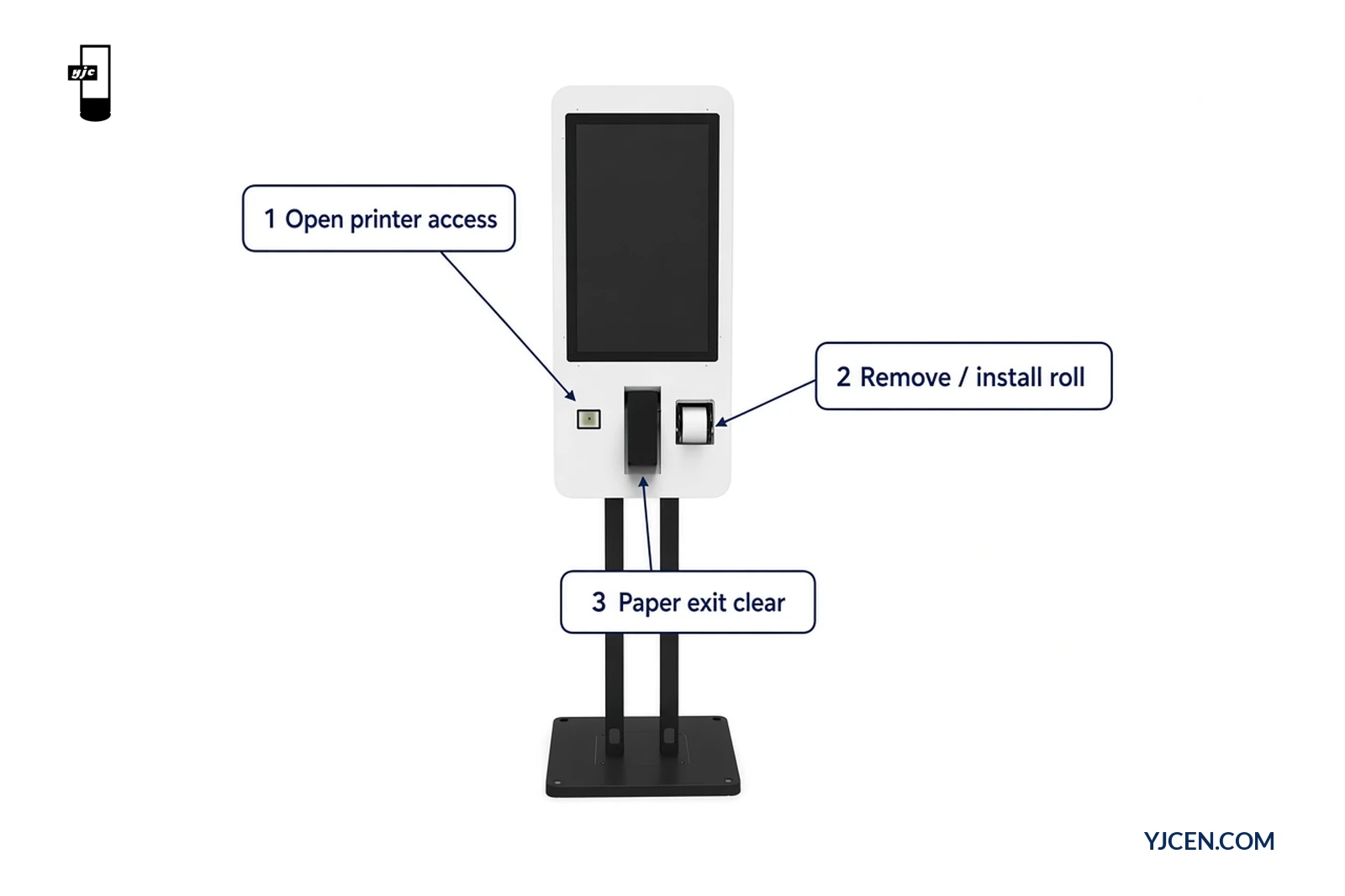
- Paper exit — the receipt path is blocked by fascia, payment hardware or a cable loom after the door closes.
Restaurant and QSR sites feel this as “printer jammed” tickets that are actually clearance misses. Treat roll and reload as a separate pass after the body seats.
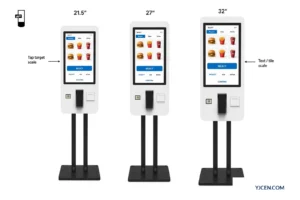
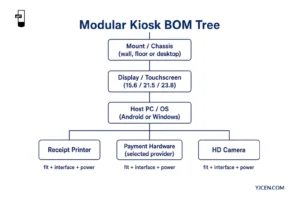
On this modular line we provide receipt-printing configurations with detachable screen, stand and camera so the project can arrange the printer bay at component level. The printer module’s own drawing still governs roll OD and door swing.
Which roll and door fields must be on the drawing?
Put these fields on the kiosk / printer-module drawing set and in the RFQ. If a number is missing, write the field name and ask for the module drawing before you fill any millimetre value.
| Field | What to write | Why it matters |
|---|---|---|
| Printer module model + revision | Exact commercial string | Prevents a later housing that no longer clears the bay |
| Paper width class | e.g. integrated 80 mm thermal on the self-service ordering line | Sets consumable family; not a universal outer diameter |
| Max roll OD | From the printer-module drawing | Largest roll that must clear door and bay |
| Core ID / core type | From allowed roll specs | Avoids cores that will not seat on the spindle |
| Door / cover swing | Arc or open angle from door/clearance drawing | Proves the cover can open inside the cabinet |
| Service gap | Clear space in front of / beside the access | Hand and roll clearance during reload |
| Paper exit path | Outlet location vs fascia and payment hardware | Keeps receipts from snagging after close |
| Staff access intent | Front / side / rear service | Matches wall, floor or desktop mount choice |
For a complete wall-mounted or floor-standing ordering unit with an integrated 80 mm thermal receipt printer, compare the Self-Service Ordering Kiosk. The 80 mm figure is the paper-width class on that line; max roll OD still comes from the module drawing for the chosen enclosure.
How do you walk a reload-path clearance check?
Walk the path with the named printer module and a sample of the largest allowed roll. Stop at the first fail.
| Step | Check | Pass condition | Fail action |
|---|---|---|---|
| 1 | Module seat | Printer body and fasteners clear the bay | Change bay depth/side or module revision — do not enlarge by guess |
| 2 | Door open | Cover/door reaches its full open position without hitting fascia or adjacent modules | Relocate hinge, deepen bay or change access side |
| 3 | Roll in | Max-OD roll seats on the spindle with the door open | Cap the allowed roll OD on the RFQ or change module |
| 4 | Hand path | Staff can remove the core and insert a new roll without tools beyond the design intent | Widen service gap or change mount format |
| 5 | Door close + exit | Door closes; paper path to the outlet stays clear of cables and payment hardware | Reroute loom or adjust outlet / fascia |
| 6 | Service cycle | Paper replace and terminal service work without removing the whole kiosk | Adjust access panel or choose wall / floor layout that keeps the planned service side |
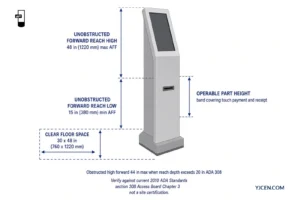
Plan clearance for staff to replace paper and service the terminal when you pick wall or floor mounting. A layout that looks tidy in a render can still fail step 4 once a full-OD roll is in the tech’s hands.
What belongs in the printer-fit RFQ / checklist?
Send one brief an engineer can mark fit / no-fit / redesign. Use this table in the RFQ; keep it as a document table, not a screenshot.
| Checklist item | Your entry | Fit result |
|---|---|---|
| Printer module model + revision | Pass / Fail / TBD | |
| Paper width class (e.g. 80 mm thermal) | Pass / Fail / TBD | |
| Max roll OD from module drawing | Pass / Fail / TBD | |
| Allowed core / roll specs attached | Pass / Fail / TBD | |
| Door/cover swing from clearance drawing | Pass / Fail / TBD | |
| Service gap / hand path verified with max roll | Pass / Fail / TBD | |
| Paper exit clear of fascia & payment hardware | Pass / Fail / TBD | |
| Preferred kiosk size & mount (modular 15.6/21.5/23.8 wall·floor·desktop, or self-service 21.5/27/32 wall·floor) | Pass / Fail / TBD | |
| Reload test record (sample or prototype) | Pass / Fail / TBD | |
| OS preference (Android / Windows) & quantity / country | Info only |
For software drivers, payment provider and the rest of the peripheral BOM (outside this printer mechanical piece), use the self-ordering kiosk software and peripheral checklist.
Decision this article settles: even when the printer body fits, can the specified paper roll and reload path work inside this cabinet? Yes only when max roll OD, door swing and the six reload steps clear the enclosure drawing. If those fields are missing, the next step is to request the printer-module and door/clearance drawings — not to copy another project’s roll diameter.
FAQ
Is printer-body fit enough to freeze paper stock?
No. Confirm max roll OD and reload path first.
Does the self-service line use an 80 mm thermal printer?
Yes. That line provides an integrated 80 mm thermal printer.
Can I reuse one model’s roll OD on every cabinet?
No. Read max roll OD from each module drawing.
What should staff be able to do without removing the kiosk?
Replace paper and service the terminal from the planned access.
Do you need a reload test before production?
Yes. Run the six-step path with the largest allowed roll.
Will YJCEN review a printer-module arrangement?
Yes. Share module drawings, roll specs and preferred kiosk size/mount.
Next step: request a printer-fit review
Contact YJCEN with the printer module model, max-roll and door/clearance drawings, preferred kiosk size and mount, and site notes (quantity, country, Android or Windows). Ask us for the size-matching manuals and dimension drawings from Product Downloads, or send your module package for a fit mark before production. Sample units can start from one piece on standard configurations; custom bay work follows the custom window on quotation.
Related reading: How to choose a self-service kiosk · Self-ordering kiosk software and peripheral checklist