Integrate a stretched LCD screen by designing the fixture around its complete enclosure, visible image area and removal route before cutting the fascia. For YJCEN’s Bar Type LCD Display, a narrow shelf strip and a taller promotional panel can have almost the same image width but need very different openings. This guide uses documented YJCEN models to coordinate mechanical drawings, power, ventilation and content before building the first fixture.
1. Which dimensions determine whether the screen fits?
Start with the width and height of the complete display, then place the active image area inside that outline. The diagonal measurement is useful for identifying a model, but it cannot tell a fixture manufacturer how tall the front opening needs to be.
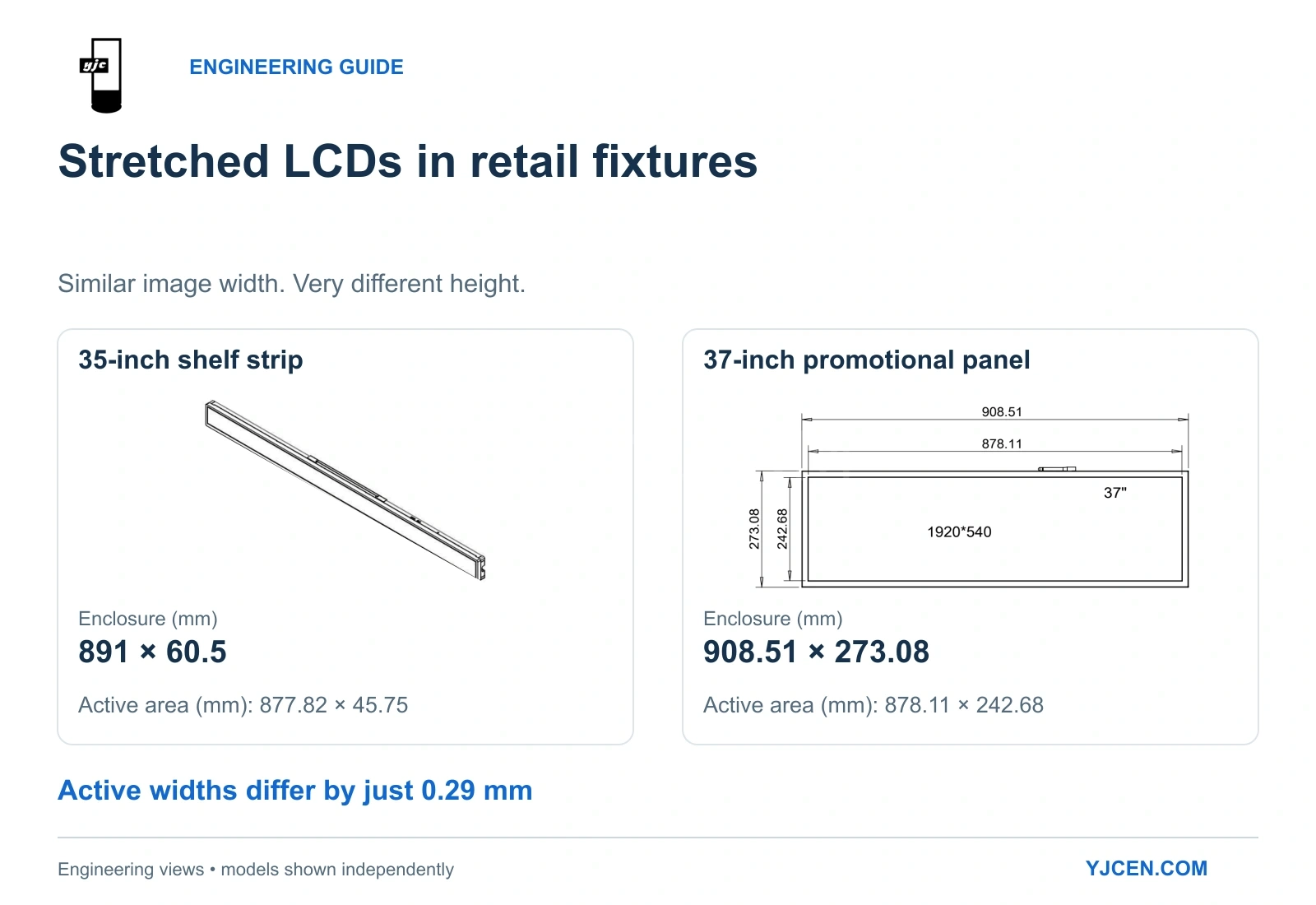
Two YJCEN configurations show why this matters. The following figures come from the 35-inch YJC-350-SD specification and 37-inch YJC-370-SD specification, with front dimensions cross-checked against their drawings.
| Dimension or specification | 35-inch YJC-350-SD | 37-inch YJC-370-SD |
|---|---|---|
| Overall front width | 891 mm | 908.51 mm |
| Overall front height | 60.5 mm | 273.08 mm |
| Active image width | 877.82 mm | 878.11 mm |
| Active image height | 45.75 mm | 242.68 mm |
| Native panel resolution | 3840 × 200 pixels | 1920 × 540 pixels |
| Net weight | 3 kg | 8 kg |
Their active image widths differ by just 0.29 mm, yet the 37-inch enclosure is 212.58 mm taller. Moving from 35 to 37 inches therefore changes the space above or below the merchandise far more than it changes the image width.
For a shallow shelf-front band, the 35-inch format is the more useful starting point. For a taller promotional panel with room for product photography and multiple lines of information, the 37-inch format provides more vertical image space, provided the fixture can accommodate its height and weight.
Make this choice before detailing the cabinet. If the display location itself is still undecided, our supermarket screen placement guide covers how shelf, endcap and counter positions serve different shopping decisions.
2. How should the fascia opening relate to the active image?
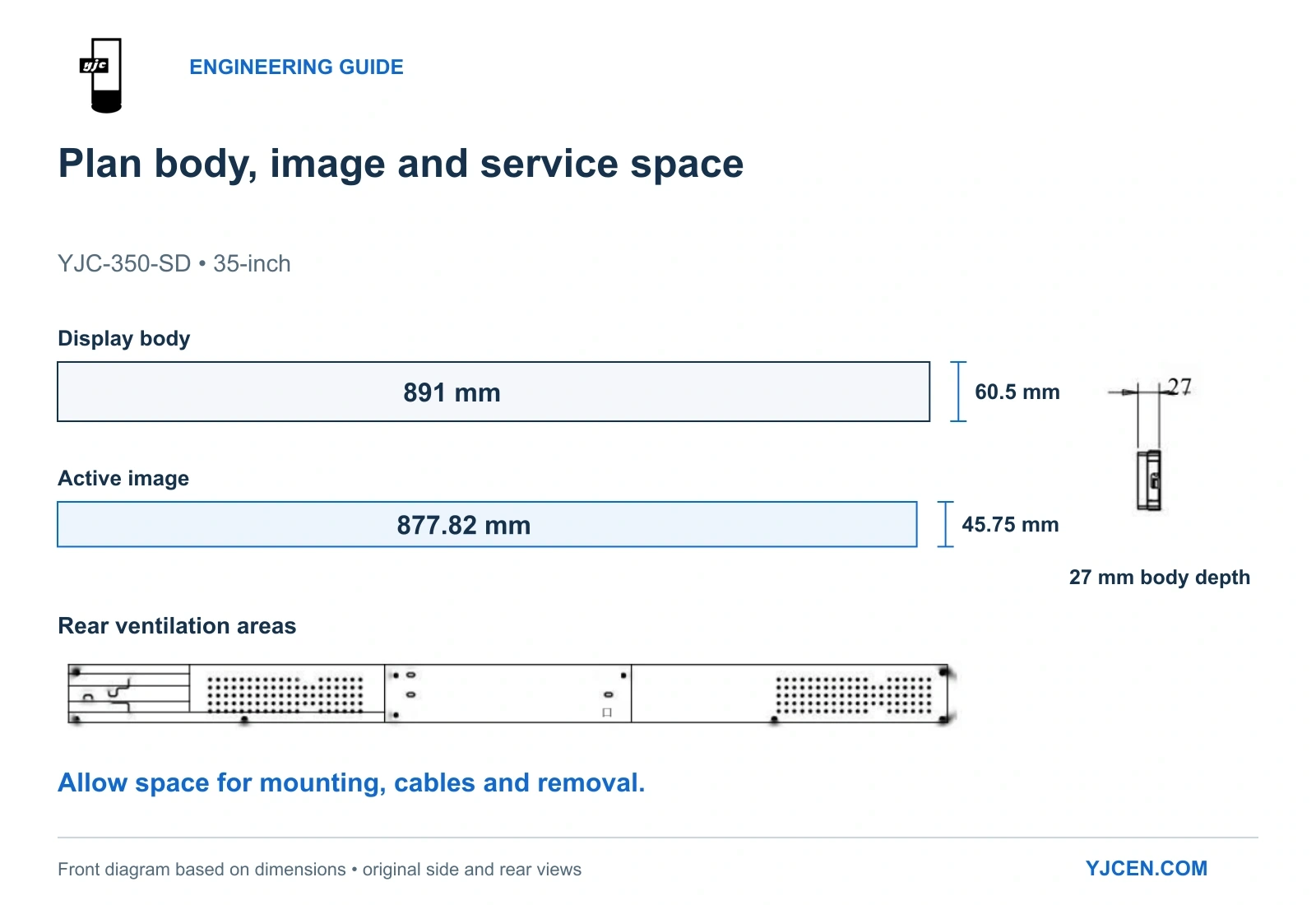
Draw the screen body and the visible image as separate outlines. For the 35-inch model, the dimension drawing shows a body measuring 891 × 60.5 mm from the front, surrounding an active image of 877.82 × 45.75 mm.
The overall differences are 13.18 mm across the width and 14.75 mm across the height. These are body-versus-image differences, not an installation allowance or a cutting tolerance.
Use three separate elements in the fixture drawing:
| Drawing element | What it controls |
|---|---|
| Display body outline | Space occupied by the enclosure and its position relative to the fixture |
| Active image outline | Where the complete picture must remain visible |
| Fascia opening and fixing detail | How the decorative finish meets the screen while allowing assembly and removal |
Set the fascia opening from the image position, fascia thickness and intended viewing angles. A deep decorative lip can hide edge content when shoppers approach from the side, even if the image looks clear straight on.
Keep the trim removable where it crosses the service route. The production drawing should define its overlaps and tolerances after the screen, support and trim have been assembled in the first fixture.
3. How much depth and removal space does the installation need?
Allocate space for the screen, its mounting arrangement and the connected cables as one assembly. The 35-inch drawing specifies a 27 mm body depth, but a cavity only 27 mm deep leaves no additional room for a support, plug projection or cable turn.
The rear view also shows perforated areas that need to remain exposed to a ventilation path. A continuous cabinet back pressed against those areas would change the installation conditions even though the display fits the front opening.
YJCEN’s series installation guide illustrates a mounting plate fixed first, followed by engagement of the display. For fixture integration, apply the same assembly logic to the selected mounting arrangement: provide space to engage it and reverse that movement during removal.
Choose a removable carrier or service panel when the rear of the fixture will be inaccessible. Carry the display load through its mounting arrangement into the fixture structure, rather than using decorative fascia trim as the support.
The mechanical detail is ready for a sample when it shows where the installer can reach the fixings, disconnect the leads and withdraw the screen. Use that assembly drawing to specify the fixing points, fasteners, cable clearances and ventilation gaps for the chosen arrangement.
4. What power and content connections should the fixture provide?
For the documented YJC-350-SD configuration, the specification lists AC 100–240 V at 50/60 Hz, a built-in power supply, two USB inputs and Wi-Fi/LAN networking. Plan the fixture’s accessible power connection and cable route around that configuration.
Choose the update method while the fixture is still being designed:
| Intended update method | Consequence for the fixture |
|---|---|
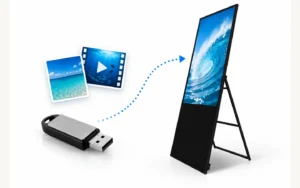
| Staff load image and video files by USB | Provide access to a USB port without dismantling the display support |
| Networked content updates | Bring the chosen network connection to the installed position and allow access for setup and service |
| Prices supplied by the retailer’s business system | Include the application and data connection in the project scope, alongside the display hardware |
The model manual describes USB media loading and optional networked content management. Automatic price updates require the software and retailer-system integration described on the product page; a network connection alone does not provide that workflow.
Route the leads outside the mounting and removal path, and keep connectors reachable through the service opening. On a multi-screen fixture, label each screen and its corresponding power and data leads so that a replacement does not require tracing every connection.
5. Will the finished fixture trap heat around the display?
Design the enclosure around a heat-removal path as well as a cable path. The 35-inch model is specified for indoor operation at 0–45°C, and its rear drawing shows ventilation perforations; the surrounding fixture must preserve a route for heat to leave that area.
Keep those perforations clear of decorative panels, stored stock and cable bundles. Place other heat sources, such as shelf-lighting drivers, away from the display’s ventilation area, and avoid creating a closed pocket behind the screen.
Evaluate the display with the cabinet panels closed and nearby equipment operating. Measure the air around the installed display as well as the room temperature during the sample run: a cool sales floor does not establish the temperature inside a lit, enclosed fixture, and the display’s 45°C operating limit is not a target cabinet temperature.
If heat accumulates, change the fixture’s ventilation path or the position of nearby heat sources before releasing the cabinet design. A larger hidden cavity only helps if it actually contributes to heat removal.
6. What content dimensions should the designer receive?
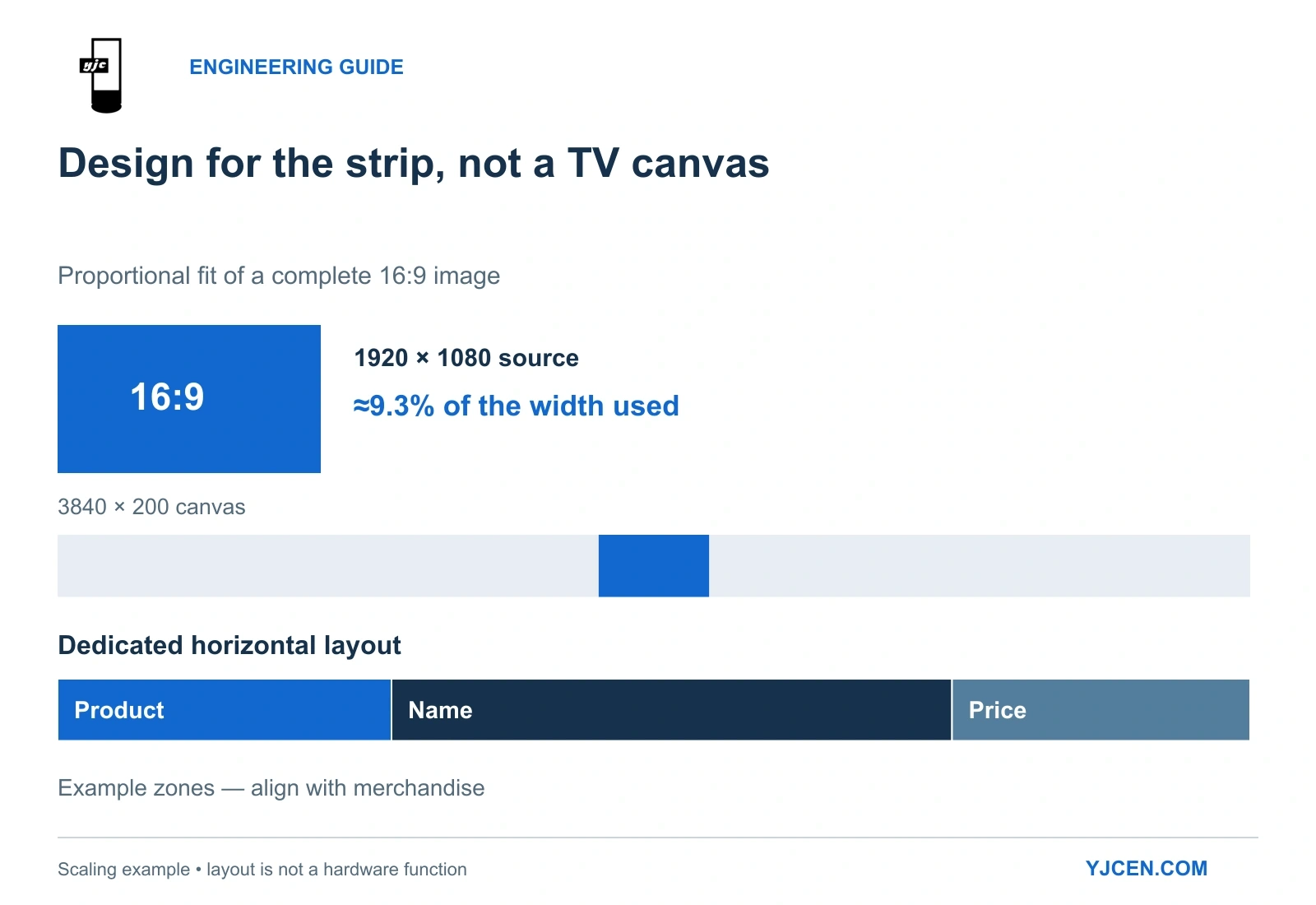
Give the designer the native pixel dimensions together with the active image dimensions. For the YJC-350-SD, the panel is 3840 × 200 pixels across an active area approximately 877.82 × 45.75 mm, so the available vertical space is much closer to a shelf strip than a television poster.
A simple scaling calculation shows the consequence. A complete 1920 × 1080 image fitted proportionally within a 3840 × 200 canvas would occupy approximately 356 × 200 pixels, using only about 9.3% of the canvas width. Forcing the same image to fill the strip would stretch its proportions, and cropping it would cut off part of the layout.
Build a horizontal layout for the strip instead. Give a product image, name and price their own space, and align any product-specific zones with the merchandise below.
Use the native panel dimensions as the layout reference, with final media exports matched to the selected player’s supported formats. Our display aspect ratio guide explains how artwork, playback zones and display settings interact.
During the fixture sample, show edge markers and the longest expected product names through the finished fascia. This reveals both physical masking and content problems while the trim and layout can still be changed.
7. What should be approved before producing the full batch?
Build one representative fixture with the intended screen, mounting parts, connected leads, lighting and decorative finish. Approve it in its assembled condition using the checks below.
| Sample check | What a successful result establishes |
|---|---|
| Assemble and remove the screen | Fixings, connectors and the removal movement are accessible through the planned service route |
| Display edge markers and final sample content | The fascia exposes the required image, and prices and product names remain readable from the intended positions |
| Run the complete fixture with lighting and other equipment on | The final enclosure arrangement keeps the display within its specified operating conditions |
| Perform the intended content update | Staff or the networked workflow can deliver the replacement content through the installed arrangement |
Save the accepted fixture drawing revision, screen model, mounting details, content file and update procedure together so the production units reproduce the approved arrangement.
Planning a stretched display into your next retail fixture?
To integrate a shelf edge LCD display into a new fixture, send YJCEN the available width, height and depth, a front and side drawing, the intended indoor environment, quantity and installation country. Include the proposed service-access side, power/network location and a sample of the content.
We can review the screen format and configuration against that brief and provide the corresponding specifications and dimension drawings for your fixture design.