Should signage content fit, fill or stretch?
When content and screen shapes differ, choose the intended trade-off instead of assuming one setting can preserve everything.
- Fit keeps the whole image and its proportions, but may leave unused space.
- Fill with cropping covers the area while preserving proportions, but removes some edges.
- Stretch fills the area by changing proportions and can distort the design.
- Match the artwork, playlist zone, player output and display orientation, then test the final files.
Start by identifying where the mismatch occurs. The physical screen, incoming signal, playlist zone and original artwork are four different things. Changing the screen’s picture mode cannot reliably repair an incorrectly prepared source file.
Aspect ratio is not the same as resolution
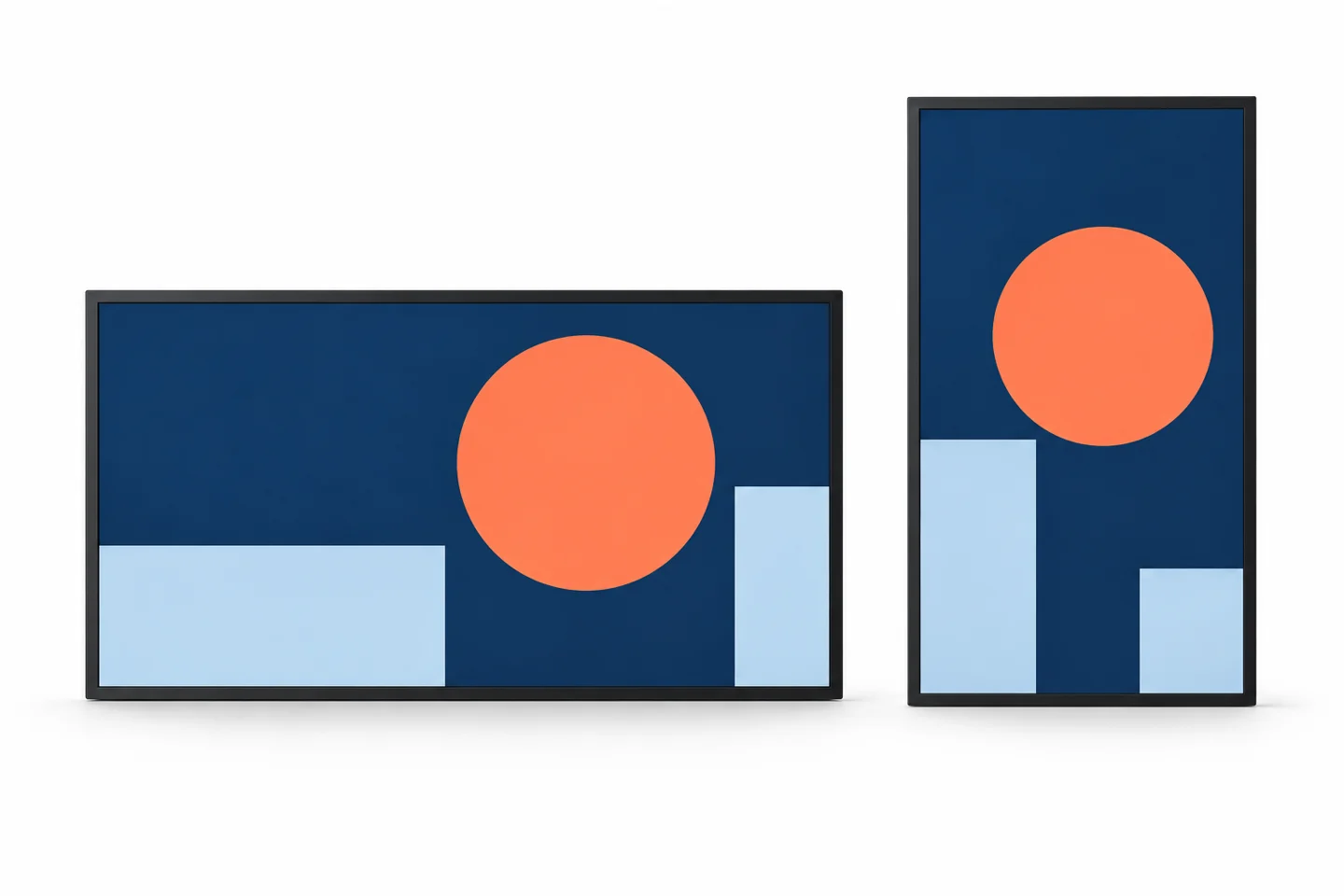
Resolution counts pixels. Aspect ratio expresses the relationship between width and height. A 1920 × 1080 canvas and a 3840 × 2160 canvas both have a 16:9 ratio, although the second contains more pixels. A 1080 × 1920 canvas is 9:16: the portrait relationship is reversed.
These examples describe square-pixel content. They do not establish which signal formats a particular display or player accepts. Confirm the documented output modes and the actual panel resolution before exporting a final playlist.
| Example canvas | Width-to-height ratio | Typical content shape |
|---|---|---|
| 1920 × 1080 | 16:9 | Wide landscape layout |
| 1080 × 1920 | 9:16 | Tall portrait layout |
| 3840 × 2160 | 16:9 | Higher-resolution landscape layout |
| 1920 × 720 | 8:3 | Wide, shallow content zone |
A diagonal screen size does not define its canvas. Two displays with the same diagonal measurement can have different shapes. For a stretched LCD or a custom installation, request the active pixel dimensions rather than inferring them from a photograph or a nominal screen size.
Check the four stages from artwork to screen
1. The original artwork
Inspect the exported image or video, not only the design document. Confirm its width, height and orientation. Black bars may already be part of the file. If so, selecting a different player fit mode may preserve those bars because the player sees them as ordinary image content.
2. The playlist zone
A full-screen presentation and a multi-zone presentation need different checks. A landscape screen might contain a narrow news panel beside a larger video area. Match each asset to the zone where it will appear. The overall screen ratio alone is not enough.
3. The player output
Check the configured output resolution and rotation. Some systems rotate a landscape signal internally; others use a portrait presentation workflow. Follow the player’s instructions for that model and software version. Avoid rotating the asset, presentation and display independently without recording the result.
4. The physical display
Confirm the supported mounting orientation and picture settings. Physical portrait mounting is a hardware requirement as well as a content decision. An image that can be rotated in software does not prove that the display is approved for continuous use in that orientation.
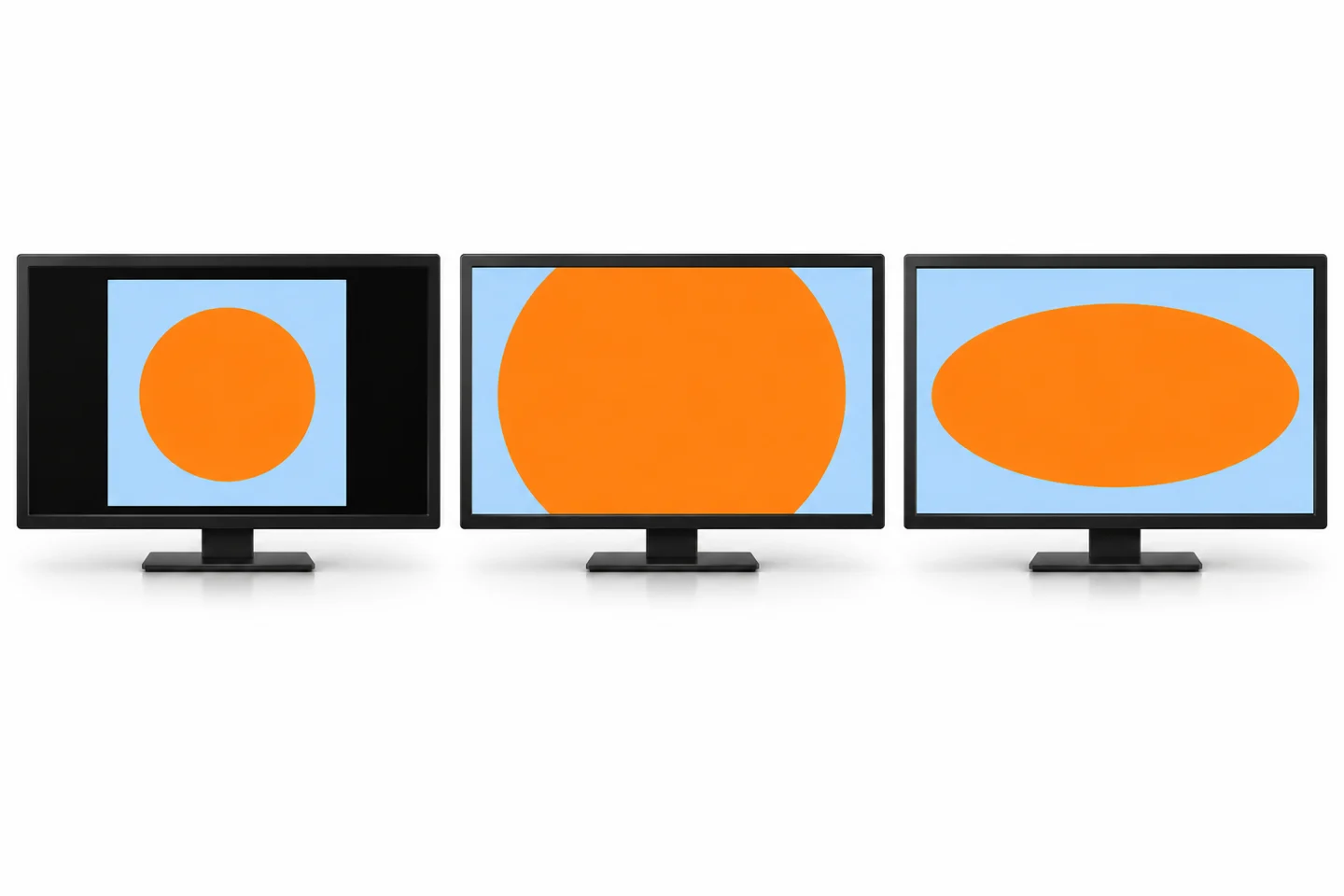
Fit, fill and stretch produce different results
When the source and destination have different shapes, there is no setting that simultaneously preserves every pixel, fills every part of the destination and keeps all proportions unchanged. Choose which outcome matters for that content.
- Fit: preserves the complete image and its proportions. Unused space may remain around it.
- Fill with cropping: preserves proportions while covering the destination. Some content at the edges is removed.
- Stretch: fills the destination by changing proportions when the shapes differ. Circles, faces and product photographs can look distorted.
Player terminology varies. BrightSign’s documented zone modes distinguish these operations, including the possibility of bars embedded in the source file. Treat that documentation as an example of the behavior to verify, not as a promise that every signage application uses the same labels.
For a product photograph, proportional cropping may be acceptable if the important object remains visible. For a timetable, price list or diagram, removing an edge can remove essential information. In that case, redesigning the canvas is usually more useful than choosing a more aggressive fill setting.
Prepare separate portrait and landscape layouts
Rotating a finished landscape advertisement does not create a good portrait advertisement. The reader still needs a clear order: headline, image, supporting information and action. A wide menu can become several stacked sections in portrait, while a portrait poster may need a different image crop in landscape.
Keep editable originals and export each required layout deliberately. Use the same approved wording and prices across versions. Compare them side by side before publishing so a redesign does not accidentally drop a condition, date or contact detail.
Place essential text comfortably inside the visible image area, then check it on the actual screen. A design-tool preview cannot show every scaling or overscan setting in the installed signal path. There is no single margin that substitutes for checking the final system.
For a mixed fleet, name files by their intended canvas and orientation. A clear asset list helps an operator avoid sending a tall poster to a wide menu zone. Keep the naming convention separate from public-facing captions and product names.
Troubleshoot the visible symptom
| What you see | First check | Useful next step |
|---|---|---|
| Black bars | Source shape and embedded borders | Compare the original file with the playlist zone |
| Missing edge text | Crop-to-fill and overscan settings | Display an edge-marker test image |
| Oval circles or wide faces | Non-proportional stretching | Use a proportional mode or re-export the layout |
| Sideways content | Rotation at each stage | Follow one documented orientation workflow |
| Correct shape but soft detail | Pixel dimensions and scaling | Check source resolution separately from aspect ratio |
Change one setting at a time and record the original value. Use a simple test image with a circle, square, edge markers and a short line of text. If that file appears correctly but the advertisement does not, inspect the advertisement’s export before changing the display again.
If every asset is wrong in the same way, investigate shared player and display settings. If only one zone is wrong, inspect that zone. This sequence reduces the chance of fixing one file by creating a problem for the rest of the playlist.
Check stretched screens and video walls separately
A stretched display needs content designed for its unusually wide canvas. Shrinking an ordinary poster into that space can leave the words too small to read. Choose fewer content elements and verify their size at the intended viewing position.
A video wall adds another distinction: the complete wall canvas and each panel’s input may not have the same shape. The controller may divide a larger image between panels. Bezel compensation can also hide parts of the image behind physical gaps. Use the controller’s layout documentation and test across panel boundaries.
For these projects, compare YJCEN’s stretched bar LCD displays and LCD video walls. Confirm the selected configuration’s pixel map and signal requirements rather than applying a standard poster template to every format.
What to approve before rollout
Test the final files through the intended player, cables and display settings. Include a normal promotional image, the densest text layout and a video if the playlist uses one. Confirm that the same settings remain after a planned restart.
Record the source dimensions, zone dimensions, output mode, rotation and fit behavior. Save a photograph from the normal viewing position alongside the approved source file. The photograph is useful for documenting layout; it is not a calibrated measurement of resolution or color.
Ask the content owner to approve the visible wording as well as the technical appearance. A layout can fill the screen perfectly while cropping a price condition or making a room name too small. Readability and factual completeness remain separate acceptance checks.
Frequently asked questions
Does 4K mean 16:9?
Do not rely on the label alone. Check the actual pixel dimensions. For example, 3840 × 2160 is 16:9, while other formats described using “4K” can have different dimensions.
Can one file serve portrait and landscape screens?
It can be displayed in both, but the result may involve unused space, cropping or distortion. Separate layouts give better control when text and image placement matter.
Does a correct aspect ratio guarantee sharp text?
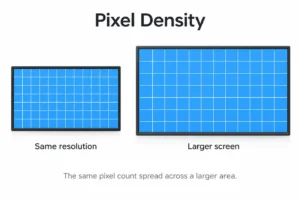
No. Pixel dimensions, scaling, source quality and viewing distance still matter. Our pixel density guide addresses the detail question separately.
Plan the display and content together
Send YJCEN the proposed screen format, mounting orientation, sample content and intended viewing distance. Include the player or application you plan to use. Contact our team to discuss the display configuration before finalizing artwork.
Technical references: BrightSign zone and scaling modes; BrightSign guidance on content resolution and rotation. Model-specific capabilities remain subject to the selected equipment’s documentation.