How should event screens handle a room or time change?
Use one approved programme source and update every affected information point, not only the screen outside the new room.
- Approve the change and update the controlled programme.
- Identify affected arrival directories, route signs, old-room screens and printed notices.
- Publish and verify the correction on the actual screens.
- Rehearse an offline fallback and give operators opening and closing checks, with a named person responsible for changes.
For a temporary indoor event, plan the screens around the visitor journey and the staff update process. This guide focuses on arrival, room changes and daily operation using commercial LCD signage. It does not assume a particular event platform or a live integration is included with the display.
Give each screen one primary job
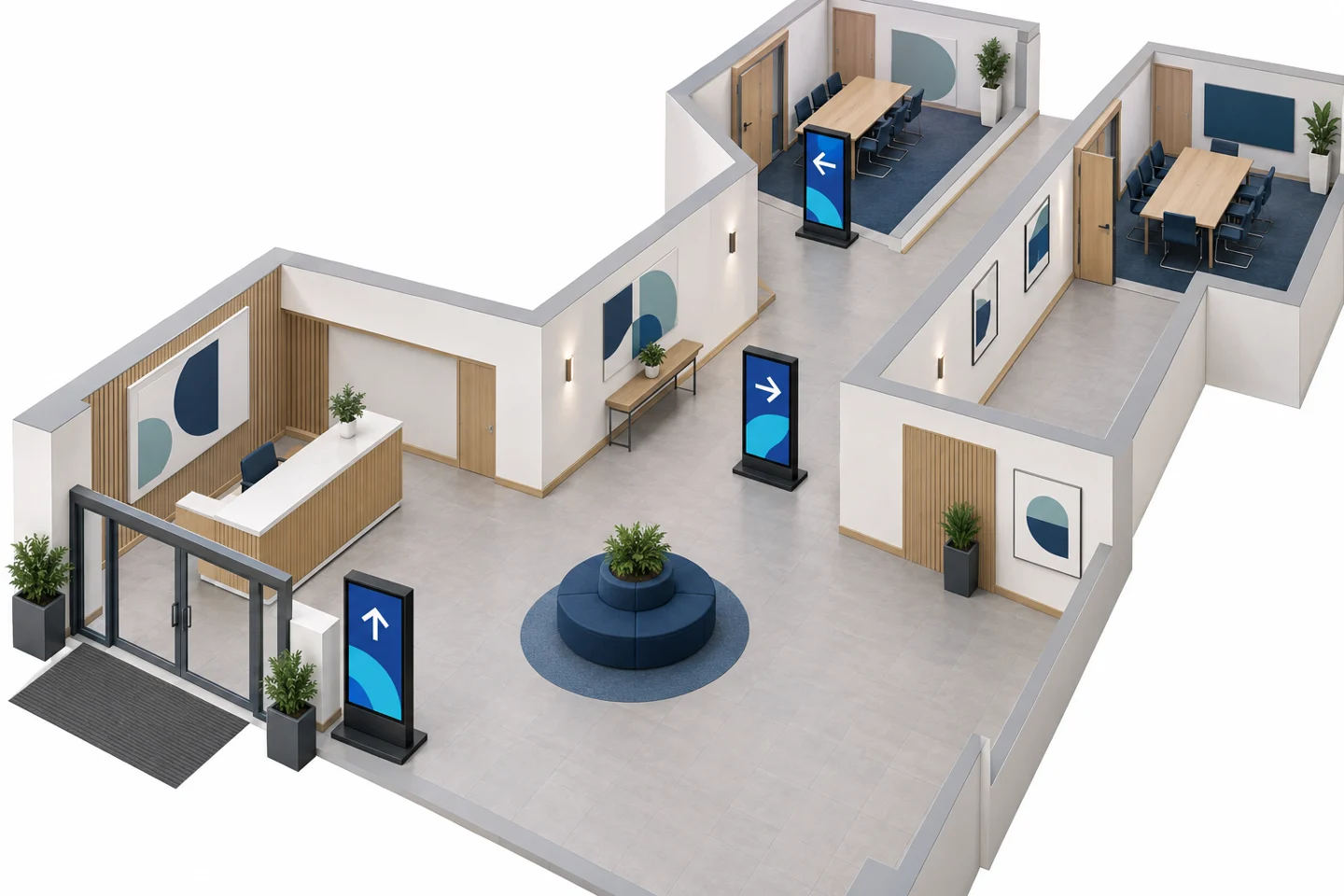
Start with the route from arrival to registration, then to the meeting rooms and shared areas. Mark the points where a visitor must make a choice. A useful display belongs before that decision, where people can stop and read without blocking the route.
Separate welcome content from operational directions. A welcome screen can carry event branding. A registration screen needs the registration location and any relevant queue instruction. A room screen needs the current or next session, room identity and an understandable time.
| Position | Primary information | Operational check |
|---|---|---|
| Arrival area | Event identity and registration direction | Visible from the actual entrance |
| Route junction | Room names and directions | Arrows agree with the local viewpoint |
| Outside a session room | Session, room and time | Matches the latest approved programme |
| Shared waiting area | Upcoming sessions or announcements | Visitors can read the complete message |
Do not put every piece of information on every screen. A room-level change may need several route signs updated, but it does not necessarily belong on a sponsor display elsewhere in the venue.
Walk the route before deciding screen positions
Stand where a first-time visitor will stand. Check sightlines past doors, furniture and registration queues. Repeat the walk from the other entrance if the venue has more than one. A display that is obvious from behind the reception desk can be hidden from someone arriving.
Use the intended content during this assessment. Check the longest room name and the most detailed instruction. If people need to approach very closely to read, simplify the layout or reconsider the viewing arrangement.
Account for the complete unit and its power lead. A freestanding screen needs an appropriate position and a clear route around it. Follow the venue’s placement and installation requirements; the content plan does not replace the venue’s assessment of access or safety.
Choose movable hardware without assuming battery operation
A temporary event often benefits from a display that can be repositioned between sessions or reused at another event. However, movable and battery powered are different requirements. Confirm the power arrangement before choosing a location.
YJCEN’s portable digital signage range is intended for indoor use and uses mains power during operation. It provides USB playback and Wi-Fi connectivity, with remote functions dependent on the selected system. Check the enclosure drawing and available floor space for the chosen size.
For a more permanent lobby position, compare floor-standing digital signage. For locations without a fixed power connection, discuss a separate battery-powered range and verify runtime under the intended settings. Do not move an indoor screen outdoors merely because the event has an exterior entrance.
Build the programme around a single approved source
Choose one controlled programme file or system as the source for session names, rooms and times. Give a named person responsibility for approving changes. Other staff should know where to report a correction and which version is current.
Use consistent room names across the screens, printed programme and staff instructions. “Conference Room A” and “Hall A” may seem interchangeable to an organizer but can send a visitor to the wrong place. Resolve naming differences before opening.
Keep the displayed information short enough to read from its intended position. A room sign may need only the session name, time and status. A full biography belongs elsewhere if it makes the operational information hard to find.
If the event serves several languages, review each version in its final layout. Longer translated room descriptions can change line breaks. Arabic content needs a correctly ordered right-to-left layout with readable mixed numbers and room codes.
Define what happens when a room or time changes
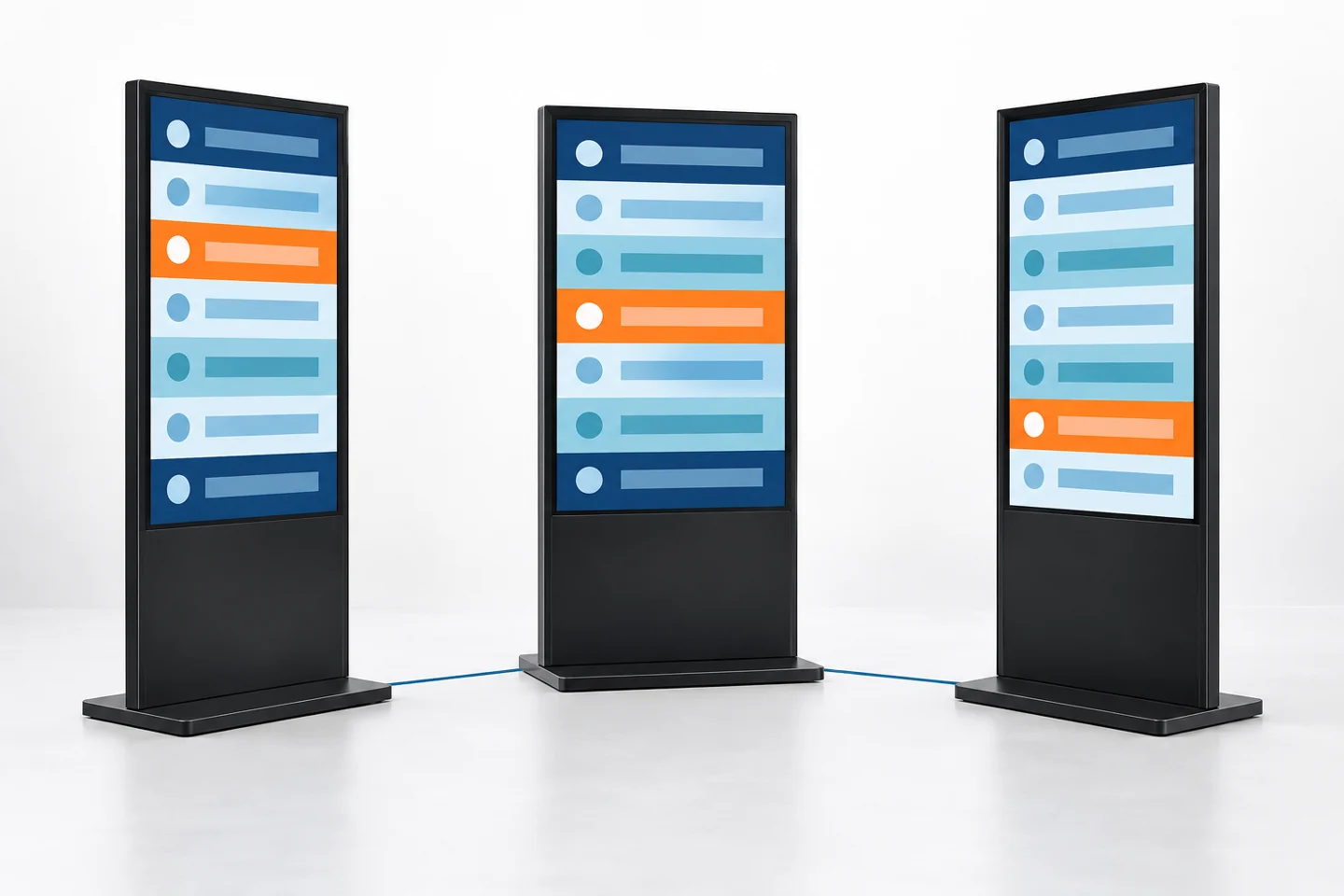
A room change affects more than the screen outside the new room. Check the arrival directory, route junctions, old room display and any shared programme screen. Keep an inventory linking each screen to the information it shows.
- Receive and approve the revised room or time.
- Update the controlled programme source.
- Identify every screen and printed notice affected.
- Publish the corrected content through the chosen workflow.
- Confirm the change on the actual screens.
- Tell the relevant event staff which version is now in use.
Do not treat an upload confirmation as proof that visitors see the new information. A screen may be offline, showing another input or still displaying an older playlist. The responsible operator should check the visible result.
Prepare a short temporary message for unresolved changes. It should give visitors a clear next action, such as asking at the event desk, without inventing a replacement room or time before the organizer confirms it.
Plan a practical offline fallback
Ask whether the selected player and application can continue showing approved local content if the network is unavailable. Test the actual setup. A Wi-Fi connection does not by itself establish offline playback behavior.
Keep a clearly dated backup of the approved programme and the files needed for local recovery. Identify who can access them during the event. A backup that only an absent designer can find is not a useful operating plan.
Decide how staff will communicate a late change if remote updating fails. That may involve a local update, staffed directions or an approved printed notice. Choose the fallback with the venue team before doors open.
Separate a stale programme from a blank display. A working screen showing an obsolete room can be more misleading than an obvious outage. Include a content-version check in the operating routine, not only a check that the panel is lit.
Rehearse with the people who will run the event
Use a rehearsal to test one normal programme update and one room change. Ask someone unfamiliar with the plan to follow the directions. Observe where they hesitate and which words they need to reread.
Test the full playlist rather than a single attractive slide. If a direction disappears while an advertisement plays, assess whether a visitor can still find the room without waiting through the loop. Essential guidance may need a persistent area or a dedicated screen.
Confirm the agreed startup process after a planned restart. Check the correct content, orientation and input, then verify the operating schedule. Avoid assuming that a screen used successfully at the previous event will retain the right settings for this one.
Use a short opening and closing checklist
Before opening, compare the displayed programme with the approved source, check the route signs and confirm that every screen is in its assigned position. Record any exception so the next operator knows what remains unresolved.
At closing, remove or replace event-specific content before reusing the screen. Old dates, room assignments and registration instructions should not remain visible at the next event. Save the final files and an equipment record for the next setup.
Review what actually happened: incorrect directions, update delays, readability complaints and recovery actions. These observations help improve the next plan. Do not claim attendance or sales improvements without an appropriate measurement method and evidence.
Frequently asked questions
Does event signage require a live booking integration?
No. A controlled local programme can be suitable when changes are infrequent. If live data is needed, verify the selected application, integration and responsibilities separately from the display hardware.
Can sponsor content share a direction screen?
It can, provided essential directions remain clear when visitors need them. Test the complete layout and playlist, rather than judging a sponsor slide in isolation.
Can a portable indoor display be used at an outdoor entrance?
Not without confirming that the selected product is intended for those conditions. The indoor portable range discussed here should be used indoors. Select documented outdoor equipment for an exposed location.
Prepare your event display brief
Send the venue layout, event duration, screen positions, power availability, content examples and update frequency. Contact YJCEN to discuss suitable display hardware and the configuration questions to resolve before the event.
Product references: portable indoor displays and floor-standing signage, checked on October 7, 2026. Programme ownership and operating checklists above are planning recommendations, not claims of included event-management software.