What should healthcare waiting-room screens show?
Use public screens for clear reception instructions, directions and approved visitor notices. Plan staff-only information separately.
- Check readability from actual waiting-room seats, including side and obstructed positions.
- Keep notices short, calm and easy to act on.
- Confirm the source, permitted fields and update behaviour of any queue or service-status feed.
- Assign review dates and removal responsibility, then test content expiry, screen groups and interruptions during a working day.
A waiting-room screen also needs a different content policy from a staff display or a clinical system. This guide covers public information displays in clinics and hospitals. It focuses on placement, content ownership and hardware selection, rather than diagnostic imaging or patient monitoring.
Give public and staff screens different roles
A YJCEN university-library installation used two 49-inch non-touch screens in one double-sided unit to show the same information from two approaches. The same hardware distinction is useful when planning a waiting-area announcement point: passive information does not require an interactive check-in workflow. Project example.
List the screens by location and audience before choosing a product. A reception screen may explain where to check in. A waiting-area display may show visitor information. A staff room may need an internal briefing that should never appear on the public playlist.
| Location | Suitable information | Who should keep it current? |
|---|---|---|
| Main reception | Where to check in and where to ask for assistance. | The reception or facilities team. |
| Waiting area | Visitor notices, available facilities and approved information. | A named editor with the relevant content reviewers. |
| Department entrance | The department name, reception point and temporary location changes. | The department and facilities teams. |
| Staff-only area | Internal operational information appropriate to that audience. | The responsible internal team, using a separate publishing group. |
Samsung’s healthcare display overview includes waiting areas, lobbies and wayfinding among its application examples. Those are useful scene categories; the suitability of a specific installation still depends on its audience, equipment and workflow.
Keep patient check-in transactions separate from a public noticeboard project. A touchscreen does not, on its own, provide a registration system or establish compatibility with the facility’s existing software.
Choose the viewing position before choosing the screen size
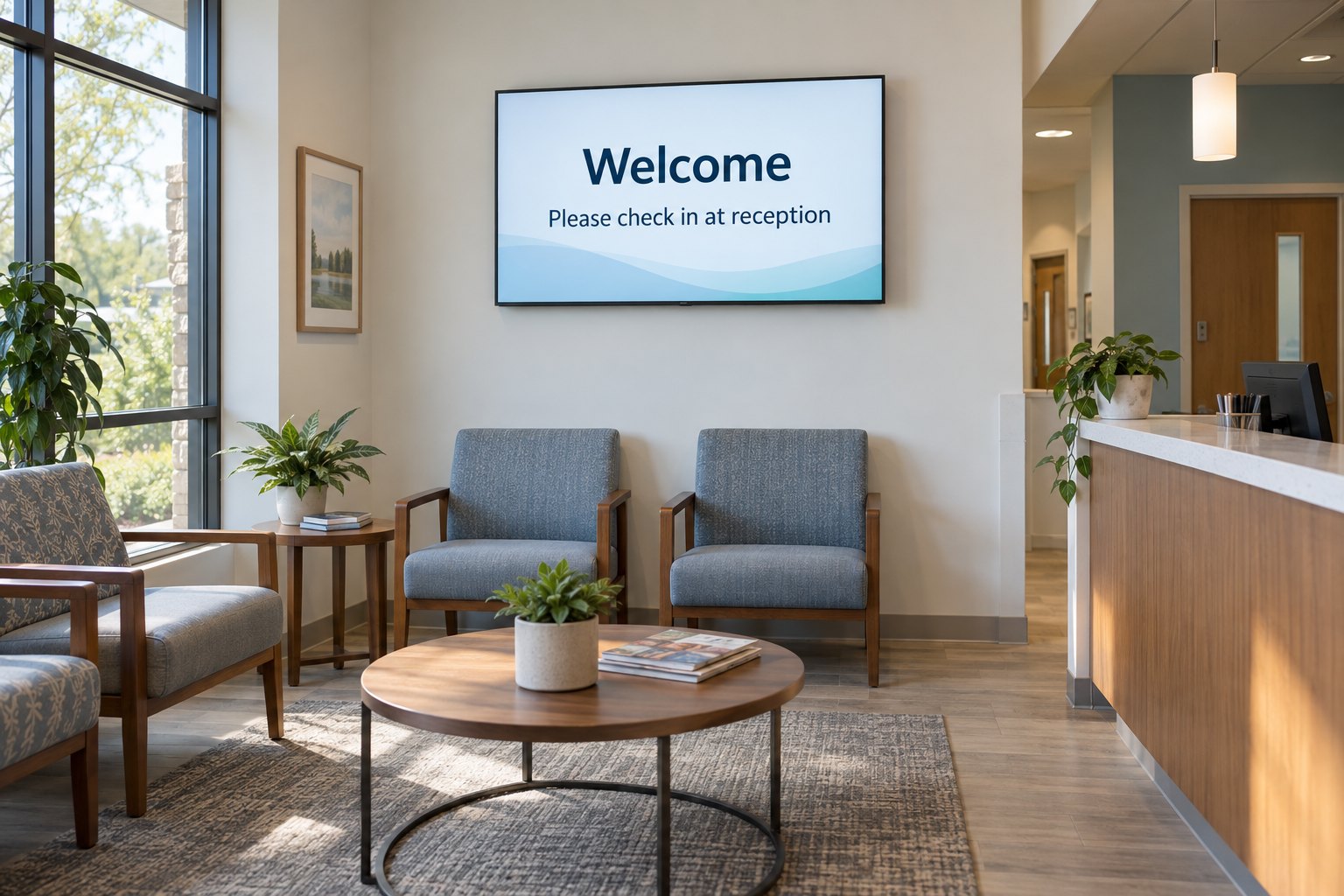
Assess a waiting-room display from the seats people will actually use. Check the furthest seat, side seating and places partly hidden by columns or reception furniture. A screen that looks clear while standing in front of it may be hard to read from a low chair.
Show a sample notice with the longest essential room name and a realistic amount of text. If it is difficult to read, simplify the message and review the screen position. Higher resolution alone will not fix text that is too small at the viewing distance.
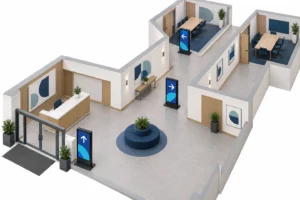
A Indoor Digital Signage can leave floor space available in a compact waiting area. A floor-standing digital signage display may suit a larger entrance where a visible information point is needed. Check circulation, power and mounting access for either arrangement.
Review glare at the times the area is in use. Glass entrances and bright ceiling lights can obscure a message even when the screen is working normally. Check from more than one seat before fixing the mounting position.
Keep the public playlist calm and easy to read
Use short notices with a clear purpose. A visitor should be able to identify the action without reading a paragraph of small text. Keep the most useful instructions visible often enough that people do not need to watch a long loop.
For example, a reception slide might say “Please check in at reception” and identify where staff can help. Use the same department and room names as the physical signs. Do not introduce a new abbreviation that makes sense only to employees.
Plan languages around the people using the facility. Have translated content reviewed by someone qualified for that task, and give each version enough time and space to be read. Avoid shrinking several languages onto one crowded slide.
Our digital signage content guide covers layout and publishing checks. In a healthcare setting, also assign the appropriate reviewer to any health-related message before it appears publicly.
Control the source and visibility of live information
If the display uses a queue or service-status feed, identify the system that owns that information. Confirm what the feed contains, how often it updates and which fields the public screen is intended to show.
Use sample data during design and testing. Review the screen from nearby corridors as well as the waiting area, and check the facility’s rules for public display. Do not assume a field is suitable for public viewing merely because the software can send it to the screen.
Keep public playlists and internal information in separate device groups with appropriate publishing access. Test which screens receive an update before expanding a rollout. A correctly formatted slide can still cause a problem if it reaches the wrong audience.
Decide what happens when a feed stops updating. A neutral direction to reception may be more useful than a stale status or an unexplained error. Ask the application provider to demonstrate the fallback behaviour on the proposed hardware.
Agree a review and publishing routine
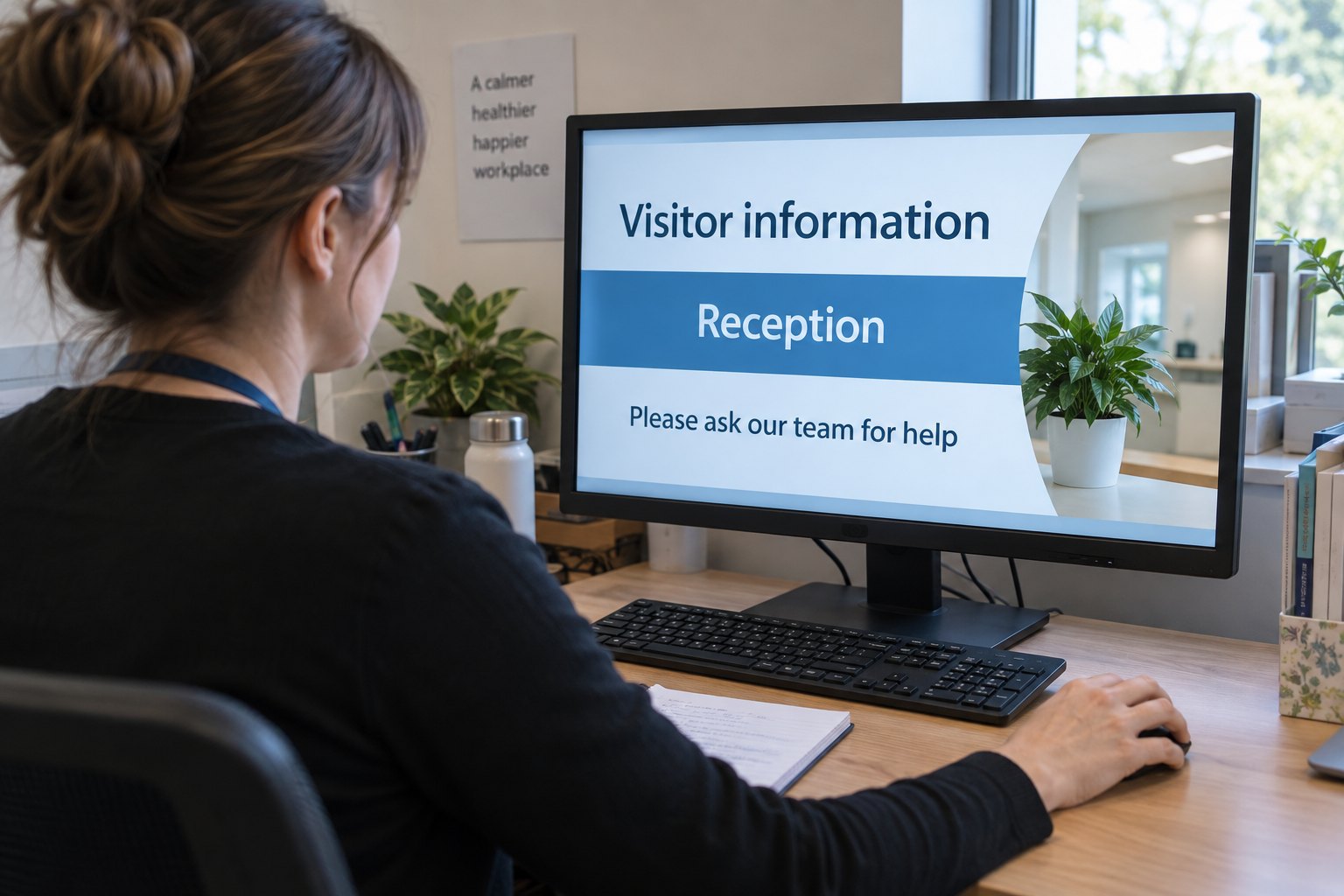
Give each notice an owner and a review date. Temporary changes need an end date or a clear removal process. The editor should know who can confirm a department move, a change to visiting arrangements or a replacement message.
Use a preview step before publishing. Check the wording, dates, room names, language versions and intended device group. For health information, the relevant clinical or communications reviewer should approve the content; the display supplier should not invent medical advice.
Keep a short record of what changed and when. After a significant update, check the actual public screen rather than relying only on the editor’s computer. That catches old playlists, disconnected players and content that looks different at the installed size.
Specify the display for the operating environment
Confirm the planned operating schedule, supported orientation, brightness needs and installation space. Ask how the screen and player start after a power interruption and how the team can restore the ordinary public playlist.
Discuss the cleaning routine with the facility and equipment supplier before selecting the enclosure. Follow the supplied care instructions and confirm material compatibility for the proposed process. An IP rating alone does not establish compatibility with a particular cleaning chemical.
Keep connectors and power equipment accessible to authorized service staff without obstructing the public area. Label each screen with a location identifier so that reception can report a problem without having to find a serial number behind the display.
For an interactive directory, use the digital wayfinding planning guide to define the map and route workflow. Confirm application support separately from the touchscreen hardware.
Test a working day before a wider rollout
Run one installation through the ordinary opening, busy and closing periods. Ask reception staff which questions remain unanswered and whether visitors can read the information from the intended positions.
- Check the longest notice and each planned language version from the seating area.
- Confirm that public and staff updates go to the correct screen groups.
- Test content expiry and the removal of a temporary notice.
- Disconnect the network and check the agreed fallback content.
- Restart the screen and player and confirm normal playback returns.
- Ask a backup editor to make and verify a routine update.
What to include in a healthcare signage enquiry
Send YJCEN the proposed locations and display requirements, with photos, viewing distances, screen quantities and operating hours. Include sample public content, the intended publishing software and the facility’s installation and cleaning requirements.
Keep specialist requirements explicit. If the project involves patient records, clinical applications or diagnostic use, identify that scope at the start so it can be assessed separately. For ordinary public information, a clear brief makes it easier to select the display, player and mounting arrangement.
Share your screen size, installation environment and quantity for a display quotation.