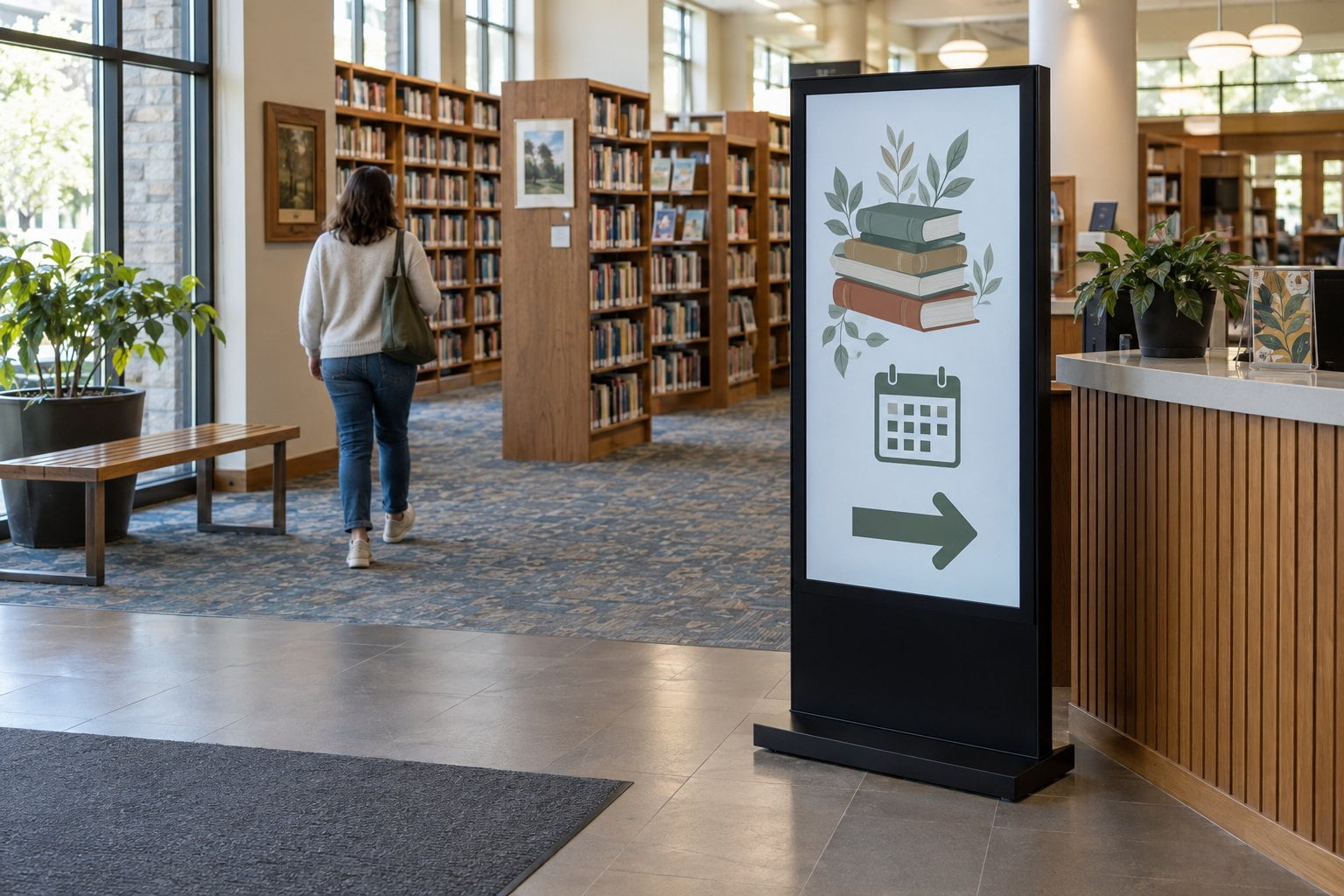
How should a library start with digital signage?
Start with one information point that answers a repeated visitor question — opening hours, today’s event or the route to a service desk.
- Place the screen where people can stop without blocking circulation.
- Use one short message and a clear next step while respecting the reading environment.
- Assign separate responsibility for content accuracy and technical support.
- Test real notices from standing and seated positions, and confirm expired events disappear before expanding.
Start with a small number of information points rather than filling every wall. An entrance screen should answer a different question from a display beside a meeting room. The planning decision is which visitor question each screen owns — and whether that job needs scheduled playback only or a searchable interactive directory.
Give each library screen a clear purpose
List the questions that staff answer repeatedly and identify where visitors need those answers. Opening hours belong near the entrance. A workshop announcement belongs where its audience passes. Directions should appear before a route divides, with names that match the building’s existing signs.
Keep each screen’s role narrow enough to remain useful. If an entrance playlist includes every club notice, service description and book recommendation, a visitor may leave before seeing the essential information. Separate current visitor information from material intended for people who have time to stop and browse.
| Position | Primary purpose | Content to prioritise |
|---|---|---|
| Entrance | Help visitors get started | Hours, service changes and today’s main activity |
| Floor junction | Help visitors choose a route | Clear destination names and directions |
| Meeting-room area | Explain the current programme | Event title, room and approved schedule |
| Service desk queue | Prepare visitors for assistance | Brief instructions and available services |
| Community or exhibition area | Introduce material worth exploring | Curated images, collections and related events |
Playback screen vs interactive directory
The university-library project used one double-sided unit with two 49-inch screens, Android and 450-nit brightness. Both non-touch screens show the same content, making this a reference for announcements seen from two approaches; a searchable directory needs touch interaction and a map application. Project example.
| Visitor job | Path |
|---|---|
| Hours, today’s event, a service change | Scheduled playback on Indoor Digital Signage or floor-standing display |
| Search, choose a destination, explore a map | Interactive kiosk + maintained map/search app |
| Quiet study in direct sightline | Static/slow content, or move the screen to the area entrance |
| Directions when the screen is off | Keep permanent wayfinding (wayfinding guide) |
Choose positions that respect the reading environment
Entrance and circulation areas
Place the display where a person can notice it, stop and continue without standing in the main route. Check visibility when doors are open and when a queue forms at the desk. A screen hidden behind a seasonal exhibition will not be useful even if the installation looked clear on a floor plan.
A floor-standing commercial display can provide an information point near a desk. Confirm its complete footprint and cable route before installation. Where floor space is limited, consider a wall-mounted position instead of squeezing a stand between furniture.
Quiet study areas
A moving playlist in someone’s direct line of sight can conflict with the purpose of a quiet reading space. Consider a static information slide, a slower schedule or a position near the entrance to the area. Check the result while seated at the desks, not just while walking through.
Plan for silent use unless a particular space has a different requirement. If a video carries spoken information, provide readable captions or a suitable text alternative. Brightness should suit the room and the viewing task; the brightest available setting is not automatically the best choice.
Event and meeting-room areas
Show the event title, location and relevant time clearly. Decide whether information is entered manually or comes from a booking system. A commercial screen does not include a reliable live room schedule unless the required software and data connection have been configured and tested.
Design messages for a brief glance
Give each slide one main message. Use a short heading, the information needed to act and a clear next step. A visitor should not have to photograph a dense page of text to find out where an event is taking place.
The University of Michigan Library’s submission guidance addresses contrast, viewing distance, silent video and avoiding flashing content. Its file specifications belong to its own installation. For your project, prepare artwork for the actual screen orientation and test it at the intended viewing distance.
Use colour to support meaning, not carry it alone. Pair an arrow with a destination name, and use words as well as colour for status messages. Keep text clear of busy photographs. Check whether the smallest details can be read by someone who is passing through rather than standing close to the screen.
QR codes can lead to longer information, but keep the essential message on the display. Include another way to get help, such as the service desk. Test the code from a practical distance and leave the slide visible long enough for a visitor to use it comfortably.
Set up a simple approval and expiry process
Name a content owner and a technical contact. One person may perform both roles in a small branch, but the tasks are different. Content ownership covers accuracy, dates and suitability; technical ownership covers the display, player, connections and recovery when something stops working.
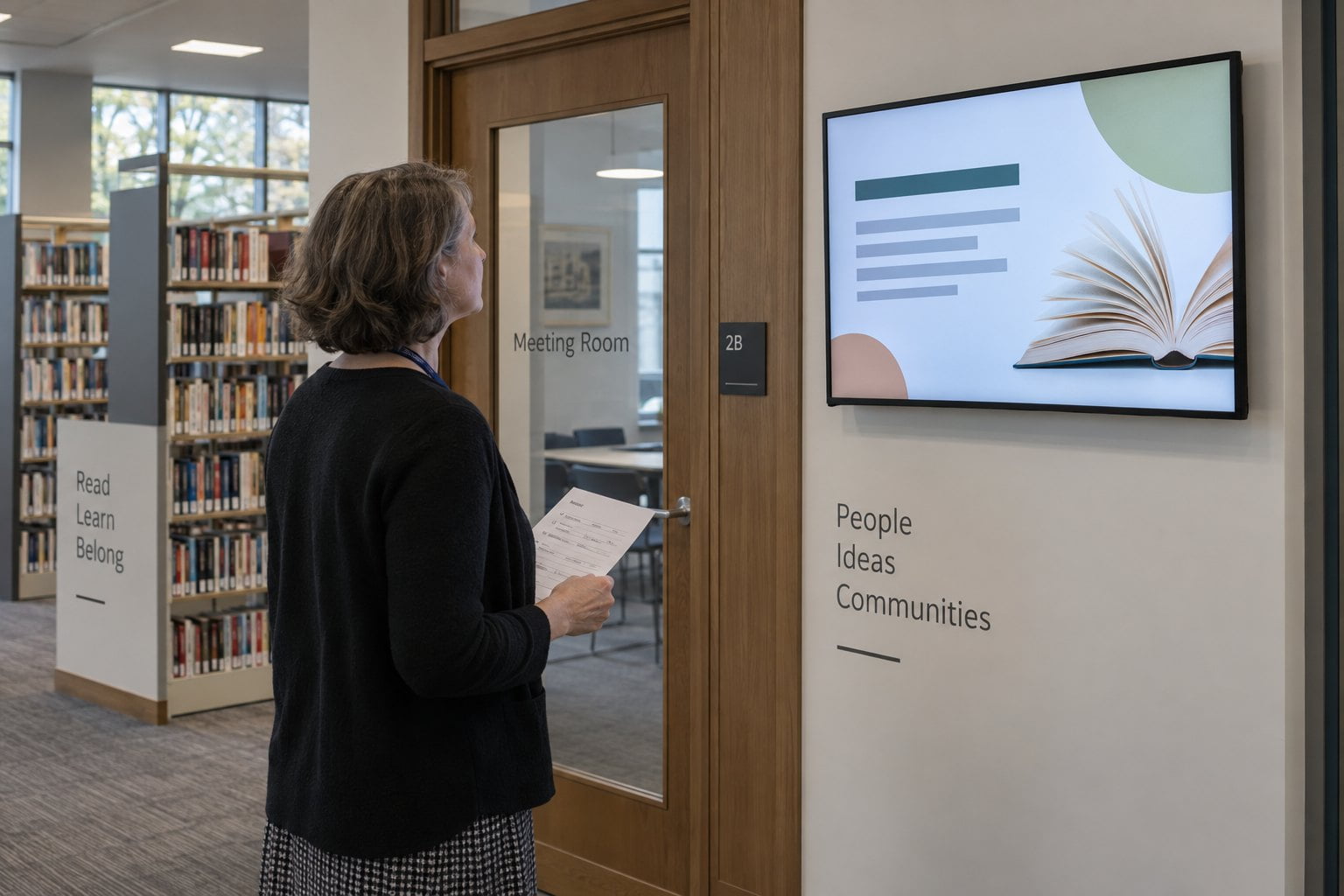
Review the displayed content as well as the publishing schedule.
Syracuse University Libraries’ guidelines distinguish content management from technical infrastructure and provide a route for submissions. Your library can use a similarly clear division without adopting another institution’s software or approval rules.
A short submission form should ask for the intended audience, screen location, start and end dates, contact person and approved image. Keep a record of which version was published. Remove expired events promptly and review recurring messages when hours, services or room names change.
Give staff an easy way to report a wrong message. A working screen showing yesterday’s cancelled workshop still needs attention. Include a routine visual check at opening, especially after holidays or a change in the building programme.
Specify the display and playback together
For a fixed interior position, review wall-mounted digital signage against the room, mounting surface and operating schedule. Confirm orientation support, ventilation, connection access and the player configuration. Supply a sample slide so the equipment discussion includes the actual reading task.
An interactive directory is a separate choice. It needs a usable map or search application, suitable touch controls and a way to keep destinations current. A commercial interactive kiosk supplies the hardware platform; confirm the application and integration separately.
Keep permanent directions available if visitors need them while a screen is off. Our digital wayfinding guide covers map and route planning in more detail. Screens can support a building’s information system without becoming the only way to find essential services.
Questions about library digital signage
Does every library screen need touch?
No. Scheduled announcements usually need playback only. Add touch when visitors must search or choose a destination. Decide interaction first, then match hardware and software.
Can it show emergency messages?
Only with a tested integration and owner. Buying a display alone does not create an emergency alert system. Keep established communication arrangements in place.
What should we send when asking for a quotation?
Provide the proposed location, viewing distance, operating hours, screen orientation and example content. Include photographs showing the wall or floor area and nearby light sources. Contact YJCEN to discuss commercial display hardware suited to your library’s information points.
Share your screen size, installation environment and quantity for a display quotation.