How should an office organise digital signage?
Start with the question each screen must answer, then connect its placement, content owner and update process.
- Separate visitor-facing information from employee-only messages.
- Group screens by building, floor or audience so notices reach the relevant people.
- Agree player, CMS, network, access and support responsibilities with IT.
- Pilot a reception and an employee screen using real updates, viewing positions and restart checks before a wider rollout.
This planning guide explains how to choose display locations, separate hardware from software requirements and test a workplace installation before expanding it. It focuses on reception areas, shared spaces and internal communication screens rather than treating every office display as a meeting-room system.
Start with the office communication problem
The indoor range offers wall-mounted displays and Android or Windows configurations. A 55-inch model provides a 3840 × 2160 canvas at 400 nits, so a shared office dashboard can be planned around a fixed viewing area and the application used to publish it. Indoor Digital Signage.
Write down the question each proposed screen should answer. A visitor at reception may need check-in instructions. Employees near a lift may need to know about a temporary access change. A team in a shared lounge may benefit from upcoming events or a concise operational update. Those jobs require different messages and different publishing responsibilities.
Choose a few useful outcomes that can be observed during a pilot. For example, reception staff can record recurring visitor questions before and after revised signage is introduced. A facilities team can check whether temporary notices appear at the intended time and disappear after the work finishes. Do not assume that installing screens automatically improves productivity or employee engagement.
| Office area | Primary task | Content owner | Common mistake |
|---|---|---|---|
| Reception | Welcome and direct visitors | Reception or workplace team | Showing internal information to a public audience |
| Lift lobby or corridor | Communicate a timely action | Facilities with an approval process | Using slides too detailed to read while walking |
| Employee lounge | Share relevant workplace updates | Internal communications | Repeating the same general announcement indefinitely |
| Meeting-area entrance | Help people identify destinations | Workplace or room-management team | Assuming a general signage screen includes live booking software |
| Restricted team space | Show approved operational information | Designated business owner | Exposing sensitive dashboards beyond the intended audience |
Match display hardware to the physical space
Reception and visitor areas
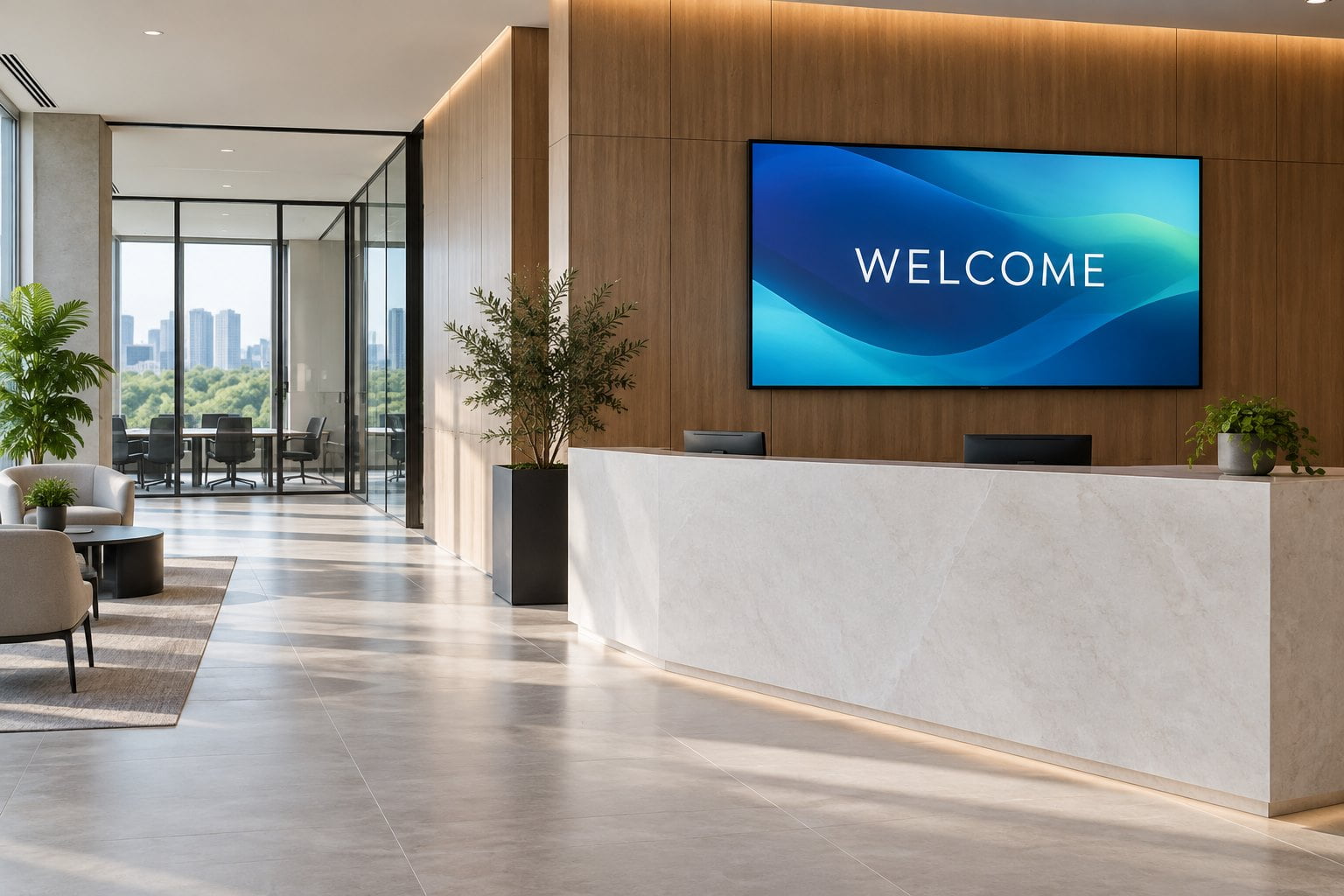
Check the visitor’s first view when entering the building. A reception screen should be visible before someone has to make a decision about where to go. Test a simple welcome and direction layout at that position. Consider daylight, reflections, nearby signs and the reception desk’s own visual prominence before increasing screen size.
YJCEN’s indoor digital signage range includes wall-mounted display options for commercial interiors. The product page lists portrait and landscape configurations and optional Android or Windows systems. Confirm the selected model and installation details in the quotation, including whether the player is integrated or supplied separately.
Shared areas and staff communication points
Place employee screens where people have an appropriate opportunity to look at them. A lounge offers a different reading window from a corridor. Avoid bright, rapidly changing content in a position that distracts people working at nearby desks. Test the layout and playback schedule with the people who regularly use the area.
A floor-standing display may fit a broad reception or shared information point when permanent wall mounting is unsuitable. Review its footprint, cable access and installation stability. For a permanent project, decide where the unit will remain during busy periods rather than relying on informal daily repositioning.
Meeting rooms and booking information
A room presentation screen, a small booking panel and a shared area information display have different roles. List those roles separately. If a project needs live room availability, specify the calendar connection, update behavior, user permissions and support responsibility. A commercial screen with a compatible operating system does not by itself provide a working booking service.
For context, LG’s corporate display overview presents multiple workplace display applications. Use that variety as a reminder to define each area independently. Product suitability still needs to be checked against the actual location, operating hours and software selected for your office.
Keep hardware and software responsibilities clear
An office signage system normally has a display, a playback function and a way to manage content. The hardware supplier, CMS provider and installer may be different companies. Document who supplies each component and who investigates failures. Otherwise a screen can remain blank while each party waits for someone else to diagnose the problem.
Ask the software provider to demonstrate the workflow the office will actually use. That may include scheduling a facilities notice, publishing to one building, previewing a slide or removing expired content. Evaluate the steps a regular employee must perform, not only a polished demonstration prepared by the vendor.
- Confirm supported operating systems, player versions and display orientation.
- Check how content is distributed and what happens when a device is offline.
- Review roles for contributors, approvers and administrators.
- Confirm licensing costs for additional screens, users and required integrations.
- Agree how device status, update failures and subscription renewals are handled.
Where an office already uses a CMS, send its requirements to the hardware supplier before ordering. Where no platform has been selected, test a small working configuration first. Avoid buying every panel around a software assumption that has not yet been demonstrated.
Build a manageable office content plan
Use screen groups and a simple publishing calendar
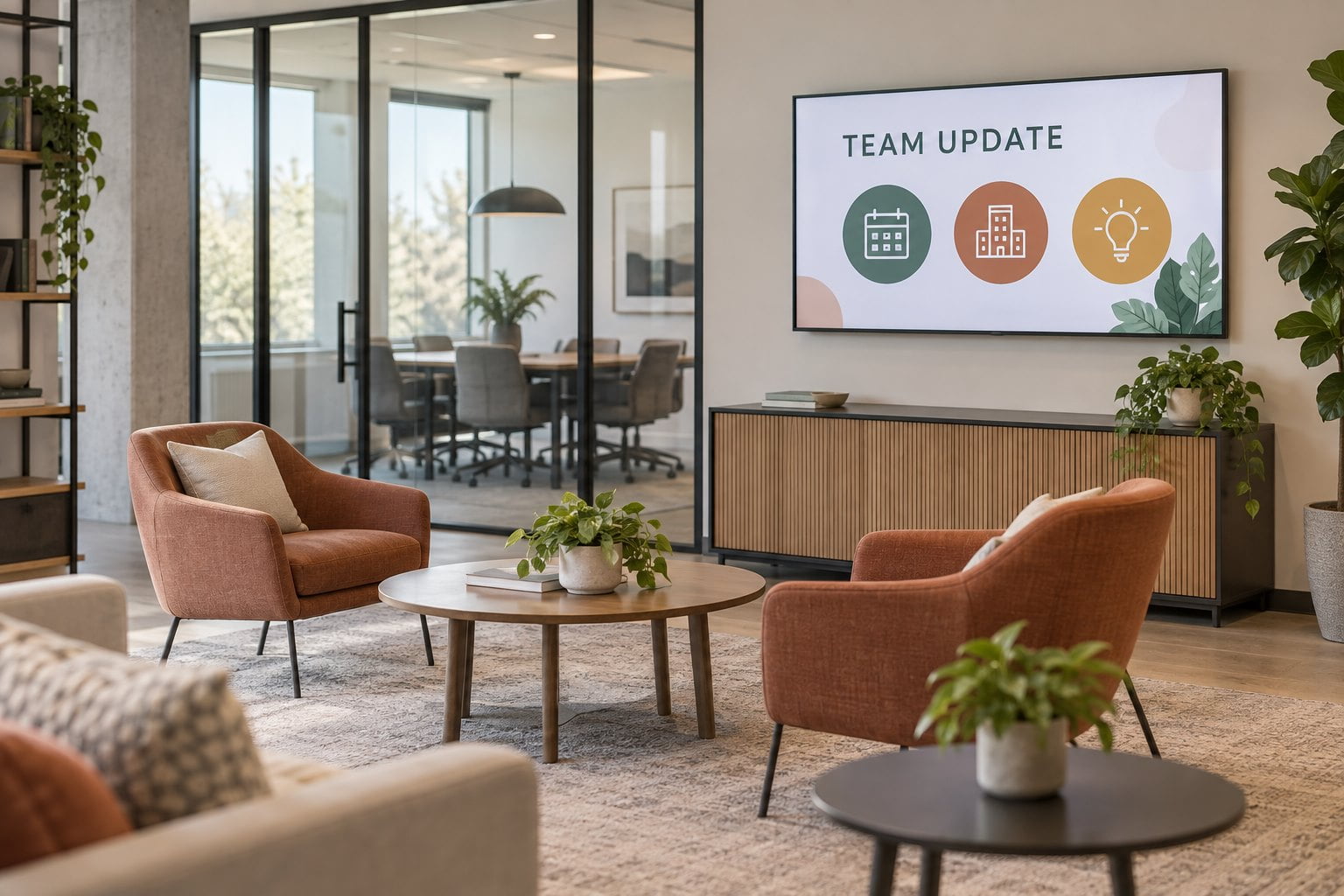
Separate public-facing displays from employee screens. Then group internal screens by building, floor or audience where useful. A temporary lift closure belongs where it affects travel; a team event may belong only in the relevant staff area. Showing everything everywhere makes it harder for viewers to identify what matters to them.
Create a small set of approved templates for workplace notices, events and directions. Include the action, location, timing and content owner. Set start and expiry times for temporary items. Keep a recurring review on the calendar so old notices and broken links are removed even when nobody has submitted new content.
Give each message one job
A useful slide should make sense without an employee waiting through a long rotation. Use a direct heading and enough context to act. If a notice needs several paragraphs, publish the detail on an appropriate internal page and use the screen to point people to it. Check that the destination can be accessed by the intended audience.
For a facilities change, “Use the east entrance on Tuesday” communicates an action more quickly than an abstract service announcement. Add the relevant date and location, then remove the slide when it no longer applies. Treat this as a writing pattern, not as a ready-made notice for your building.
Review privacy and audience before publishing
A dashboard suitable for a restricted team space may be unsuitable for reception. Check who can see each display, including visitors and cleaning or maintenance staff. Avoid showing personal records, passwords, private meeting details or commercially sensitive figures on a public-facing layout. Use approved summaries where a broader audience needs context.
If personal recognition or staff photographs are part of the content plan, follow the organization’s established approval process. Keep the screen’s purpose clear and give the responsible team a way to correct or remove content promptly. Publishing convenience should not obscure who owns the information.
Plan network access and routine maintenance with IT
Bring IT into the project before installation. Provide the proposed CMS, player type, connection method and vendor requirements. Ask how device registration, network access, updates and remote support will be managed. These are configuration decisions for the office environment; they should not be left to an installer guessing on delivery day.
Record every screen and player in an equipment list with its location, model, support contact and assigned owner. Decide how operating schedules change on holidays or during office closures. Confirm how approved updates are tested and who can restore playback if the normal content owner is unavailable.
For dynamic content, define a useful failure state. An old branded welcome slide may remain acceptable for a period; an outdated meeting schedule may actively misdirect visitors. Ask whether the chosen platform can show freshness information or replace unavailable data with an approved message. Test the actual behavior rather than assuming all content is safely cached.
Compare quotations using the complete deployment cost
Ask each supplier to price the same location list and operating requirements. Separate screens, players, mounts, installation, network work, software subscriptions and training. Include any content design or integration work that the office expects the supplier to provide. This makes differences between quotations easier to explain.
Review warranty handling, replacement lead times and the cost of adding another floor. An inexpensive initial setup can become difficult to expand if each screen needs manual attention. Conversely, a small office may not need every feature of an enterprise platform. Choose the support and management approach around the team’s actual capacity.
The digital signage project budget guide provides a broader cost checklist. For office projects, include staff time for approvals, content maintenance and troubleshooting in the internal plan, even when those tasks do not appear on a supplier invoice.
Test a representative office area before rollout
Choose a pilot that includes both the equipment and the normal publishing workflow. A reception display and an employee screen can reveal different needs without committing to an entire building. Set an acceptance date and ask reception, facilities, IT and the content owner to review the parts that affect their work.
- Inspect a real sample message from the entrance and normal walking route.
- Check glare and legibility at different times during office hours.
- Schedule a notice for one screen group and confirm other groups remain correct.
- Confirm the notice expires and the regular playlist returns.
- Restart the player and screen, then check recovery without a laptop intervention.
- Test a planned network interruption and the approved fallback behavior.
- Have the regular publisher and backup complete an update independently.
Frequently asked questions
How many displays does a small office need?
Start with the communication locations, not a screen-per-employee formula. One reception screen may be sufficient for a visitor problem, while an employee communication project may need a separate internal position. Add screens when they serve a distinct audience or viewing area.
Can office signage show live dashboards?
It can when the selected software supports the required data source and the organization approves the content and access method. Verify authentication, refreshing, privacy and failure behavior with the software provider. Do not assume every display includes dashboard integration.
Should an office use portrait or landscape screens?
Choose the orientation around the mounting area and content layout. A tall directory and a wide welcome presentation may need different formats. Confirm that the specific hardware and player support the intended orientation and test content before installation.
What information does YJCEN need for a hardware recommendation?
Provide screen locations, photographs, viewing distances, operating hours, desired orientation and your proposed software or player arrangement. Include power, network and mounting constraints. Contact YJCEN with your office display requirements to discuss the available hardware configurations.
Share your screen size, installation environment and quantity for a display quotation.