How should a bank branch use digital signage?
Use each screen to answer a visitor's immediate question, such as where to check in, which counter to use or what service information is current.
- Keep essential service instructions separate from promotional campaigns.
- Check visibility from the entrance, queue and seating positions.
- Treat live queue numbers as a defined integration with an approved source.
- Publish public-ready content rather than a staff desktop, and test updates, expiry and restarts in a working branch.
Answering those questions takes more than choosing a screen. Each location needs a clear purpose, readable content and someone responsible for keeping the message current. This guide sets out a practical display plan for bank branches, from the entrance to the waiting area.
Give Each Branch Screen One Main Job
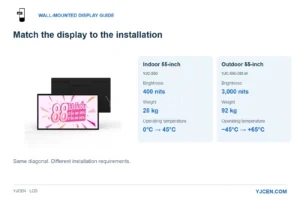
The 32-inch indoor wall display uses a 1920 × 1080 panel at 400 nits. It can provide a fixed place for queue directions or approved service notices without occupying floor space; the bank’s content and update controls remain part of its own workflow. Indoor Digital Signage.
Walk through the branch from the visitor’s entrance. Mark where people pause, look for directions or approach the wrong counter. Those points help determine where information is needed and whether a digital screen is the appropriate way to present it.
| Location | Primary message | Check before installation |
|---|---|---|
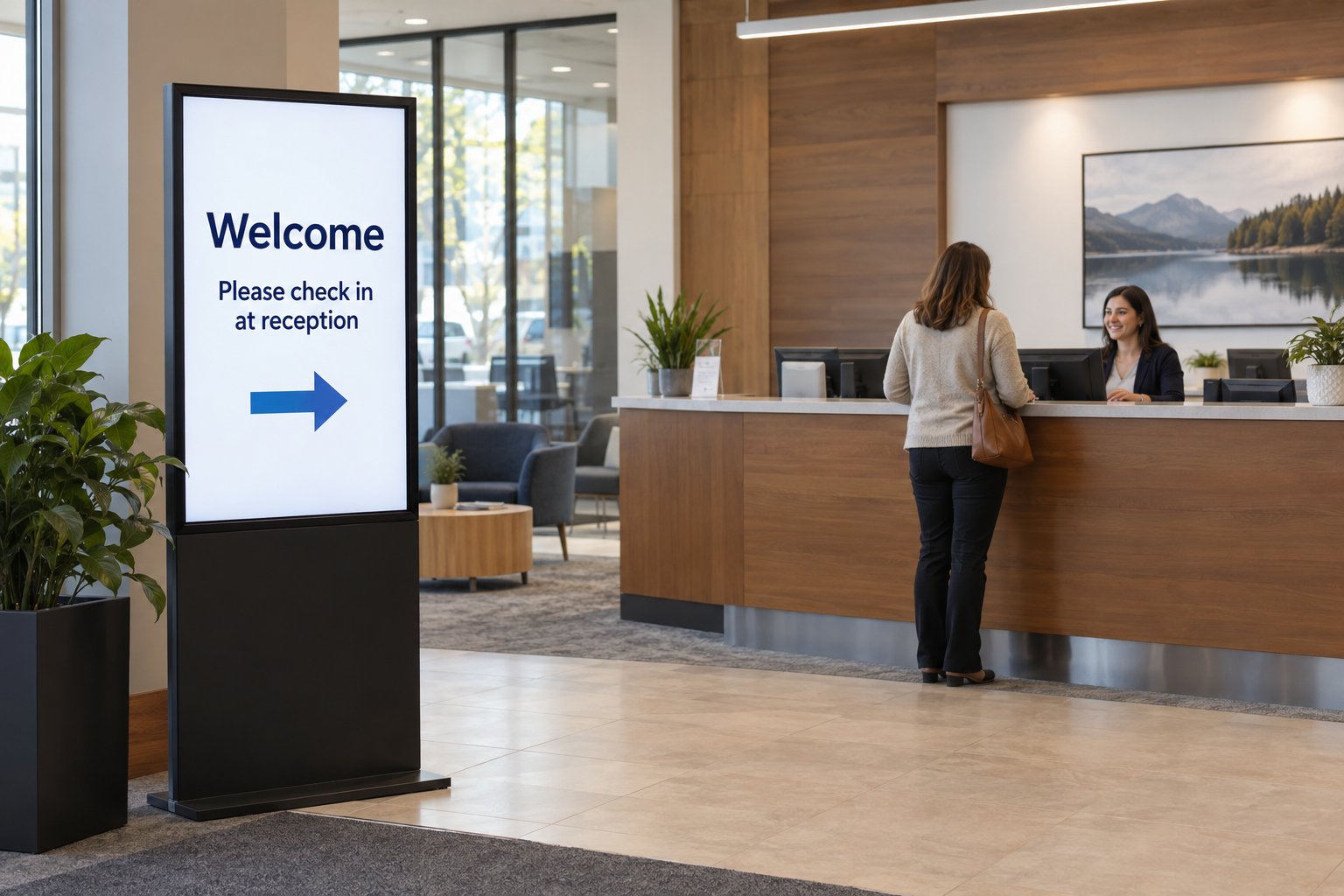
| Entrance or reception | Where to check in and what to do next | Visible before visitors join a queue |
| Waiting area | Service information, appointment guidance or queue updates | Readable from occupied seats and standing positions |
| Near service counters | Which service is available at each position | Consistent with the branch’s counter names |
| Street-facing window | Opening hours and a short public message | Daylight, reflections and viewing distance through glass |
A reception message should stay visible long enough to guide someone who has just arrived. If it disappears into a long advertising playlist, visitors may miss the instruction. Keep essential directions continuously available or give them a separate display area.
These are established branch uses: Samsung’s branch-experience article discusses welcome displays, directions and queue information. The right combination still depends on the services and layout at your own locations.
Separate Service Instructions from Promotional Content
Branch hours, appointment instructions and counter directions have a different purpose from a campaign. Give each type its own content owner. A central marketing team may manage a campaign, while a branch manager needs a controlled way to report a temporary change in service.
For promotional messages, define which version is approved, where it may appear and when it must stop. Have the bank’s responsible reviewers approve any offer wording, qualifications and required accompanying information. A display supplier should not decide those details.
Design the layout around the approved wording. If important information becomes too small to read, change the layout or reduce the scope of the message. Do not solve the problem by removing text that the bank requires to be shown.
A useful content record includes the message owner, branch group, language, approval date and expiry date. That record makes it easier to replace an outdated notice without guessing which file was last approved.
Choose Screens for the Actual Viewing Conditions
Check a proposed screen position at the busiest part of the day. A queue, a door or a standing visitor may block a display that looked clear in an empty branch. Read the draft message from the furthest position where it needs to be understood.
A wall-mounted display can keep floor space clear. A freestanding screen may suit an entrance where no useful wall position exists, provided its placement leaves circulation and access clear. Compare the installation space, service access and cable route along with the screen size.
For interior placements, explore YJCEN’s indoor digital signage and floor-standing displays. Confirm the required orientation, operating schedule and mounting arrangement for the selected model.
A screen facing the street through a window needs a separate site review. Assess direct sunlight, reflections, glass and heat around the proposed enclosure. Our high-brightness window displays are a starting point for that discussion; one brightness figure does not settle every window installation.
Treat Queue Information as a Separate Integration
A screen that plays a welcome slide is not automatically a queue-management system. Showing live ticket numbers requires a source for that information and a supported connection to the display application. Confirm the queue platform, update method and responsibility for the integration before ordering.
Ask what visitors will see if the connection stops updating. An old ticket number left on screen can be confusing even though the display itself is working. Agree an appropriate fallback message and a staff process for handling that situation.
During testing, use sample tickets and counter names that match the branch layout. Check the direction signs and spoken staff instructions too. A screen labelled “Service Desk 2” is not helpful if the physical counter carries a different name.
Build a Simple Review and Publishing Process
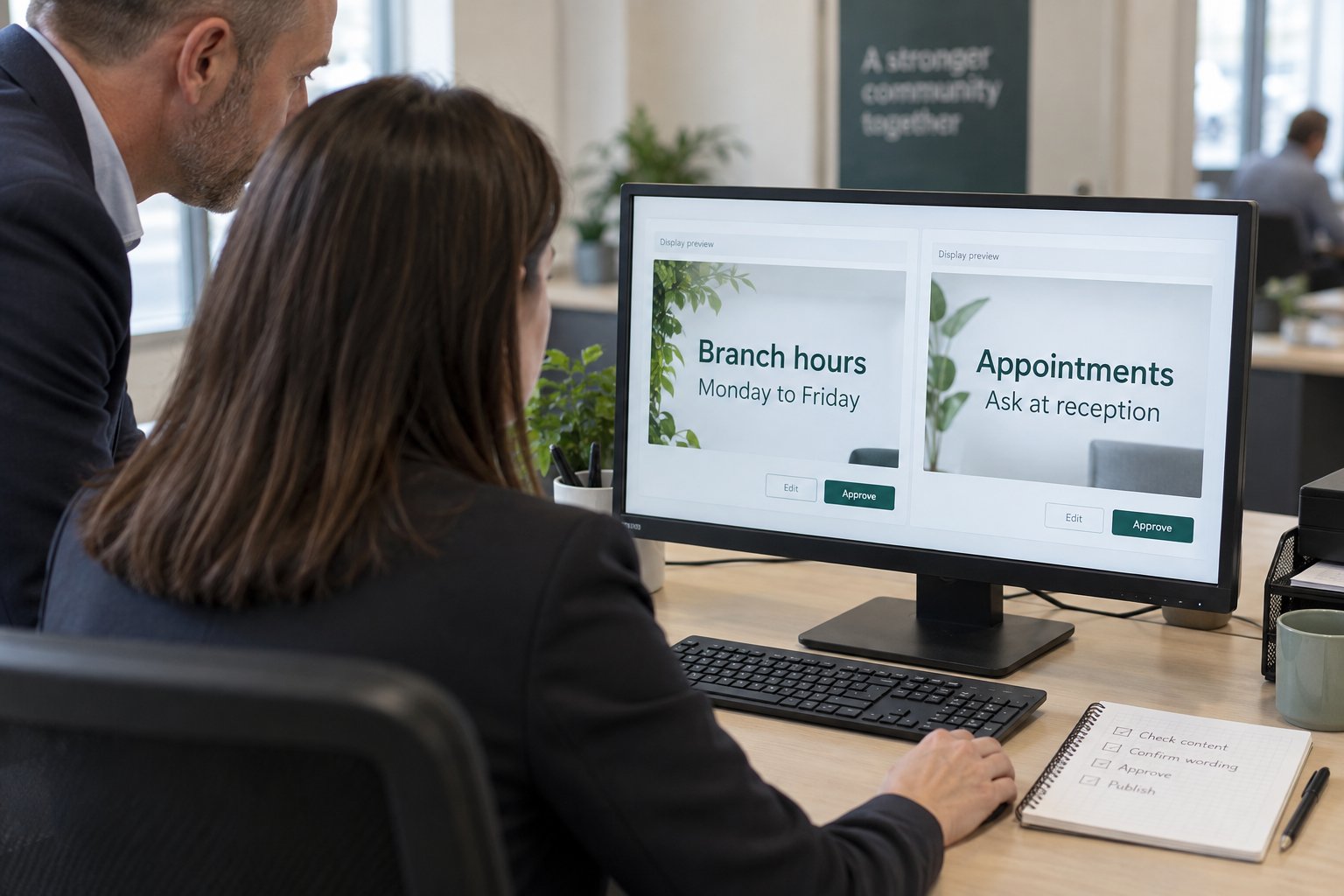
Use a small set of reusable layouts for branch hours, service changes, appointments and approved campaigns. Keep the headline, essential detail and next step in consistent positions. This makes review easier and helps local staff identify which fields they are allowed to change.
Before publishing, preview each message at its intended orientation and on a representative screen. Check branch names, dates, language and the full text. A desktop preview alone may not reveal how small a line becomes when read across a waiting area.
Use the publishing and permission controls supported by the selected content system. Confirm that the people who prepare content, approve it and send it to screens have appropriate responsibilities. Do not assume every digital signage software package provides the same approval workflow.
After a message is sent, verify it on the destination screen or through a reliable display-status check. Keep a way to restore the last approved version. This matters when several branches share a campaign but have different hours or local notices.
Keep Public Displays Separate from Private Work
Prepare content specifically for public viewing. Avoid using a staff workstation’s normal desktop as the public screen source, where notifications or unrelated windows could appear. Show the proposed playback method to the bank’s IT team before choosing the hardware configuration.
Let that team define the network connection, account permissions, remote access and update requirements. Confirm who maintains the player and software after installation. A commercial display’s hardware specification is not evidence that a complete system meets a bank’s security requirements.
For the playback equipment, our media player buying guide explains questions about supported content, service access and recovery. Bring the bank’s software and IT requirements into that discussion from the start.
Pilot the Plan in a Working Branch
Choose a representative location and run the planned messages during normal opening hours. Ask reception staff which questions visitors still repeat. Check whether people can find the correct counter without waiting for a particular slide to return.
- Review entrance instructions while people are arriving.
- Read every required line from real seating and standing positions.
- Test a branch-hours change and confirm the old version disappears.
- Restart the player and check the expected content returns.
- Verify queue-data loss and recovery if live queue information is included.
Record those findings before expanding to more branches. A second location may have different sunlight, floor space or service names, so reuse the process while checking the local details. Measure useful outcomes such as repeated direction questions and time needed to correct a notice; do not assume a guaranteed sales increase.
Send YJCEN your branch layout and screen locations to discuss suitable display hardware. Include the viewing distance, operating hours, window exposure and intended playback system so the proposed configuration matches the site.
Share your screen size, installation environment and quantity for a display quotation.