How do you choose a digital signage media player?
Choose a player that runs the actual content and publishing software reliably. It can be built into the display, an external box or a suitable computer.
- List file types, web or interactive content, output resolution, frame rate and orientation.
- Confirm CMS support, operating-system version and licensing.
- Check storage, power, ventilation, cabling and replacement access.
- Test playback, offline behaviour and restart recovery on the proposed display and player together.
Start with a sample playlist and the software you intend to use. A device that plays one video correctly may struggle with a live dashboard, touch controls or several content zones. Those differences matter more than a long list of processor specifications.
What does a digital signage media player do?
The 28.6-inch bar display uses a 1920 × 540 canvas and offers Android or Windows configurations. Select the operating system around the playback application, then build the artwork for the wide native canvas rather than sending a standard 16:9 slide unchanged. Bar Type LCD Display.
The player receives or stores content, follows the playback schedule and sends the result to the screen. Depending on the setup, it may also handle touch input, live data or commands to turn the display on and off.
The display and player have separate jobs. A screen can accept an HDMI signal without having its own signage application. A screen with a built-in operating system still needs software that can run on that particular version and hardware configuration.
Ask the supplier to identify the player, operating system, storage and publishing method in the quotation. “Smart display” alone does not explain how content will be updated or what happens when the network goes down.
Compare built-in players, external boxes and computers
| Setup | Why consider it? | What to check |
|---|---|---|
| Player built into the display | Fewer separate devices and visible connections. | Software support, available storage, update policy and the replacement process. |
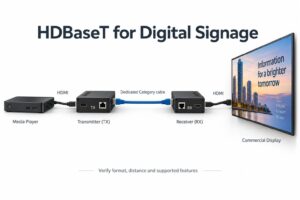
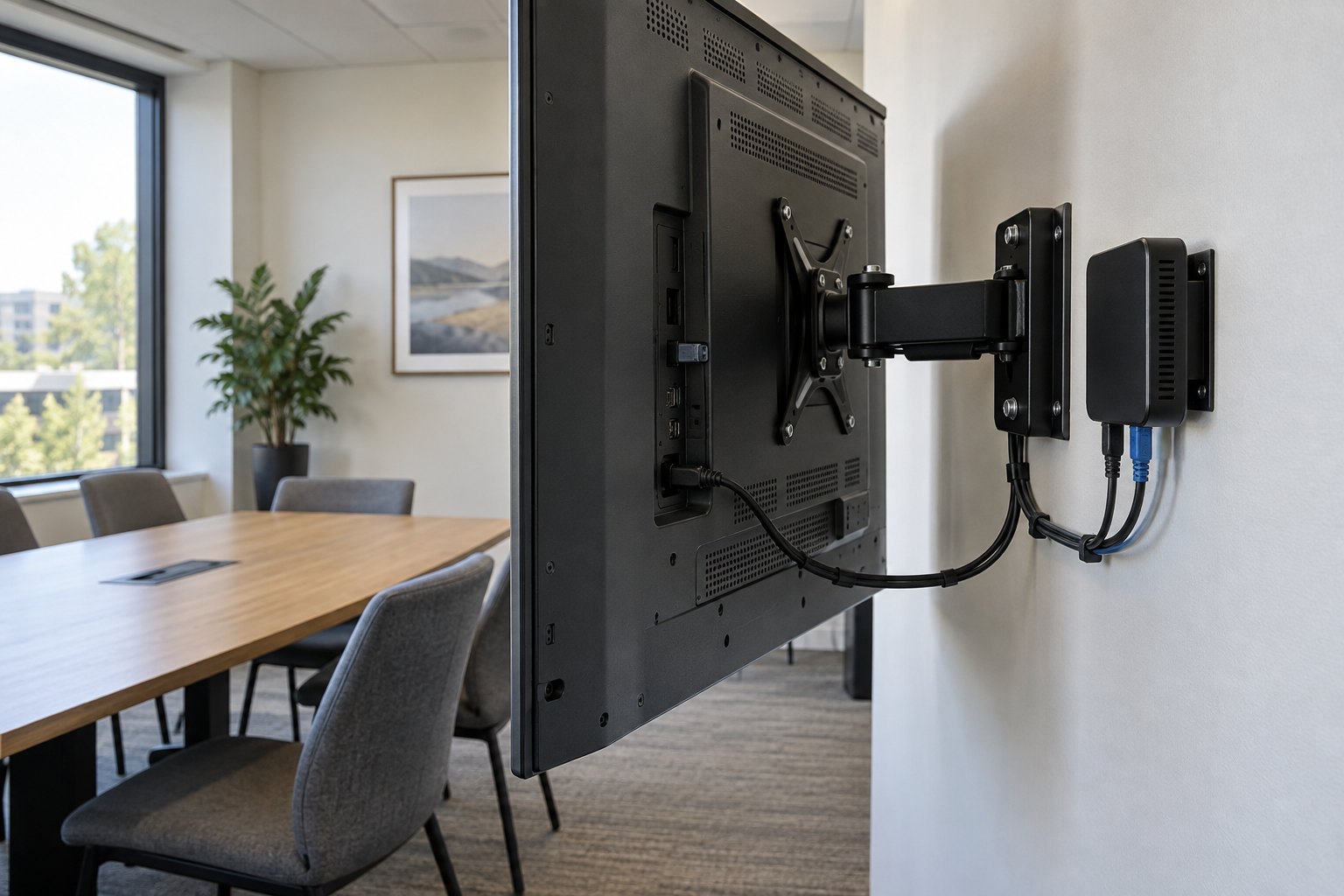
| External signage player | The player can be selected and serviced separately from the screen. | Mounting space, power, cable access and the supported content formats. |
| Computer running signage software | May suit a required desktop application or a more complex installation. | Automatic startup, background updates, permissions and ongoing IT support. |
None of these arrangements is automatically the best for every project. A small indoor playlist and an interactive directory place different demands on the player. Choose the simplest setup that runs the required application reliably and can be maintained by your team.
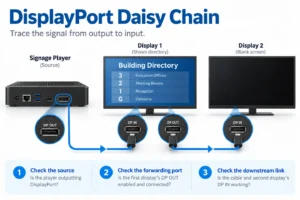
For a wall-mounted digital signage display, confirm whether the proposed configuration includes a player or expects an external source. Keep that decision separate from screen size and mounting orientation.
Match the player to the content, not just the resolution
List the actual content types: still images, video files, web pages, live streams or an interactive application. Then specify the required output resolution, frame rate and screen orientation. A “4K” label does not describe every combination of these requirements.
Video decoding, web rendering and display output are different capabilities. A player may output a 4K image while having limits on video formats, simultaneous video zones or complex web content. Check the exact model rather than assuming all players in a family behave alike.
BrightSign’s hardware feature matrix, for example, lists video, HTML5, rotation and interface capabilities separately. It illustrates why a model-level check matters; it is not a claim that a particular player or application is included with a YJCEN display.
Send your largest video, busiest layout and most demanding web page for a trial. Test portrait playback if the screen will be vertical. Check the entire playlist, including transitions and the point where it repeats.
Confirm the publishing software before ordering hardware
If you already use a content management system, ask its provider which devices and operating system versions it supports. Confirm whether the proposed setup uses a native application, a browser or another playback method.
Then ask what the software needs for scheduling, remote updates and device monitoring. Having the same operating system name is not sufficient evidence of compatibility. Storage access, browser features and the way the application starts can differ between devices.
For an interactive information kiosk, include the touch interface in the trial. Confirm the touch connection, screen mapping and the application’s idle behaviour. An HDMI image appearing correctly does not prove that touch input is working.
Plan power, cables and service access
An external player needs a secure location with enough ventilation and access to its connectors. Check the space behind the screen with the actual bracket and plugs fitted. A player that fits on a drawing may leave no room for a cable bend or a service hand.
Record which device supplies power and which power adapter belongs to the player. Do not assume that a display’s USB port can power an external device simply because the connector fits. Use the supported power arrangement specified by the equipment manufacturers.
Label the screen, player and network connection with a location identifier. Keep a short installation record with the model numbers and a photo of the connections. That makes a replacement easier when the original installer is unavailable.
Test offline playback and recovery
A network connection can be needed for publishing without being needed for every second of playback. Some systems store a playlist locally; others rely on a live web page or stream. The result depends on both the player and the application.
Our guide to online and offline digital signage explains those arrangements. For your installation, test a network interruption with the real playlist and record which content remains available.
Also restart the complete setup. Check that the screen chooses the correct input, the player starts its application and the current schedule resumes. Watch for login prompts, error dialogs or a desktop appearing where the public message should be.
Run a sample acceptance check
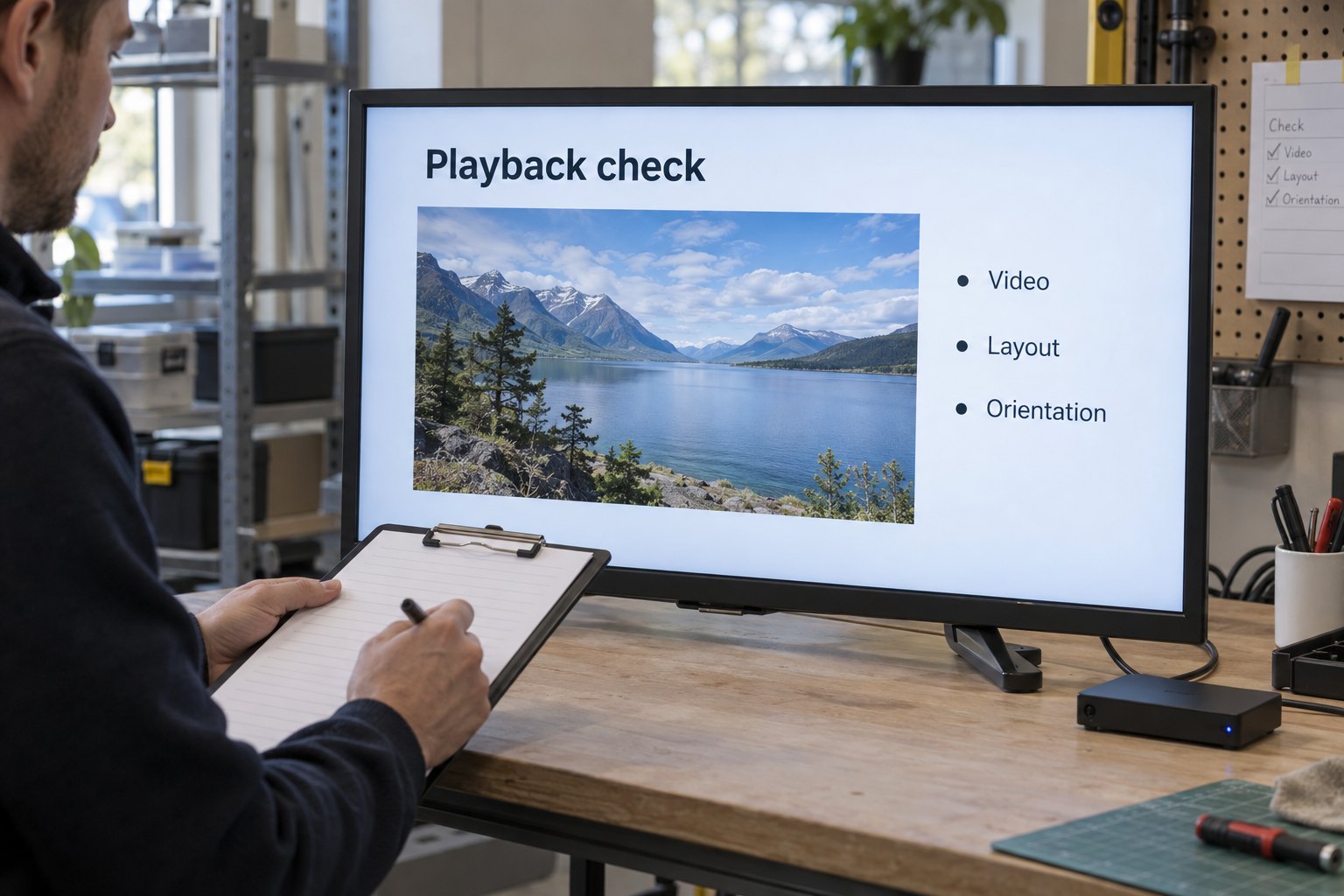
- Playback: all required files open, repeat and transition correctly.
- Layout: text, images and web content fit without cropping or unexpected scrollbars.
- Orientation: video, interface elements and touch coordinates agree with the mounted screen.
- Updates: a new playlist reaches the intended device and replaces the old version.
- Recovery: normal content returns after a power or network interruption.
- Support: the operator can identify the device and explain what is on its screen.
Use the same application version and agreed hardware configuration for the trial and the rollout. If a component changes, check the affected functions again. A successful test of a different device is useful background, but it is not acceptance of the supplied setup.
Questions to settle before you buy
Does every signage screen need a separate media player?
No. Some configurations have suitable playback hardware built in. Others need an external player or computer. Confirm what is included and whether it supports your chosen application.
Can one player run several displays?
It depends on the outputs and the required content. Repeating one image across screens is a different requirement from showing independent layouts or a synchronized video wall. Specify the arrangement before choosing the player.
What information should I send for a quotation?
Send YJCEN your screen quantity, orientation, sample content and publishing software requirements. Include the network arrangement and service access available at the site. We can then discuss the display and player configuration against a concrete brief.
Share your screen size, installation environment and quantity for a display quotation.