How does an infrared touch screen work?
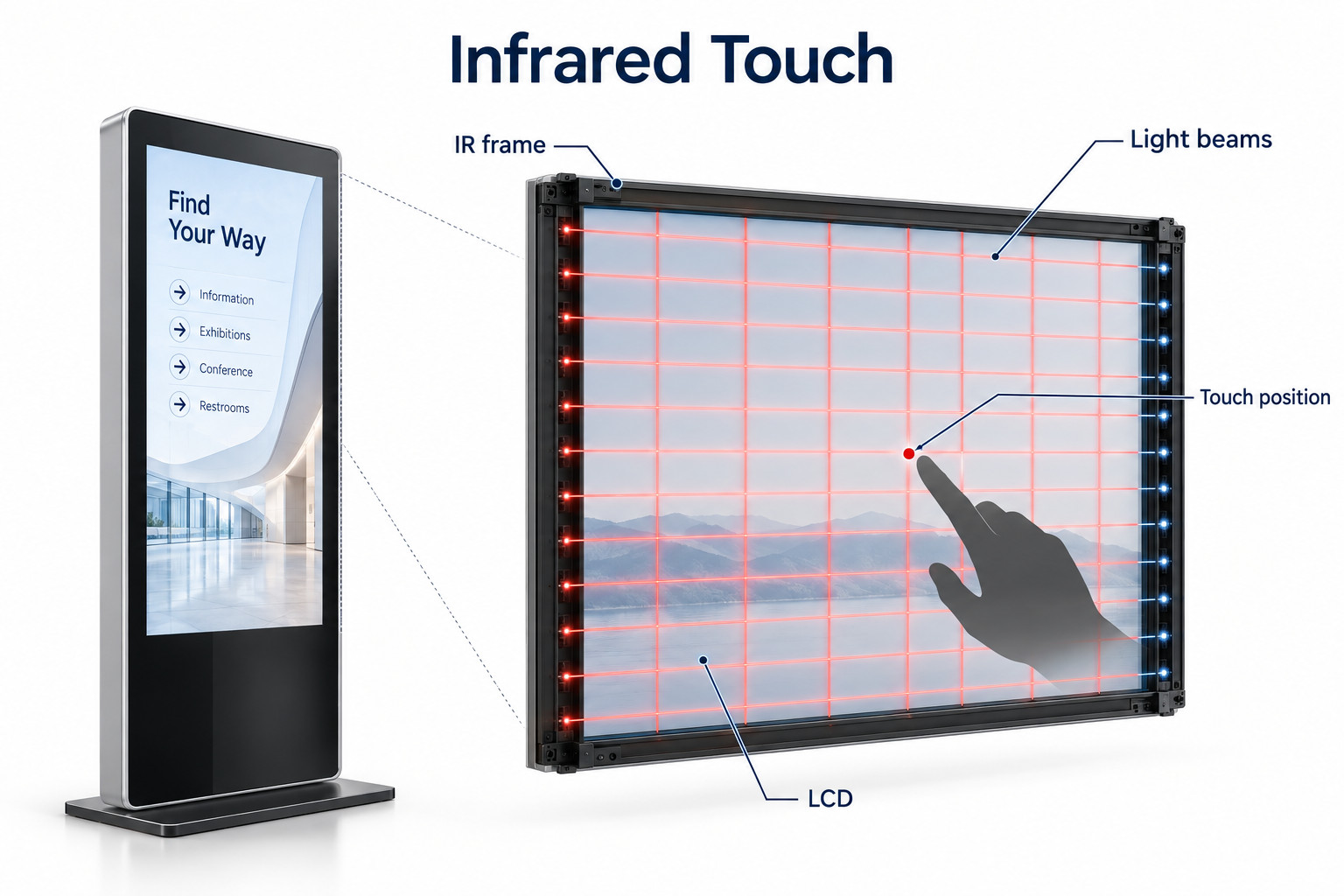
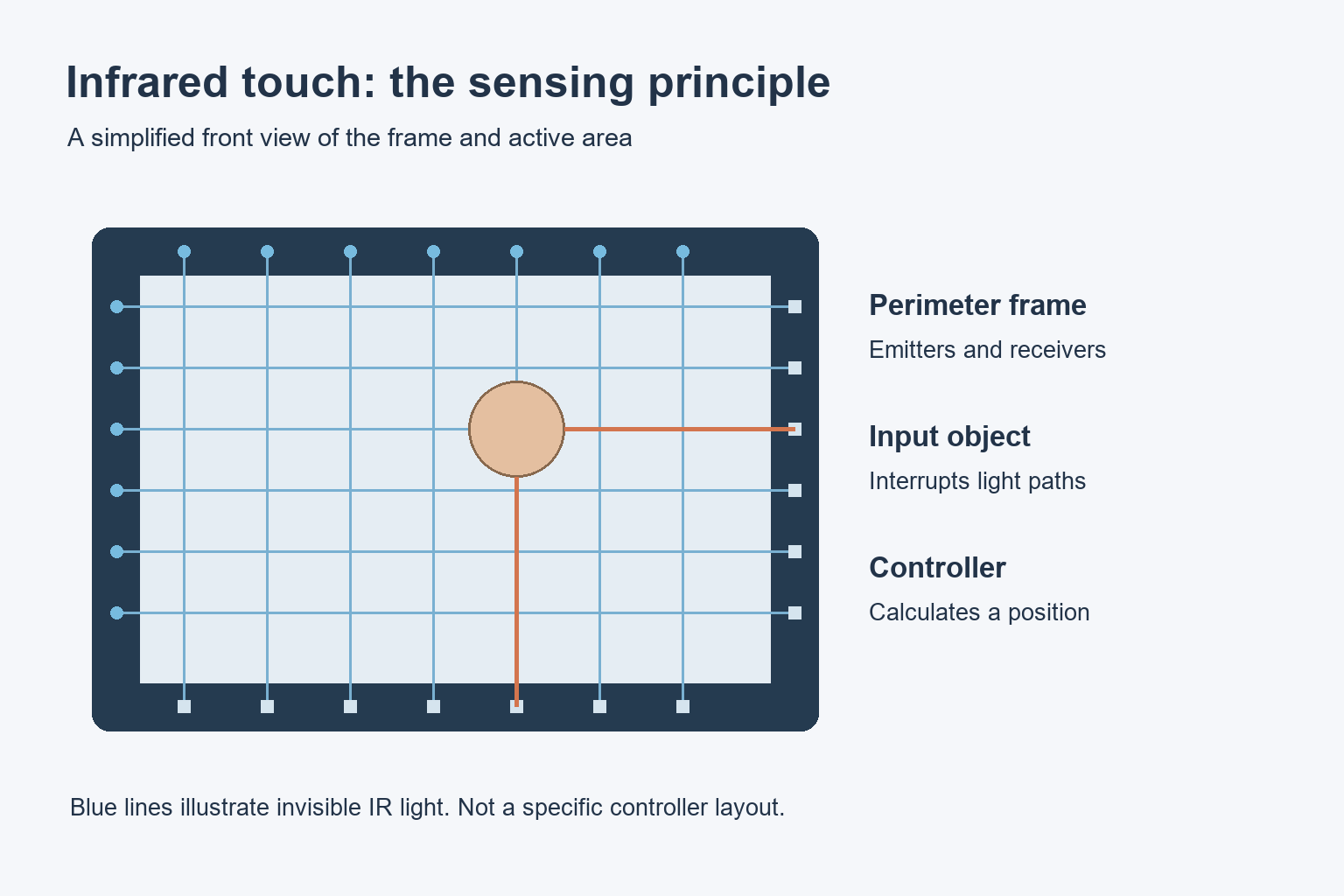
An infrared touch frame detects a position when a finger or suitable object interrupts light beams across the display surface. The emitters and receivers sit around the perimeter.
- Keep the sensing frame clear of trim, labels and mounting parts.
- Test the actual input objects, gloves, gestures and lighting conditions.
- Confirm controller, host and touch-coordinate compatibility.
- Run the final application across the whole active area before accepting the assembly.
IR can be useful for large interactive displays, but the technology name does not confirm outdoor suitability, glove support or operating-system compatibility. Those decisions need the specifications of the complete unit. This guide explains the sensing method and the checks to make before approving an interactive signage installation.
How an infrared touch screen detects a position
The Saudi public-health project supplied 150 floor-standing 55-inch displays with infrared touch and Windows to a system integrator. The hardware choice provided a large portrait touch surface, while the integrator handled the application setup for the deployment. Project example.
The frame contains emitters and receivers facing across the active area. The controller checks the beams and calculates a position from the interrupted paths. Elo’s explanation of IR touch technology describes this arrangement of LEDs and photoreceptors around the display.
The touch sensor and the LCD perform different jobs. The LCD shows the interface; the frame detects input; the controller reports that input to the host. A clear picture therefore does not prove that touch communication is working. Conversely, a responding touch controller does not establish that the displayed picture is correctly positioned.
What changes when IR is built into a kiosk?
The frame needs a clear sensing area
Check where the active sensing area sits relative to the visible picture. A decorative surround, a misplaced label or a mounting part must not obstruct the frame. Review the enclosure drawing with the supplier before production, especially when a custom front panel changes the opening around the display.
Test controls at the edges and corners, not just a large button in the middle. A customer may need to select a small language option, close a dialog or drag a map near the border. Those actions reveal problems that a centre-screen demonstration can miss.
The input connection must reach the right host
A video cable and a touch connection are separate requirements unless a documented connection carries both. Identify the touch interface, controller and host operating system. With an external player, trace the input connection all the way to that player instead of assuming that an image on screen means touch is connected.
After installation, verify mapping between the touch surface and the intended display. Test portrait rotation, multiple displays and the application’s full-screen mode. If the pointer moves on a different screen or along the wrong axis, investigate the mapping before treating it as a damaged sensor.
IR, projected capacitive and resistive touch
These technologies use different sensing methods. Choose between them using the actual interaction and enclosure requirements. A table can narrow the questions, but it cannot replace a sample of the final hardware and application.
| Technology | Sensing principle | Useful purchasing check |
|---|---|---|
| Infrared | Objects interrupt light paths across the surface | Frame clearance, input object and installation lighting |
| Projected capacitive | A sensor detects changes in an electric field | Cover-glass construction and the required glove or stylus |
| Resistive | Pressure brings conductive layers into contact | Activation feel, surface construction and interaction requirements |
For a closer comparison of the latter two methods, see our capacitive versus resistive kiosk guide. Avoid choosing solely from labels such as “industrial” or “multi-touch.” Define the gestures that the customer will actually use, then test them in the intended software.
Check the objects and conditions that users bring
Gloves and styluses
IR sensing does not depend on electrical contact with a bare finger. Elo identifies IR among its options for thick-glove use. That is a reason to evaluate IR, not a guarantee that every glove or narrow stylus will work with every frame.
Bring the exact gloves and input tools to the sample test. Check taps, sustained presses, scrolling and small targets. Ask about minimum detectable object size and any setting that changes glove or gesture behaviour. Record which configuration passed so that production units can be checked against it.
Lighting, dirt and cleaning
Ask the supplier for the controller’s ambient-light limits and the complete unit’s environmental rating. Then test the intended location, including times when sunlight reaches the screen or frame. An outdoor-rated enclosure and a bright LCD do not, on their own, establish how the touch sensor will behave there.
Include the perimeter in the cleaning plan. Inspect for objects or residue near the sensing area and follow the manufacturer’s cleaning instructions. Do not select a cleaning chemical from the glass specification alone; the bezel, seals and coatings may require different care.
A practical sample acceptance check
Use the final application wherever possible. A generic drawing tool can show whether coordinates are reported, but it does not show whether customers can complete the intended transaction. Keep the test repeatable: use the same content, mounting position, host and input tools for each candidate.
- Record the frame, controller, host and software versions.
- Check a grid of touch positions across the whole active area.
- Test the smallest important buttons and controls near every edge.
- Run the required gestures with each supported glove or stylus.
- Check display rotation and touch mapping after a restart.
- Repeat key tasks under the expected installation lighting.
- Inspect the final surround, cable routing and maintenance access.
For a missed touch, record the position and conditions. For an unwanted touch, note whether it happens before anyone approaches, during cleaning or only inside one application. These observations help separate an obstruction, mapping issue, software behaviour and hardware fault without changing several settings at once.
Questions to settle before ordering
Can an IR frame turn any display into a touchscreen?
Not automatically. The frame must fit the active area and enclosure, communicate with the host and suit the environment. Confirm the complete assembly, including mounting and input mapping, before treating it as a working kiosk.
What should an inquiry include?
Provide the screen size, orientation, location, host system and required gestures. Include glove use and a drawing of any custom enclosure. Explore our Interactive Kiosk, then ask YJCEN to confirm the proposed touch configuration. Do not assume that one sensing method applies to every product version.
Share your screen size, installation environment and quantity for a display quotation.